AI dispositive provisions
Last updated: October 20, 2026
Reviewing AI suggestions - dispositions
Entities created from Smartreview will include suggestions for dispositions on active or testamentary entities.
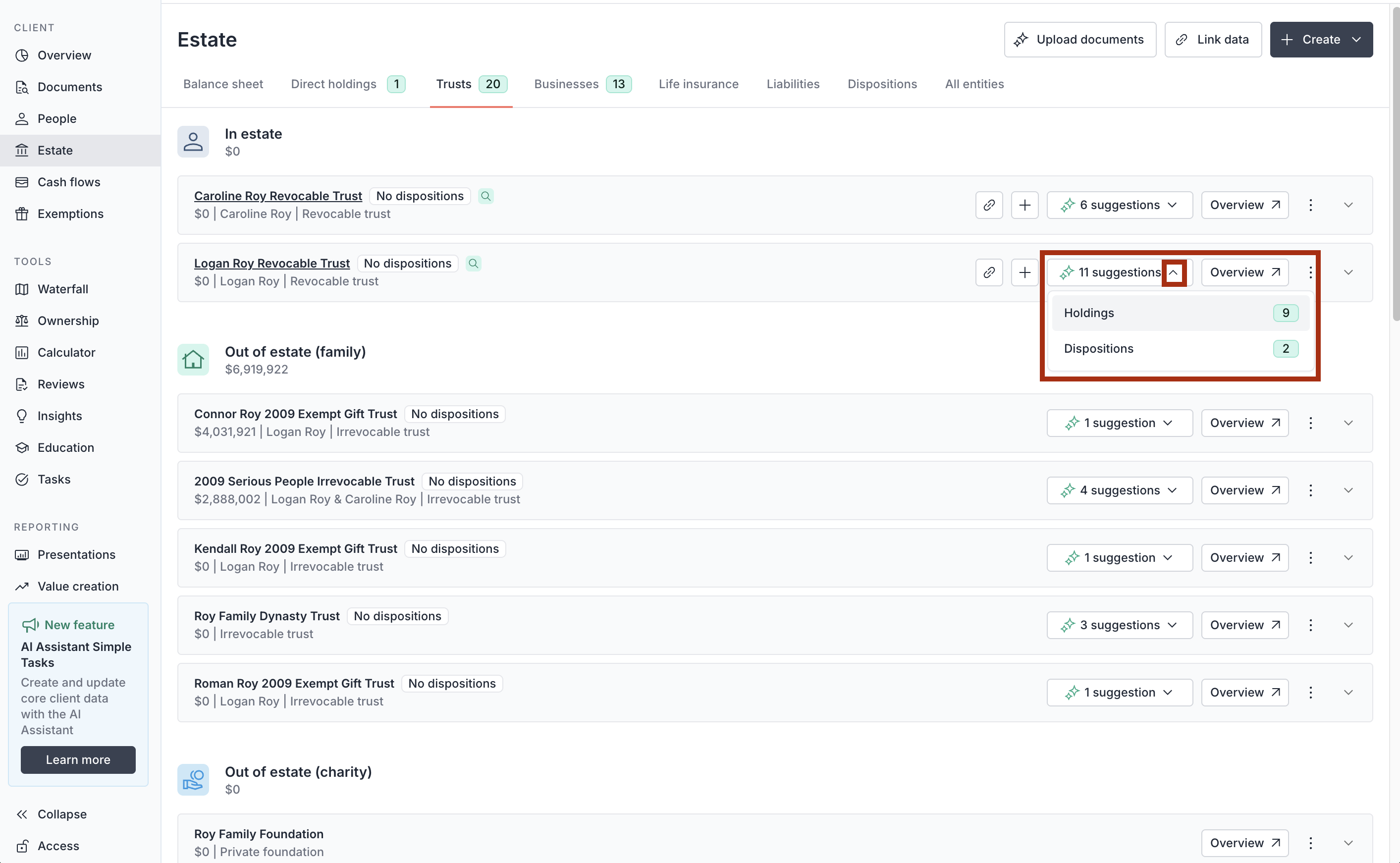
Start by reviewing the available AI suggestions in the suggestions dropdown to the right of any entity on the Trusts or Businesses tabs.
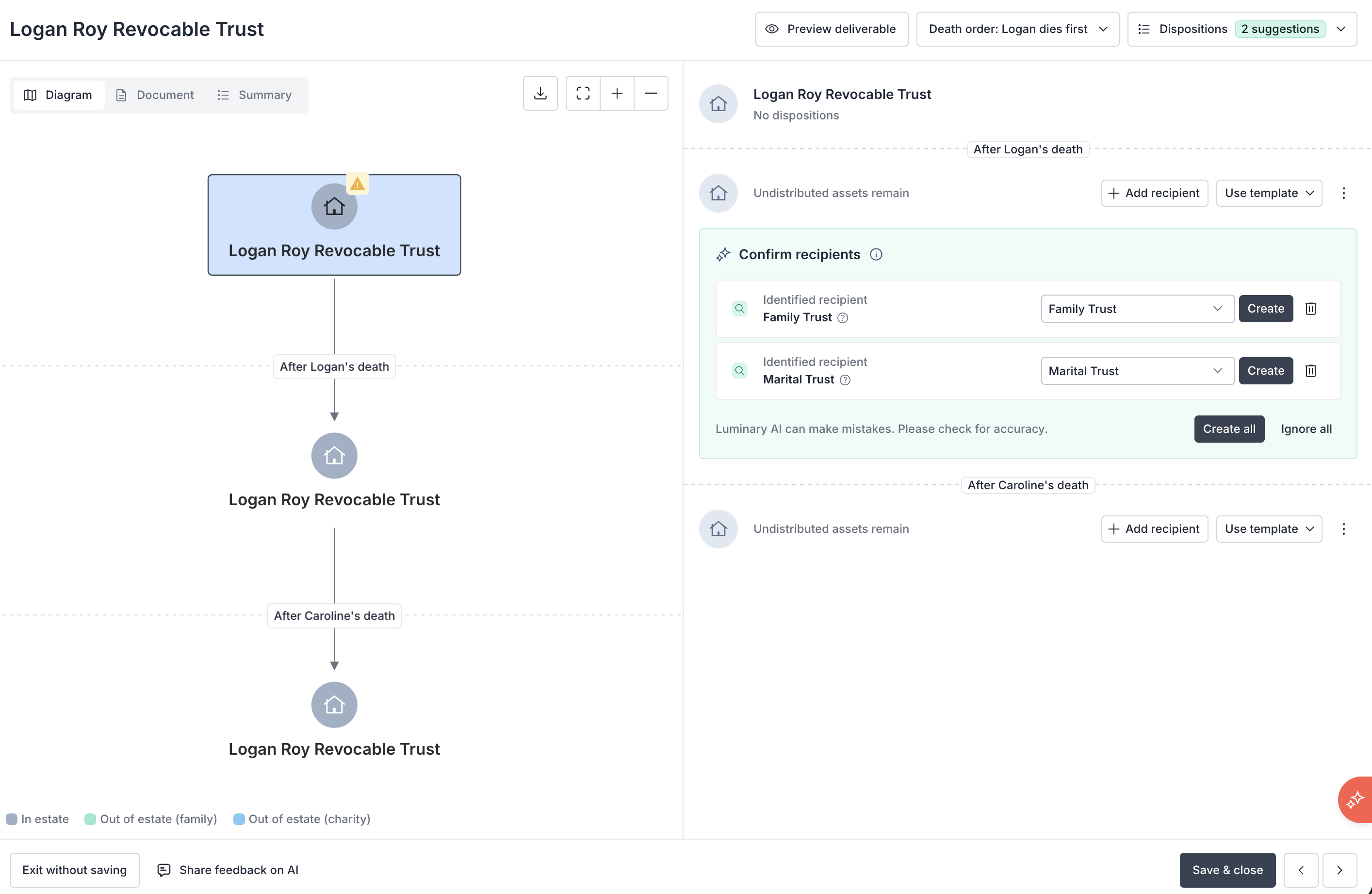
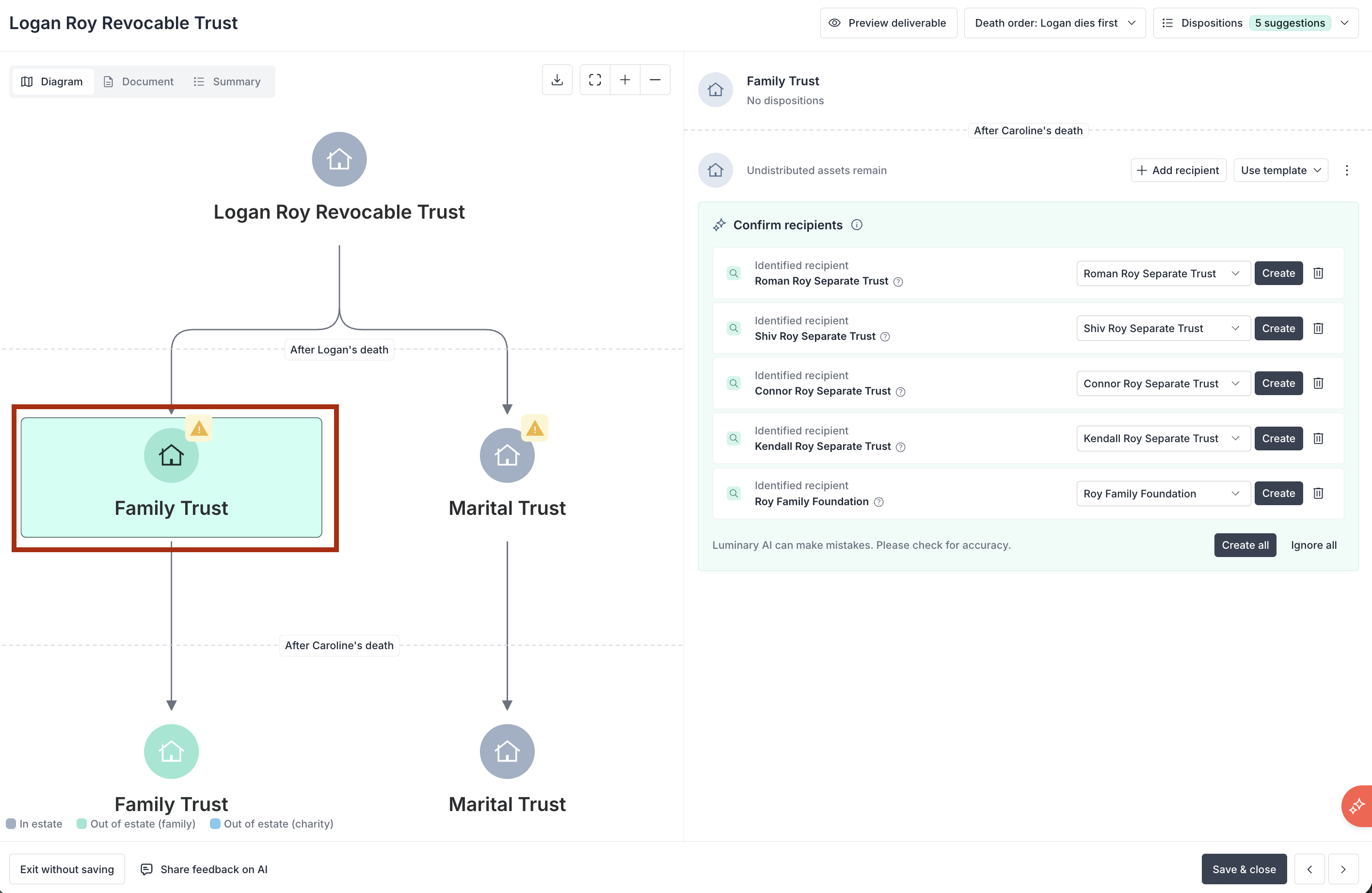
Click the disposition suggestions to enter into the Edit Dispositions screen. A diagram of the current dispositions appears on the left side of the screen, and suggested recipients appear on the right. For two person households, there will be one death line per individual.
Review and confirm the recipients shown on the right.
Click the magnifying glass or hover over the information icon to review evidence for each suggestion from the documents associated to the entity. Click Confirm all after mapping all the suggestions to accept all in bulk.
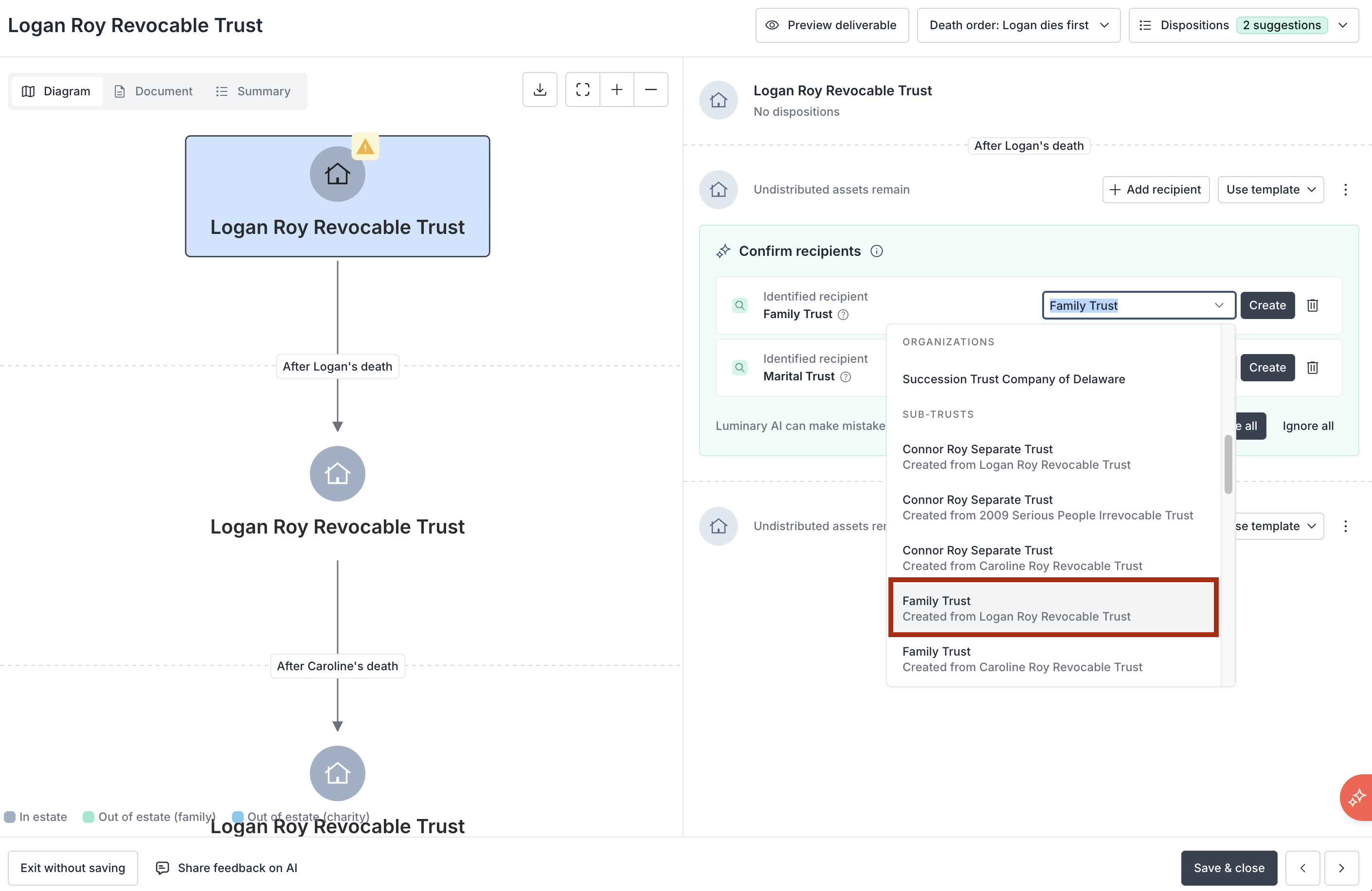
If Luminary AI does not identify a recipient from the list of auto-created people or entities, use the Select recipient drop down to map the suggestion to an existing entity, sub-trust, individual, or organization. If none already exist, create a new one before clicking Create.
After selecting Create or Create all, the diagram will update and data will populate into resulting recipient cards. Review recipient cards for accuracy using the green magnifying glass, or clicking to the document summary in the top left corner of the screen.
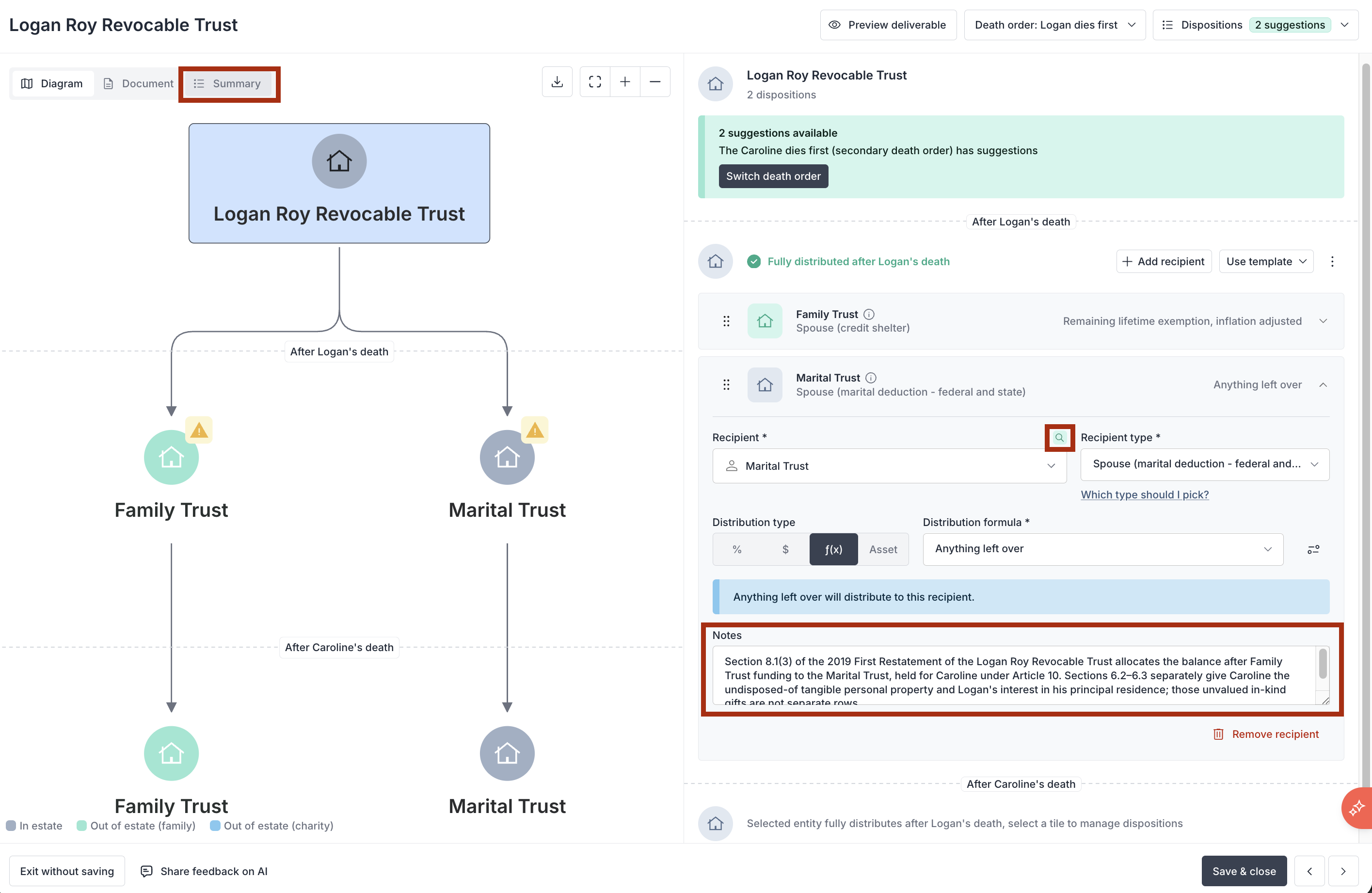
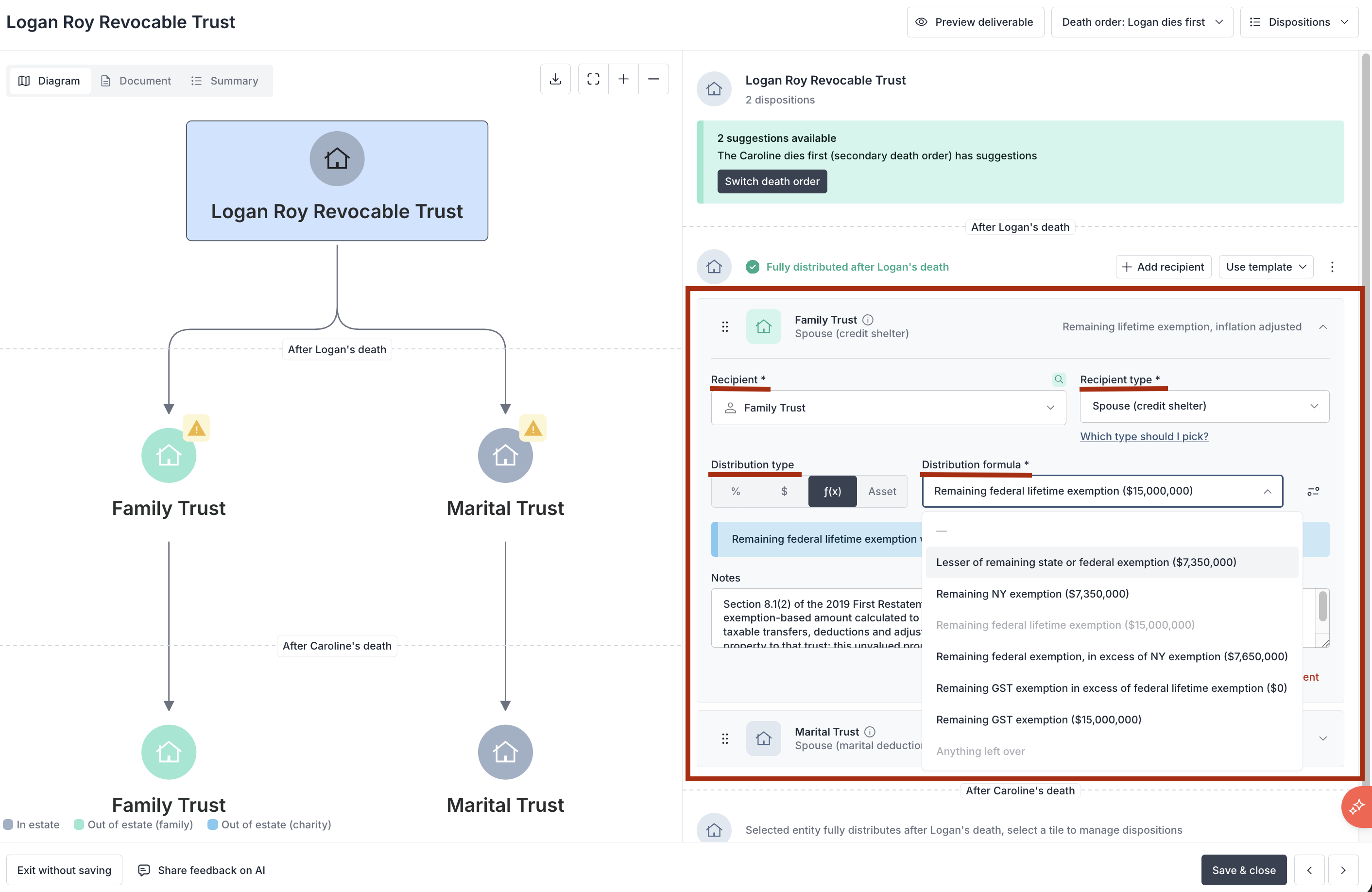
All dispositions can be edited once created. Click into a recipient card to change the recipient, recipient type for tax treatment, distribution type or amount, and add notes if desired.
If the entity distributes at first death to sub-trusts, select the sub-trust from the diagram to then review another layer of suggested dispositions.
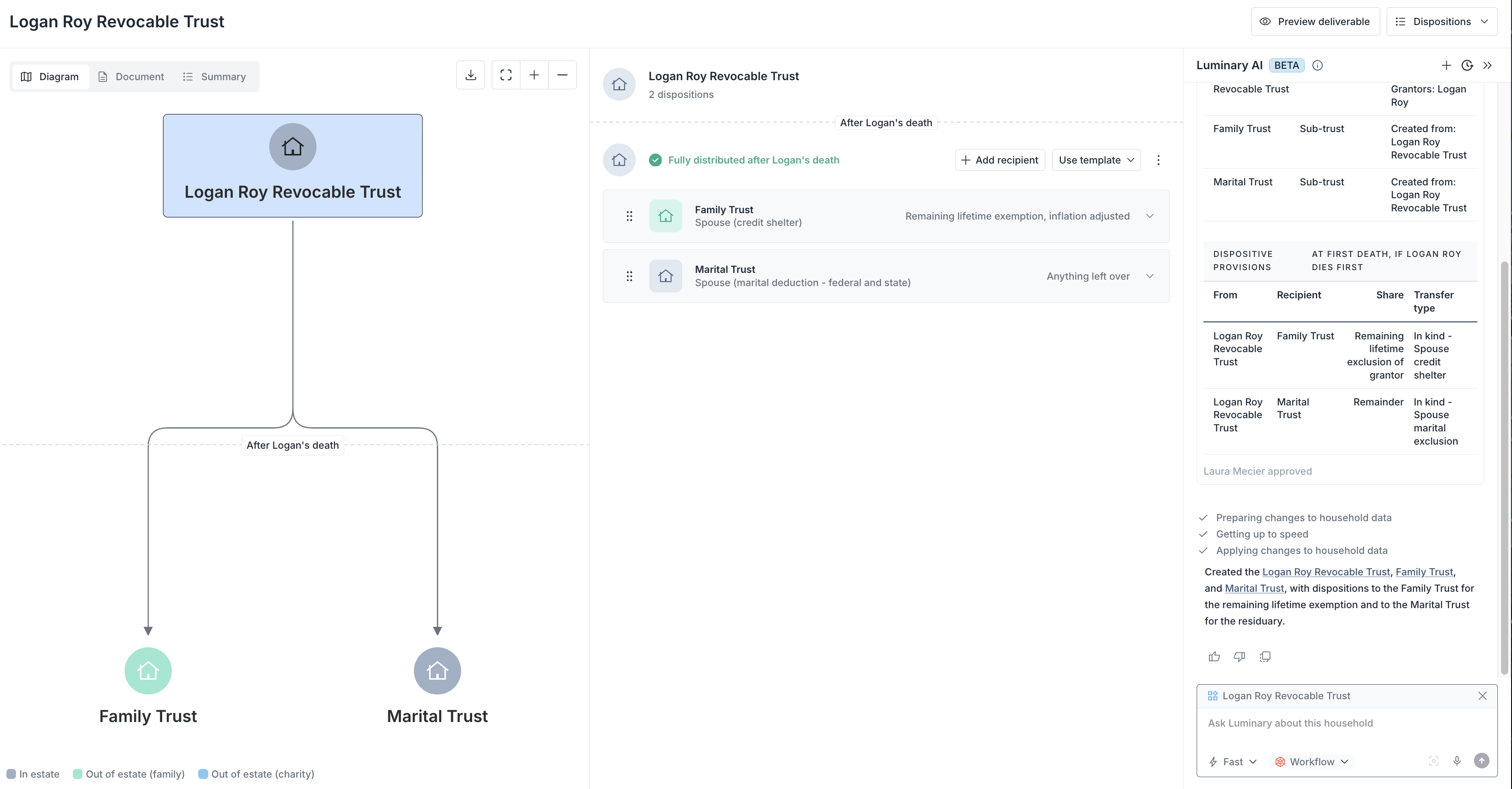
Add dispositions with the AI assistant
Ask the Luminary AI assistant to perform basic tasks like editing dispositions on your behalf.
Open the AI assistant by clicking "Ask Luminary AI" in any main Luminary page, or clicking the coral AI sparkles from the edit dispositions page.
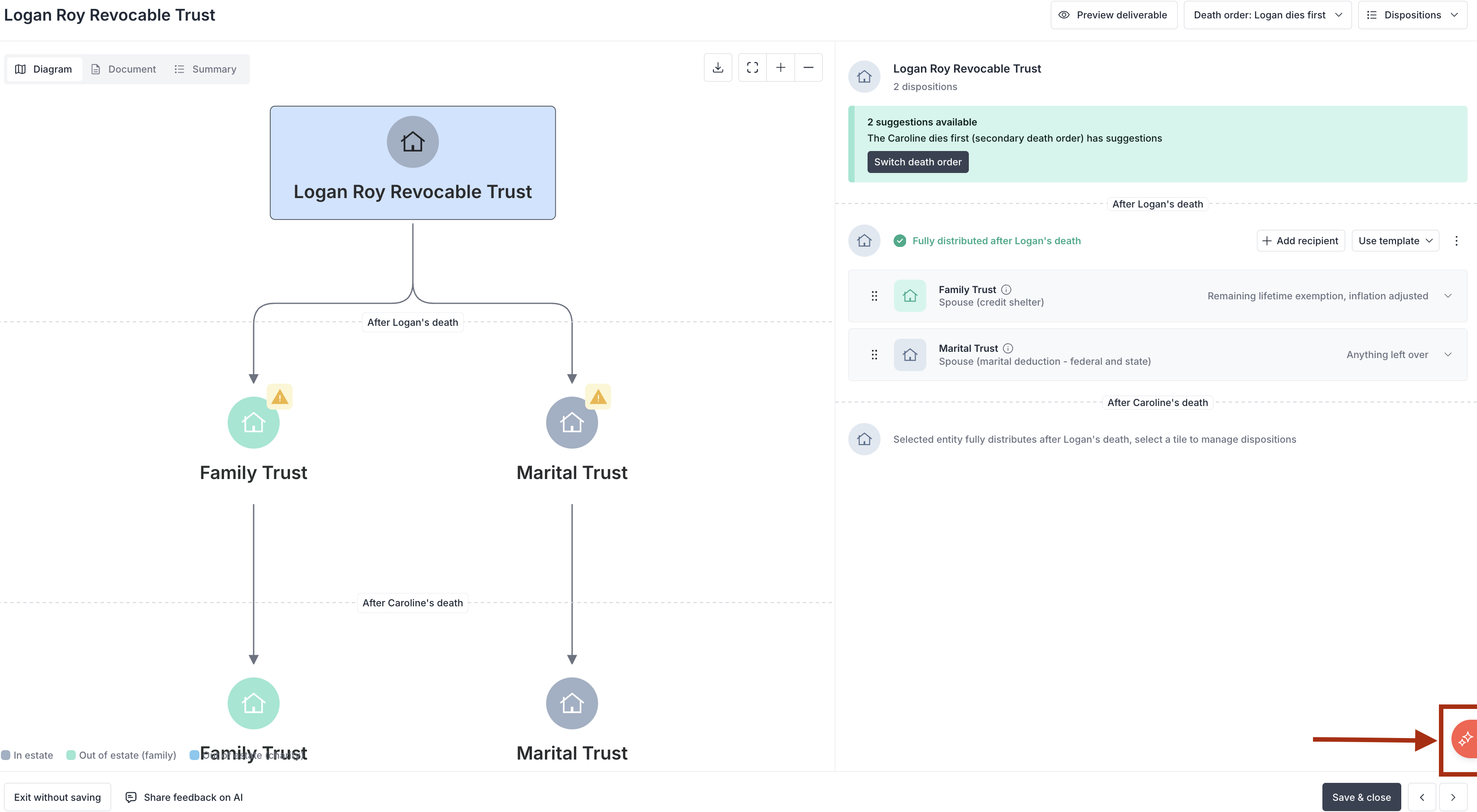
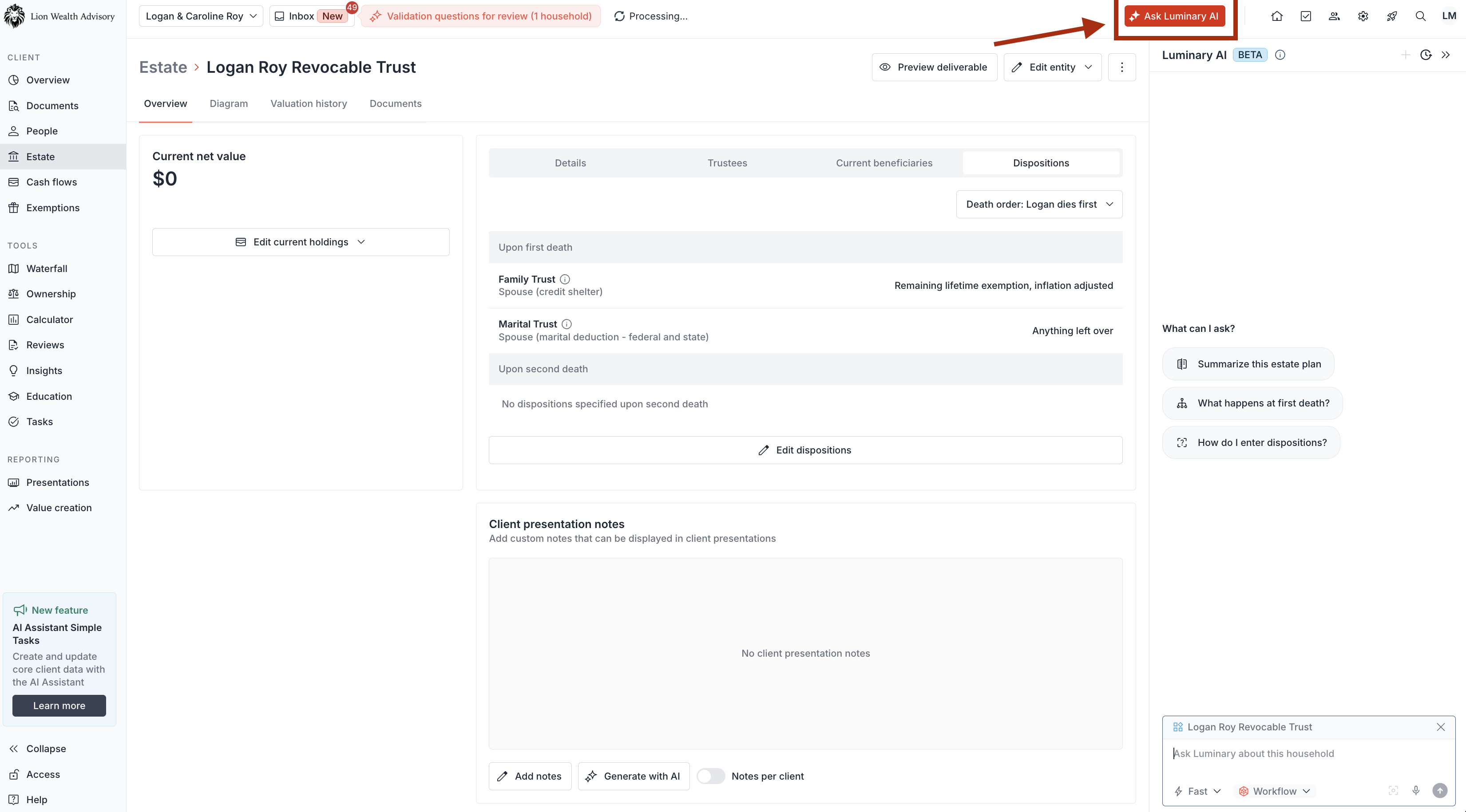
After opening the AI assistant, prompt the assistant with tasks like "add a disposition from the revocable trust. Create a family trust to receive remaining lifetime exemption, and a marital trust receiving the residuary.
The AI assistant will ask you to confirm any changes you request. After confirming, review the data accepted in the Estate tab or Waterfall diagram.