Configure Balance Sheet
Last updated: November 19, 2026
Introduction
The balance sheet in Luminary offers robust flexibility across the categories for asset categories to map to along with the sections (in estate and estate) and columns (directly held owners and trusts) that can be shown separated.
Configure View
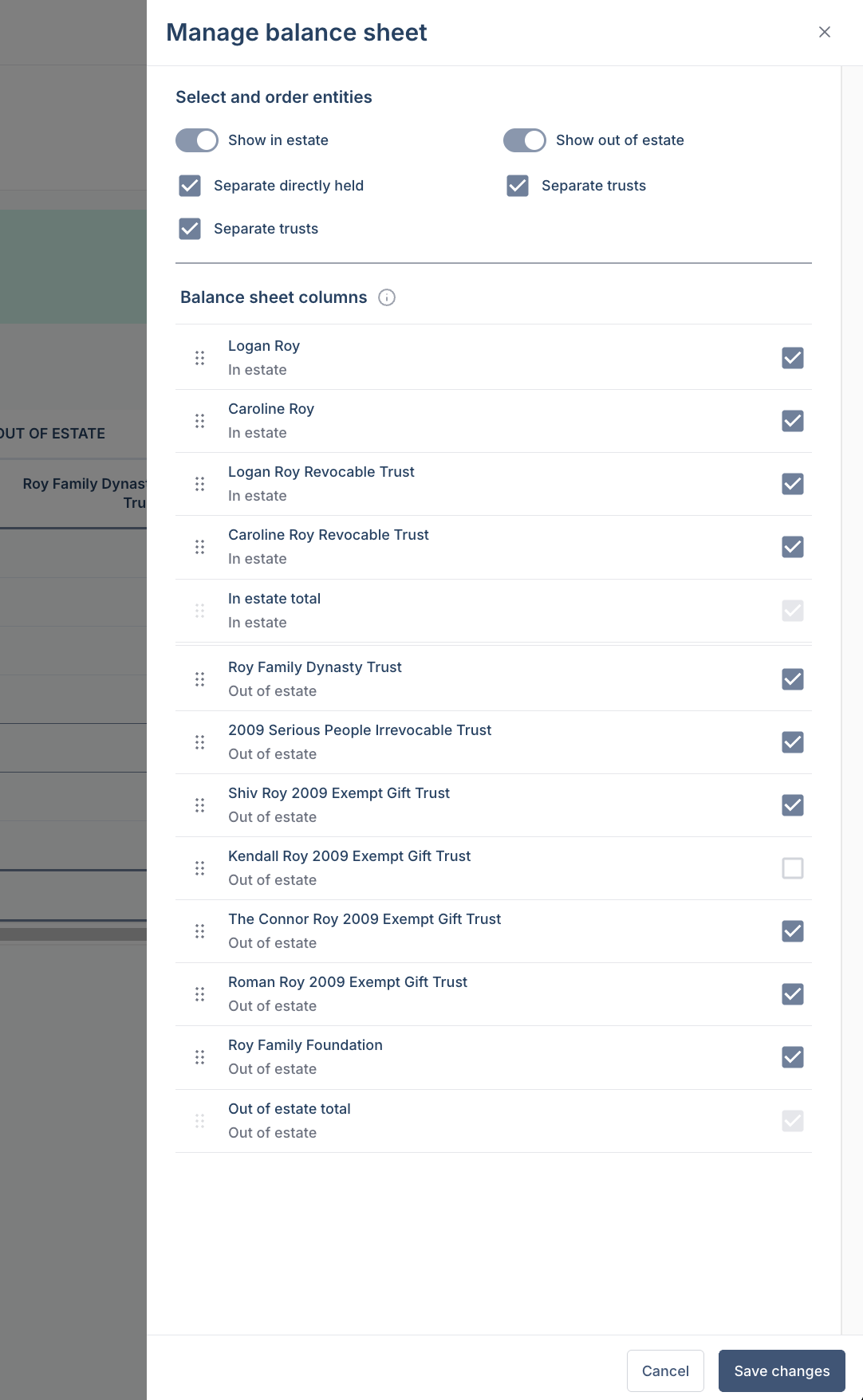
Open your client’s Balance sheet, then click Configure view in the upper-right corner of the balance sheet, next to Export. The balance sheet view can be configured to show as much or as little detail as desired.
If no toggles are on, then the balance sheet will show everything combined into one column.
The options to “show in estate” and “show out of estate” will create a section for each.
For the in estate section only, Separate directly held splits directly held assets into individual-owner columns and a Joint column for jointly held assets. To display jointly held assets separately, turn on Show in estate and Separate directly held in Configure view. Show in estate creates the section; it does not, by itself, add a separate Joint column.
For both in estate and out of estate, “separate trusts” will break out the trusts and charitable entities into individual columns and also create an out of estate other column as a catch all for various cases (529, UGMA/UTMA, personal accounts held by non-primary clients).
Reorder columns in the balance sheet by dragging and dropping entities into your preferred order.
Why a column or holding group may not appear
Columns appear once the corresponding owner or entity is funded (has holdings), with the relevant view settings enabled.
For example, the Joint column appears once there are jointly held assets and Separate directly held is enabled in the in-estate section.
Empty holding groups do not appear on the balance sheet. Creating a holding group alone will not make it visible; add holdings to it first.