Add holdings to trusts, businesses, and holding groups
Last updated: June 1, 2026
Introduction
Trusts, businesses, and holding groups can each hold assets, liabilities, and insurance. Luminary offers many different ways to both add holdings manually and pull them in directly from a 3rd party.
Holding groups
Think of holding groups as another type of ownership bucket. If a client has five retirement accounts, you don’t want five separate tiles on the waterfall. Instead, we've pre-created one retirement holding group that allows you to list each account within it. This saves time when entering dispositions as well. The same approach applies across all jointly or individually held holdings.
While there are cases where separating an asset makes sense—such as unique dispositions or client interest—consolidating assets into fewer tiles generally makes the build-out easier and the waterfall simpler.
Add holdings via Luminary AI
Learn more about how to build a balance sheet via Luminary AI
Add holdings manually
Assets can be added to trusts, businesses, and holding groups by:
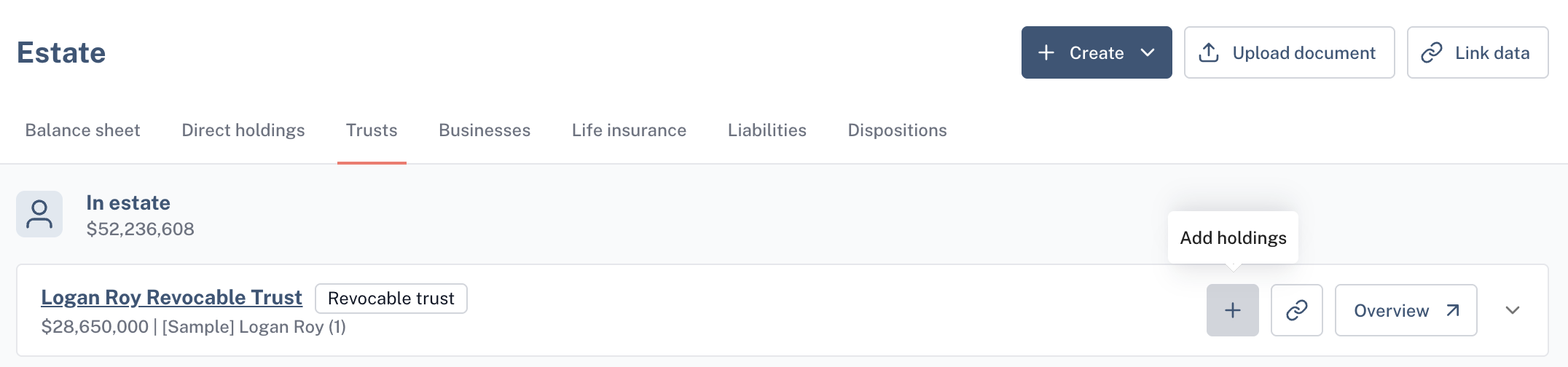
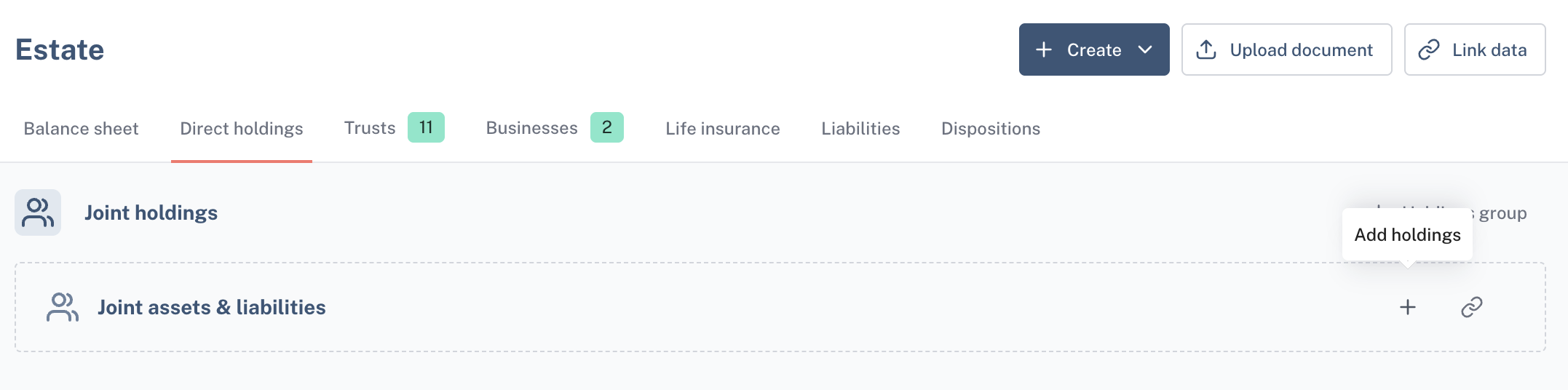
Clicking on the + icon for a direct holding group, trust, or business directly from any of the cards shown across the tabs in the Estate section.
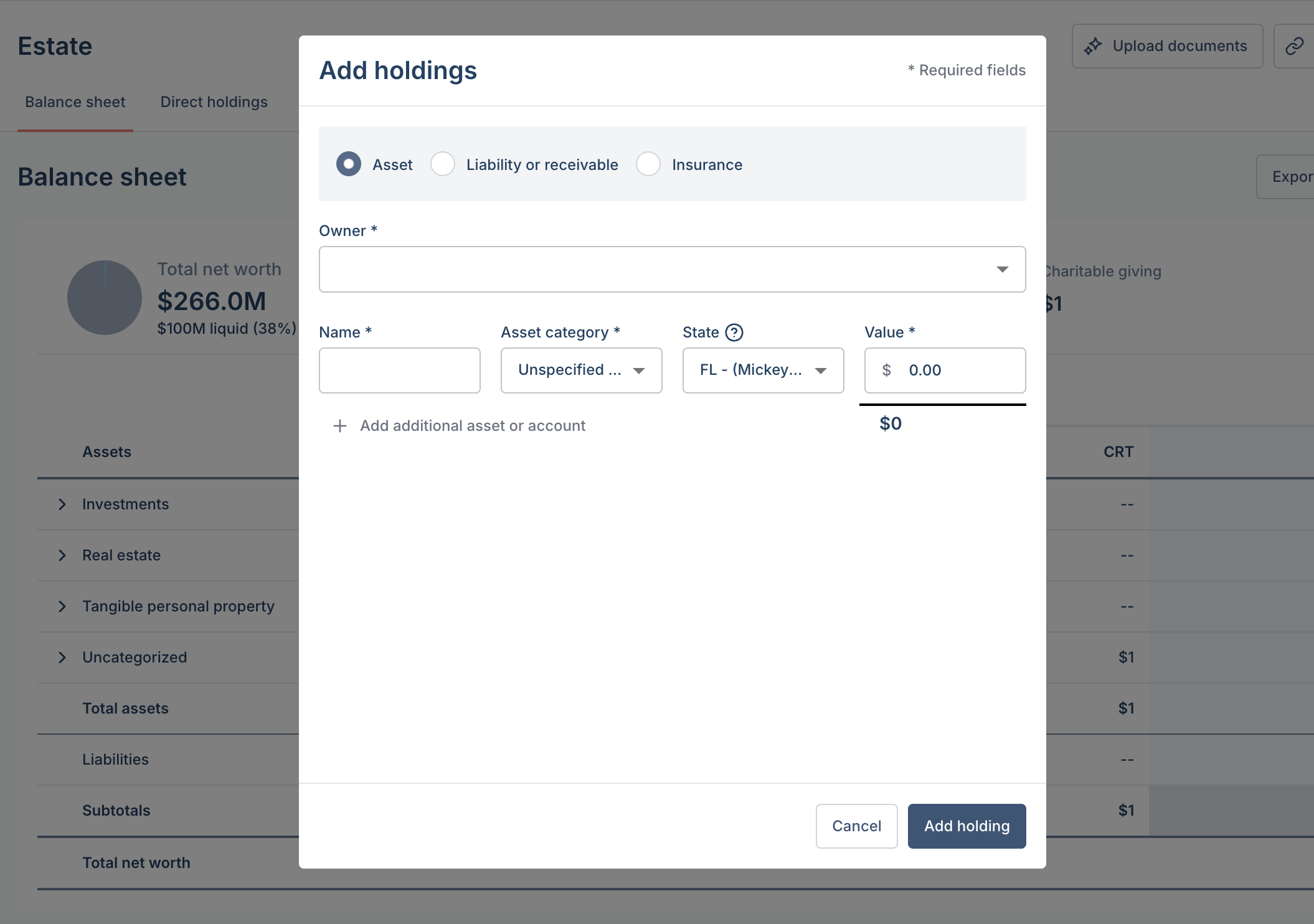
Clicking "Add holdings" from the Create menu of the Estate page. From here, you'll select the type of holding, the owner, and the asset details (name, category, state, and value).
The state location of the asset indicates the physical location of the asset for state estate tax purposes. By default, assets are assumed to be in the resident state of the owner. Any real or tangible personal property that is located in a non-resident state may be subject to that state's non-resident estate tax.
Opening a given entity's entity overview and clicking on the “Edit current holdings” dropdown which surfaces the option to “Update current holdings"
The level of detail depends on the conversation you want to have with your client. If high-level values are sufficient, you can enter overall net worth as a single asset (e.g., "Investments - Blended"). If you're aiming for a more detailed view of an entity's holdings, you can list as many individual assets as needed.
Luminary pre-creates a set of holding groups (learn more here) for direct holdings. These are not officially active and viewable across the platform until at least one holding is added.
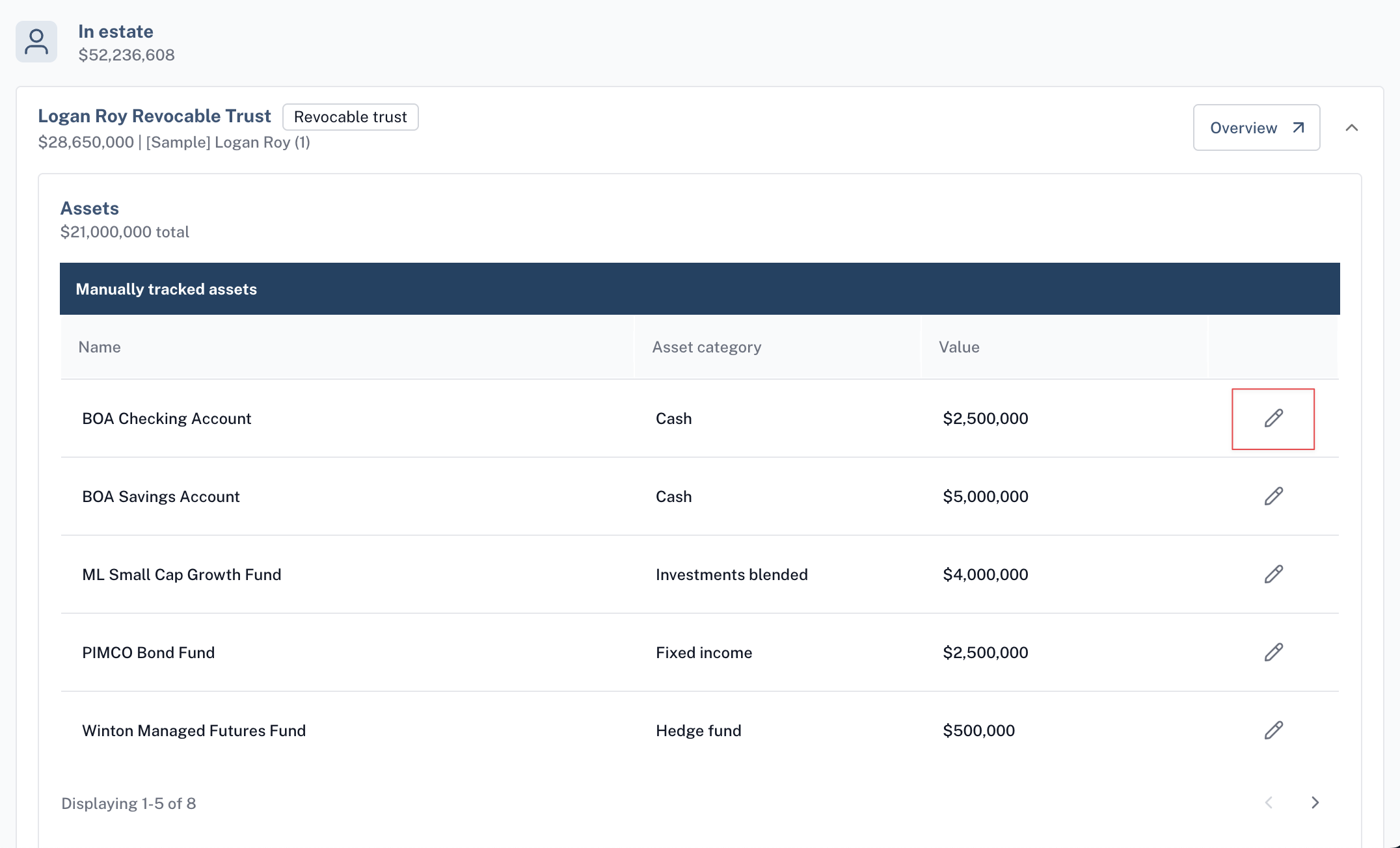
To view and edit holdings already entered, you have the option to expand the trust, business, or holding group card and view everything it owns. Click on the ✏ icon for each holding to edit directly without leaving the Estate page.
The valuation date at the bottom right will be recorded for all the assets structured. When entering via options 1 and 2 listed above, today's date is used by default.
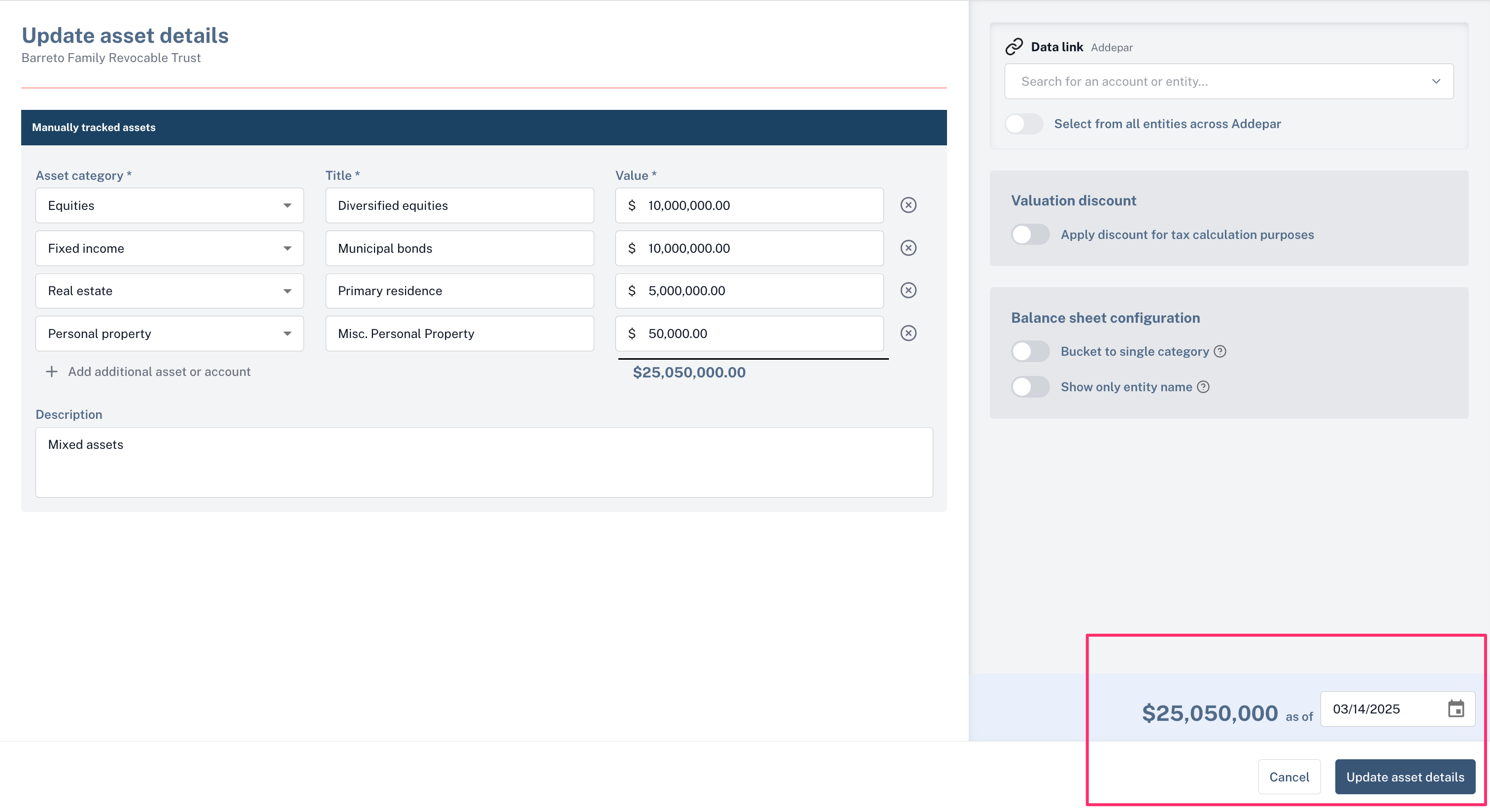
When new assets are added, the default state is to set the asset category as “Unspecified (Liquid)” . This can be edited from the Update holdings screen at any time.

Learn more about asset categories and category management here:
Add holdings from a 3rd party integration
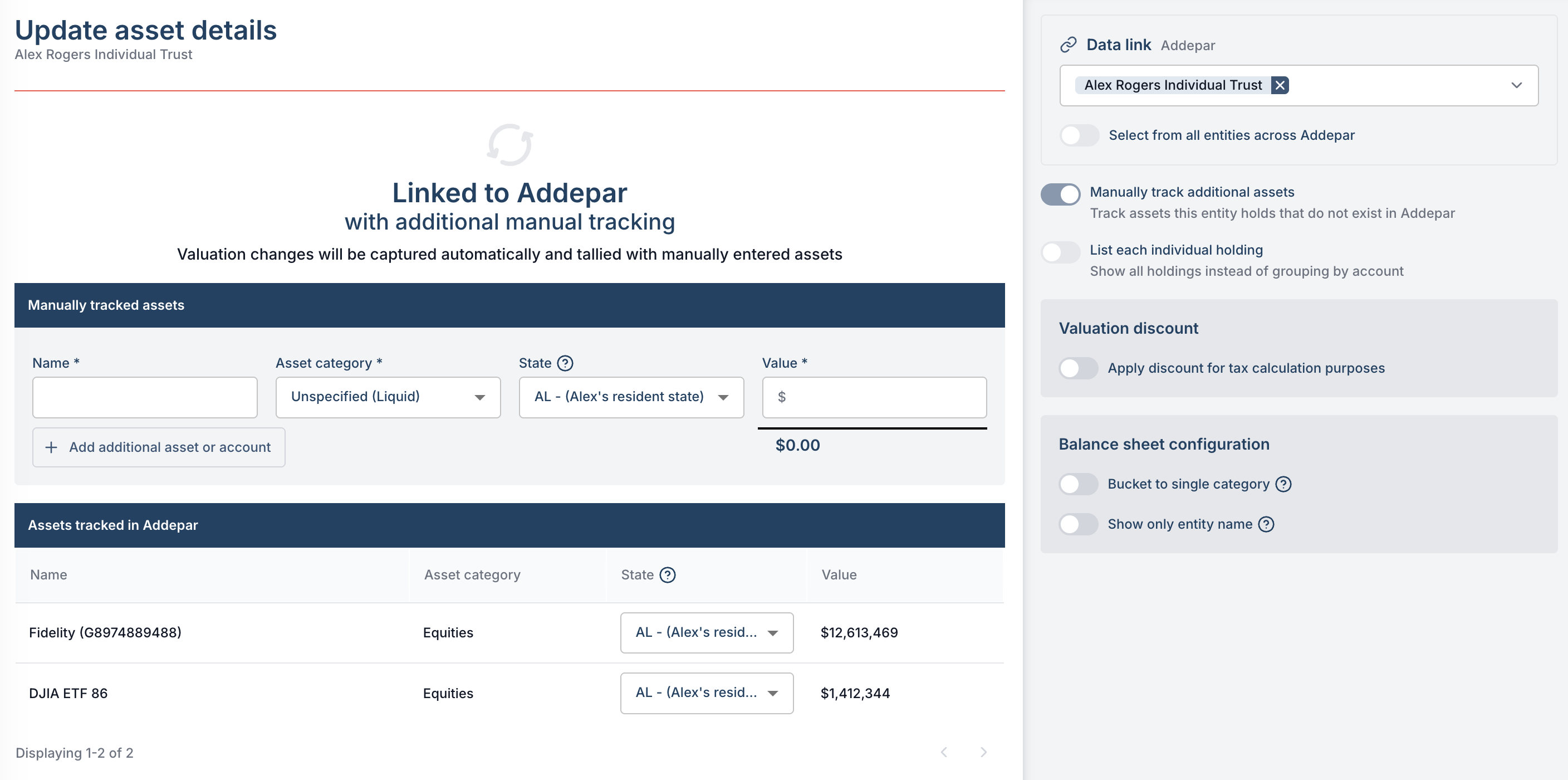
Holdings are automatically structured when linked to a portfolio reporting provider.
Once linked, accounts are structured within the owning trust, business, and holding group and split up by asset category. A single account might be repeated if it holds many different asset categories.
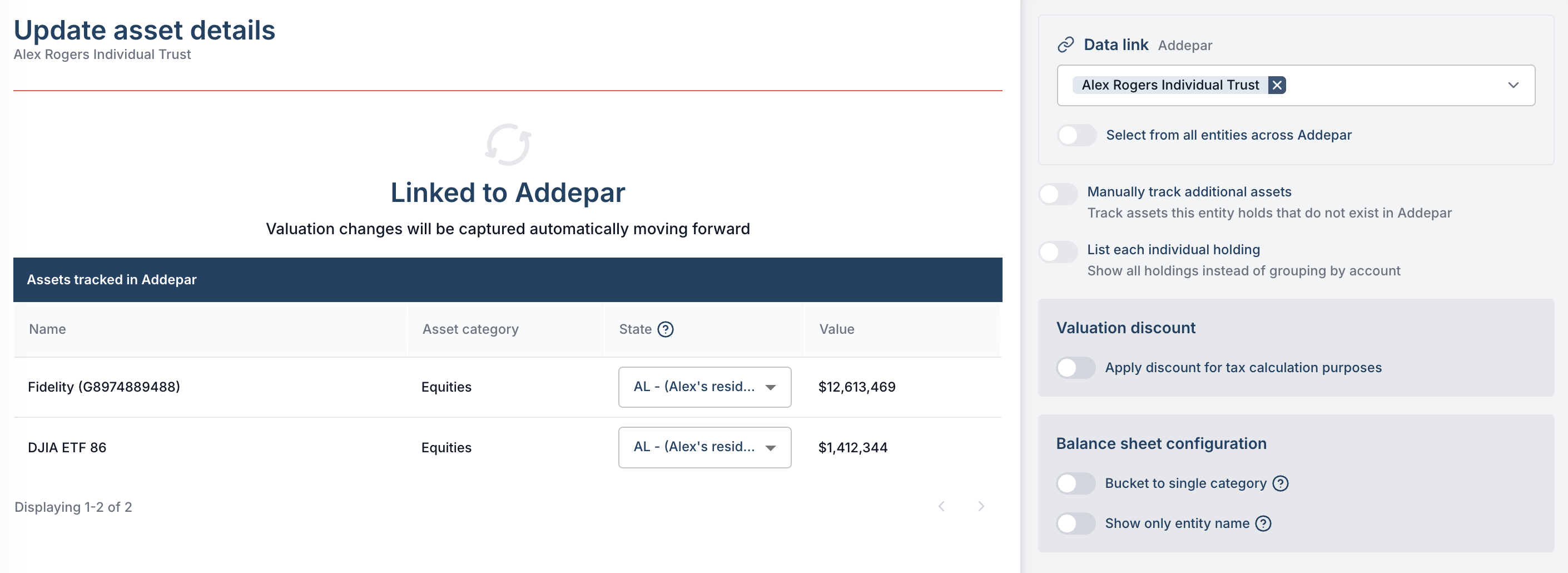
If more a structured account has a dominant asset class category (90%) then it is not broken down any further beyond that and all assets are set to that dominant asset category.
If some holdings are not captured by the assets in the portfolio reporting tool, you can simply use the "Add holding" modal from the Create dropdown or you can toggle on "Manually track additional assets" add additional assets to the entity from the update holdings page (option 3 above).