Troubleshooting integrations
Last updated: January 22, 2026
Relink Integration User
At times, there may be issues that cause your integration connection to be disconnected. Relinking your firm’s integration user will typically fix any disconnection errors that occurred.
This must be done by a Luminary Admin. Please reach out to your Luminary admin or support@withluminary.com if you need help.
Log into Luminary
Click the gear icon (Settings) from the top right corner and select the “Integrations” tab
Your Luminary user must have “administrator” permissions to access this.
Click “Disconnect integration user” which will enable you to relink after
Click “Connect integration user” which will redirect you to the Addepar sign in
Sign into Addepar with your firm’s Luminary integration user
Addepar User Permissions for Integration
If the integration has been set up successfully at the firm level, but an individual user receives the following message after trying to link:
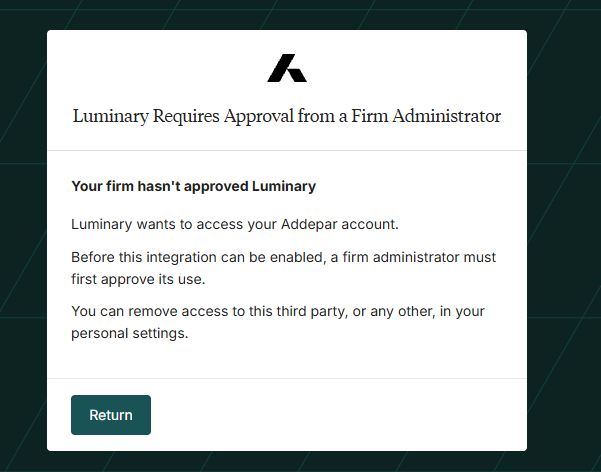
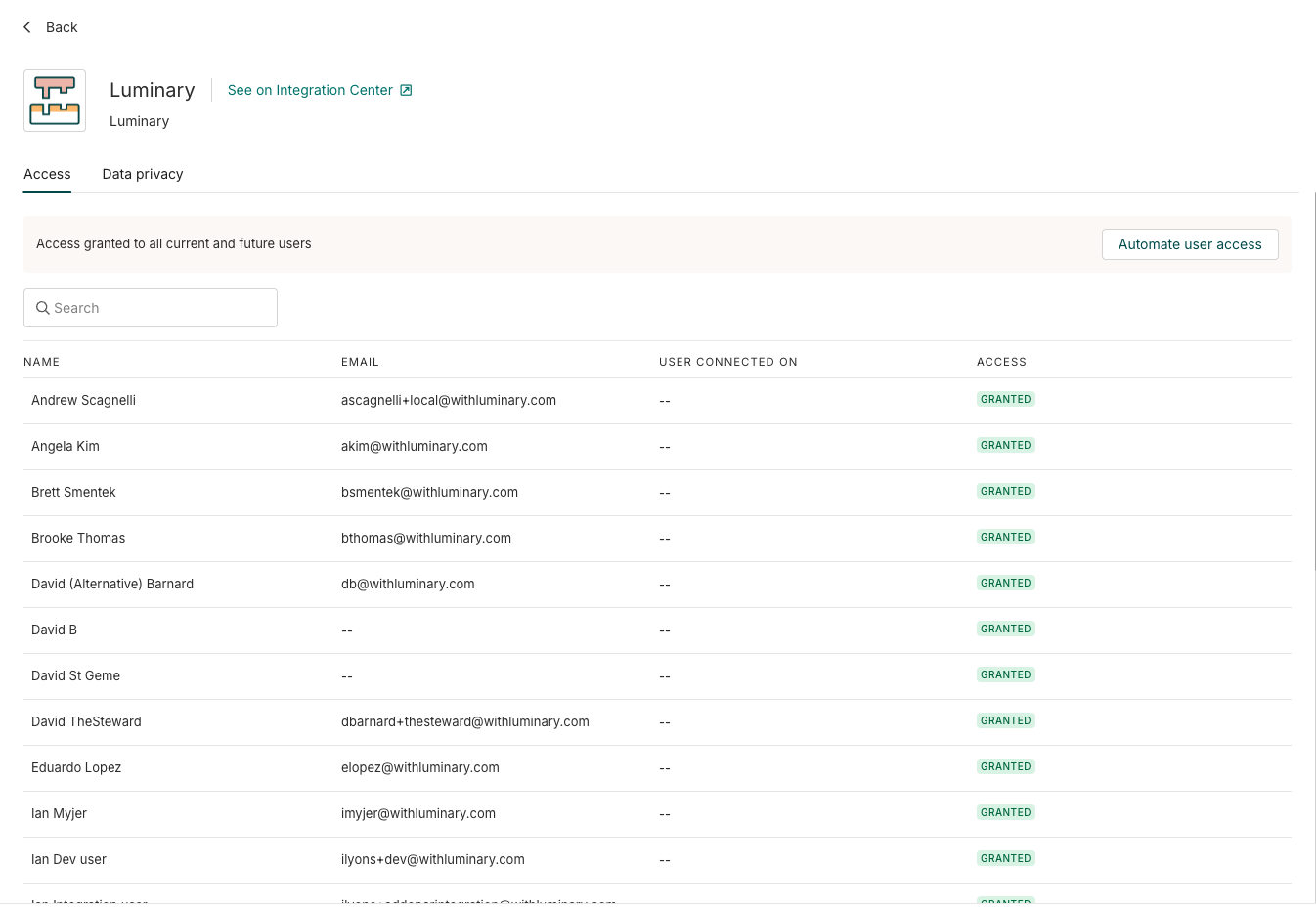
The solution is to grant access to this individual user via the Addepar integration access settings. In Addepar, go to Firm Administration -> Integrations -> Luminary. Here you will see the Access tab below. You also have the option to automate user access so it's automatically granted to all users who try to link to Luminary.