Charitable trusts (CRT, CLT) - Calculator
Last updated: May 20, 2026
Model the impact of funding a charitable trust using Luminary’s CRT and CLT designers. These designers allow you to show the benefit of funding various type of charitable trusts.
Our models calculate key factors including:
Projected payouts
Charitable deductions from funding
Projected income tax savings
Projected estate tax savings
Our client-ready proposals detail the outcomes in simple, easy to understand charts. Watch the tutorial videos or follow the steps below to create a CRT or CLT strategy in the calculator.
Please note: Modeling a calculator strategy will not add the CRT or CLT to your client's estate plan. To add an existing CRT or CLT to your client's estate, navigate to the Estate tab, click Create in the top right, then select Create trust.
For further information, click here.
To model the potential impact of a CRT or CLT as a hypothetical strategy in their estate waterfall, click here.
Charitable remainder trusts
Charitable lead trusts
Modeling a CRT or CLT in the Calculator
Follow the steps outlined below to set up a charitable remainder or charitable lead trust:
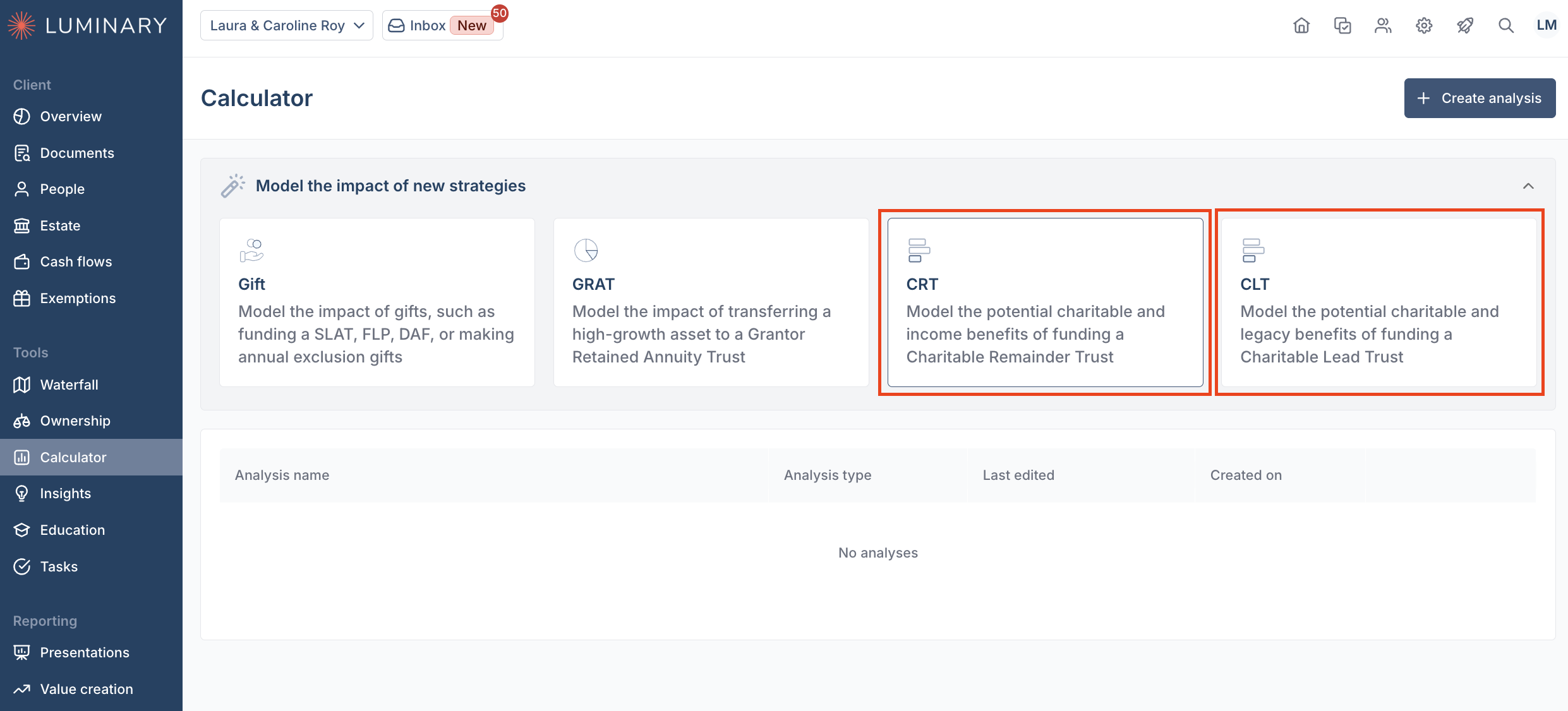
From the Calculator tab, select the charitable strategy you want to model
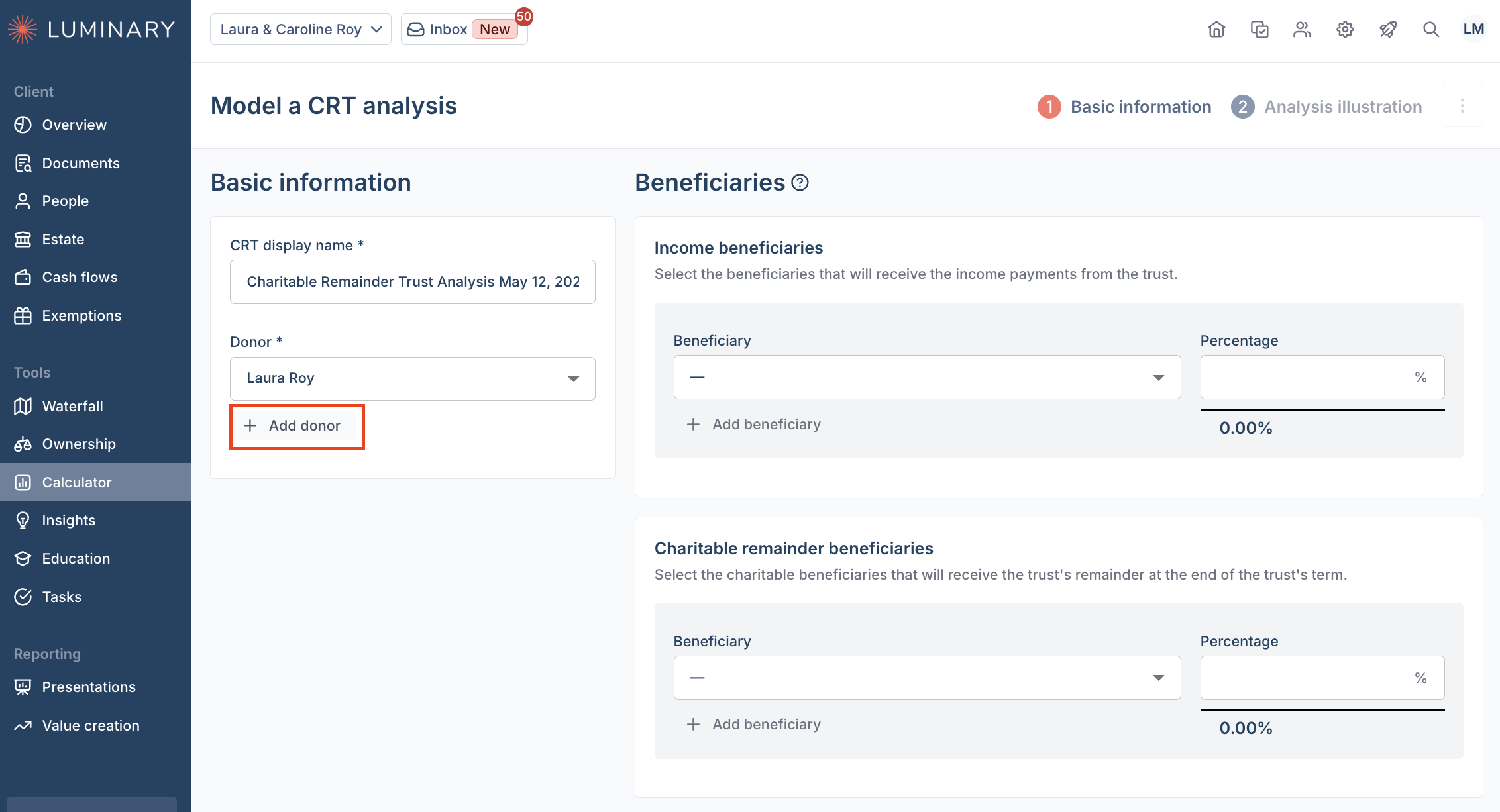
Update the display name, and select the donor(s) from the dropdown menu.
To select multiple donors, click Add donor
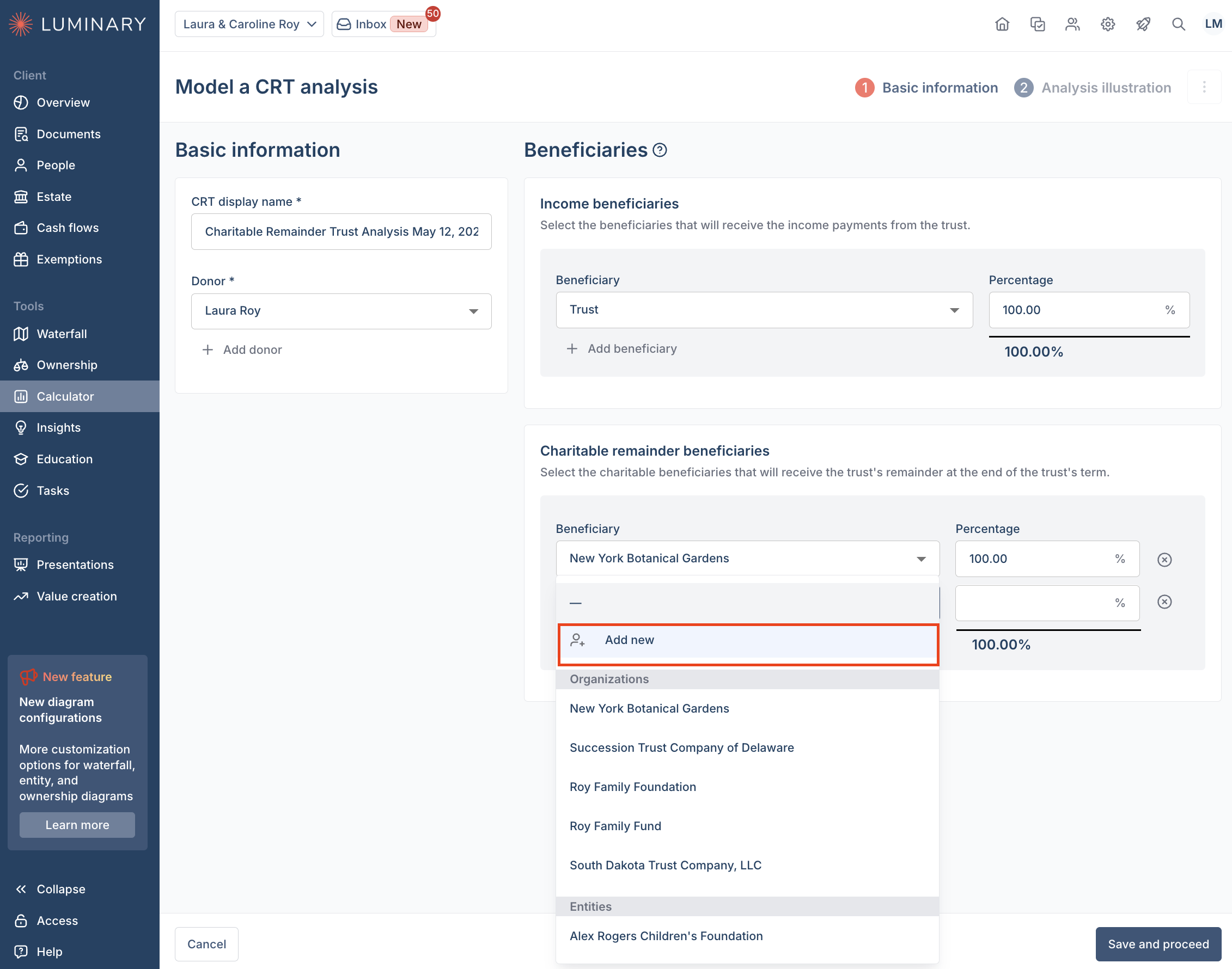
Choose income and remainder beneficiaries as applicable to your chosen strategy from the corresponding dropdown menu.
If the charitable income or remainder beneficiary is external or does not yet exist in the client's estate plan, select Add new in the beneficiary drop down.
Fill out the Analysis Illustration page with mandatory and optional detail fields.
All CRTs and CLTs require a funding value, year of analysis, payout distribution frequency, and if manually calculated, a payout amount.
CRTs additionally require a cost basis for the funding value
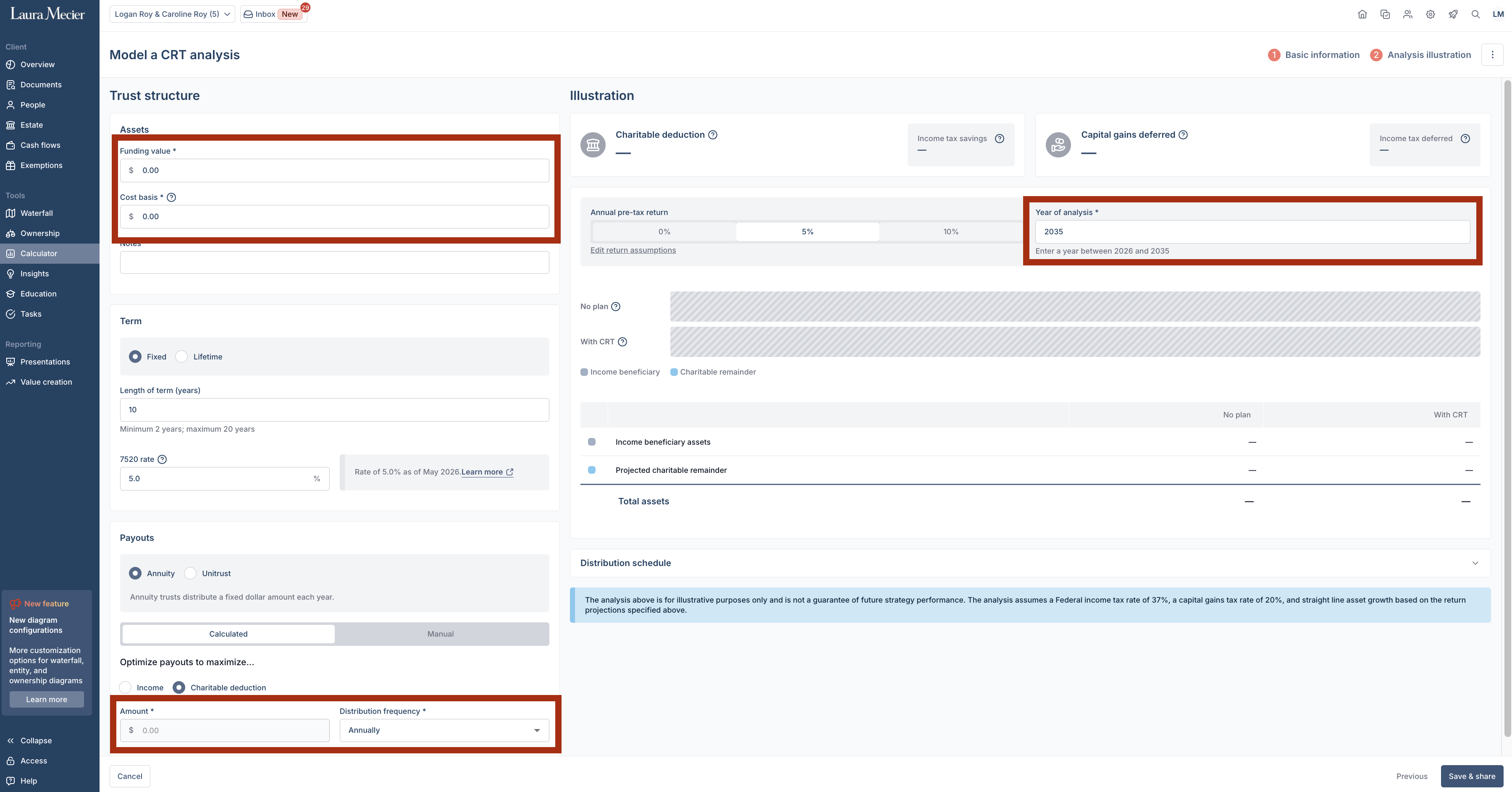
The 7520 rate is updated monthly per the Applicable federal rate, and can be edited as necessary.
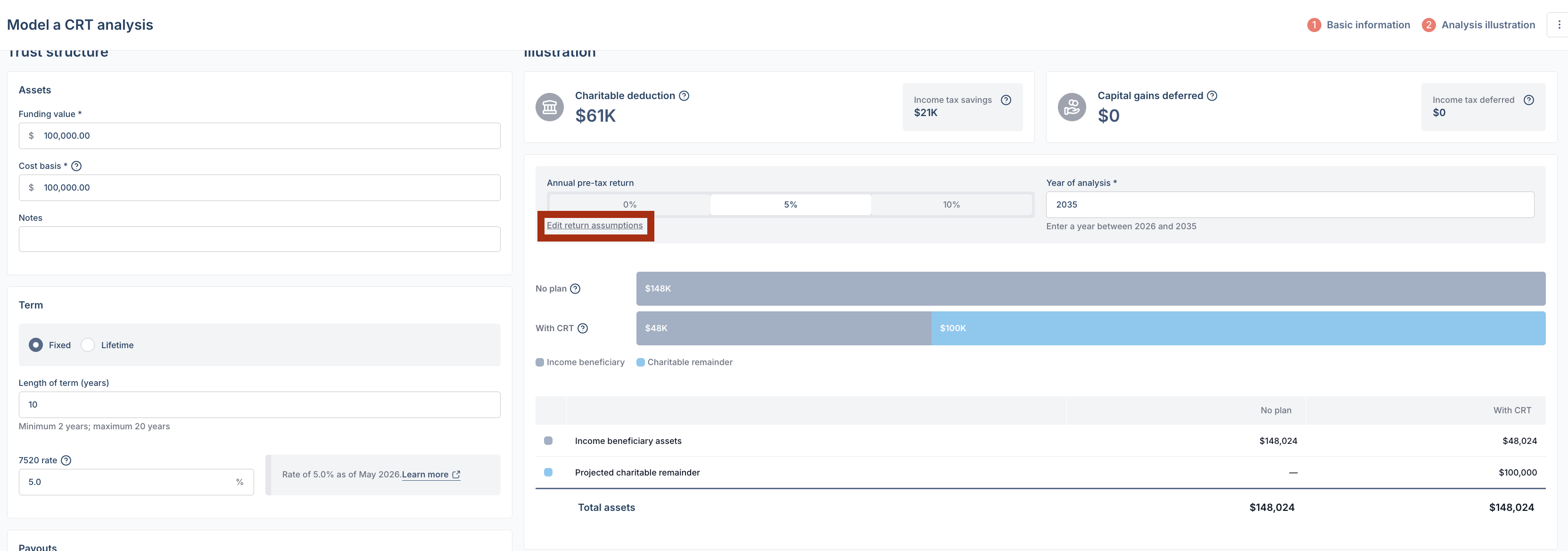
To edit Associated tax drag on Pre-tax returns, click Edit return assumptions in the Annual Pre-tax return box
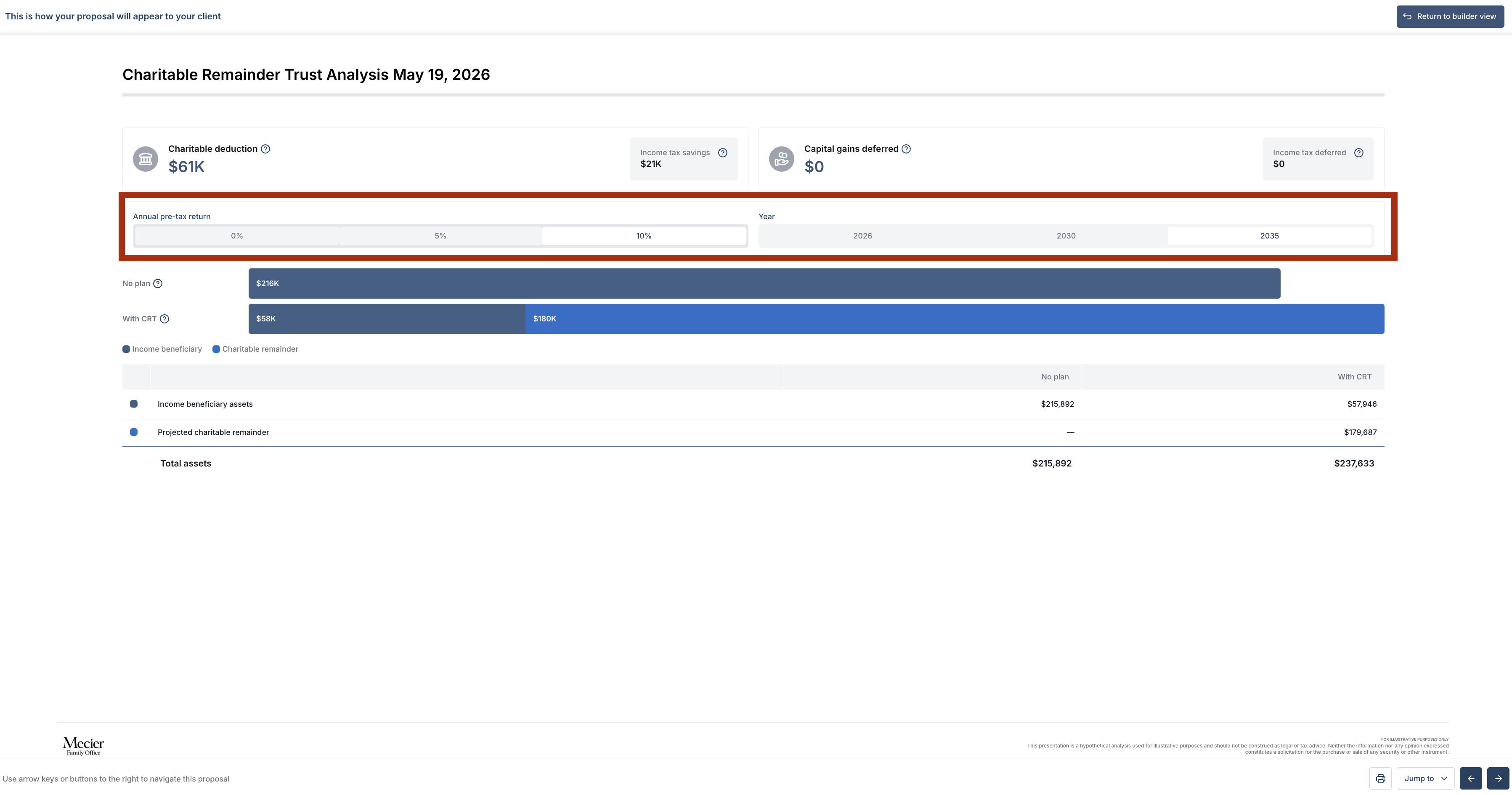
Click Save and Share to preview the proposal or create a shareable link for your client.
The preview and the shareable link allow viewers to toggle between 0, 5 and 10 year projections, and/or annual pre-tax returns of 0%, 5%, and 10%.
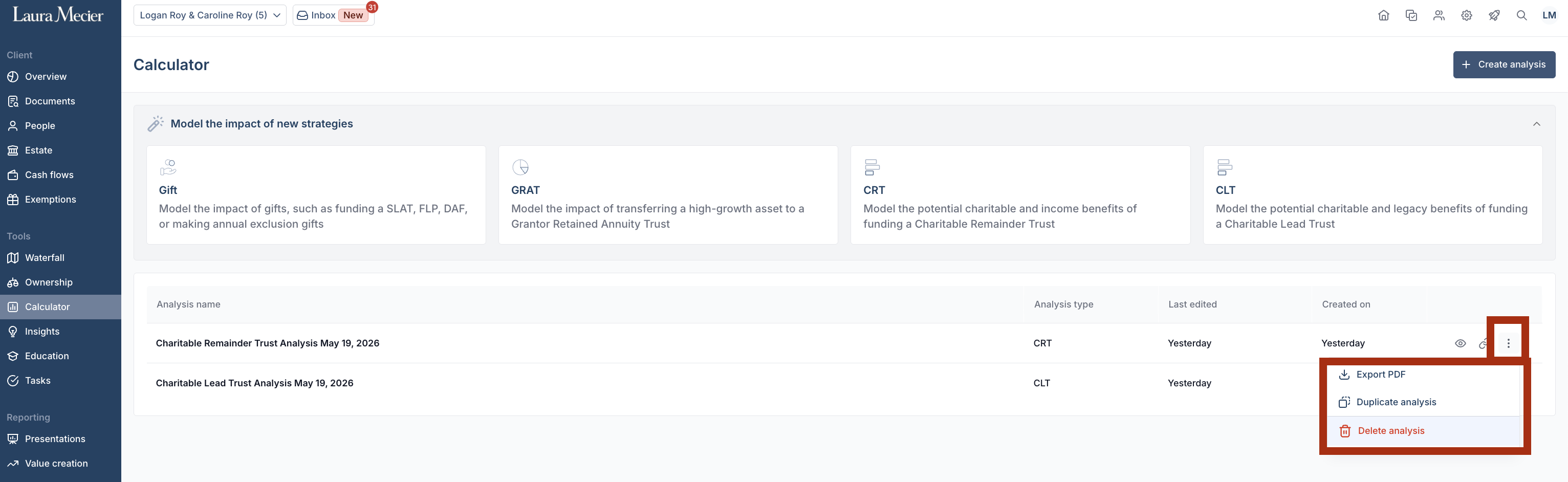
To duplicate or delete a strategy, click the three vertical dots on the right hand side of any strategy in the main calculator tab.