Creating entities without SmartReview
Last updated: October 9, 2026
Overview
Luminary AI enables efficient extraction of data from trust documents via suggestions inside the entity details form.
AI suggestions are supported for revocable trusts, irrevocable trusts, SLATs, ILITs, LLCs, LPs, GPs, S-corporations, and C-corporations.
Reviewing extracted data on a trust or business entity
Luminary AI will automatically suggest entities to extract from uploaded documents. This review process will only be required if you have opted out of SmartReview. Watch the above tutorial video, or use the following steps:
Navigate to the Estate tab on the left side navigation menu.
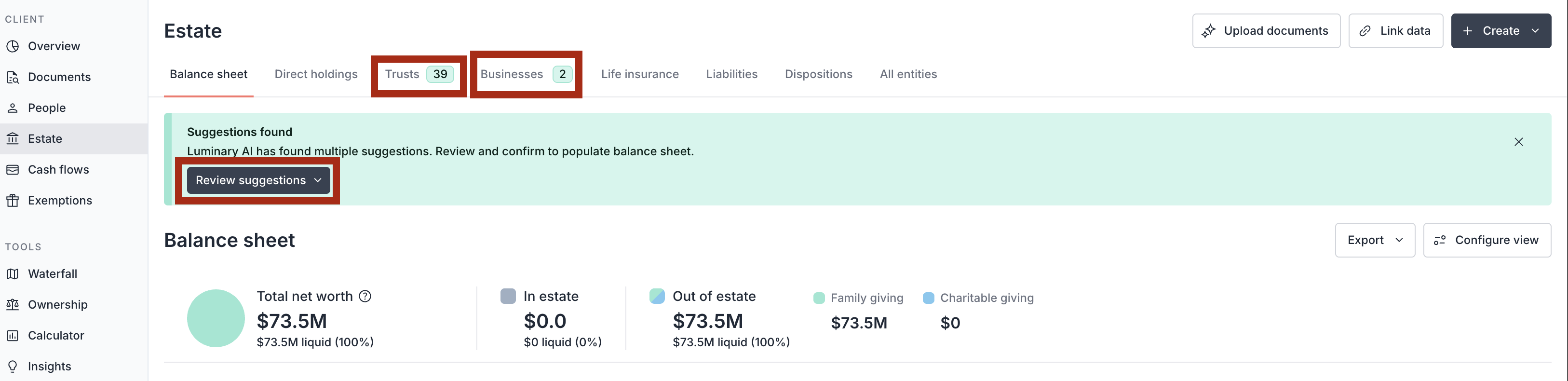
The green highlighted box indicates AI suggestions are identified and ready to be reviewed. Click Review suggestions or navigate to any tab where you see a green highlighted box with the number of available suggestions.
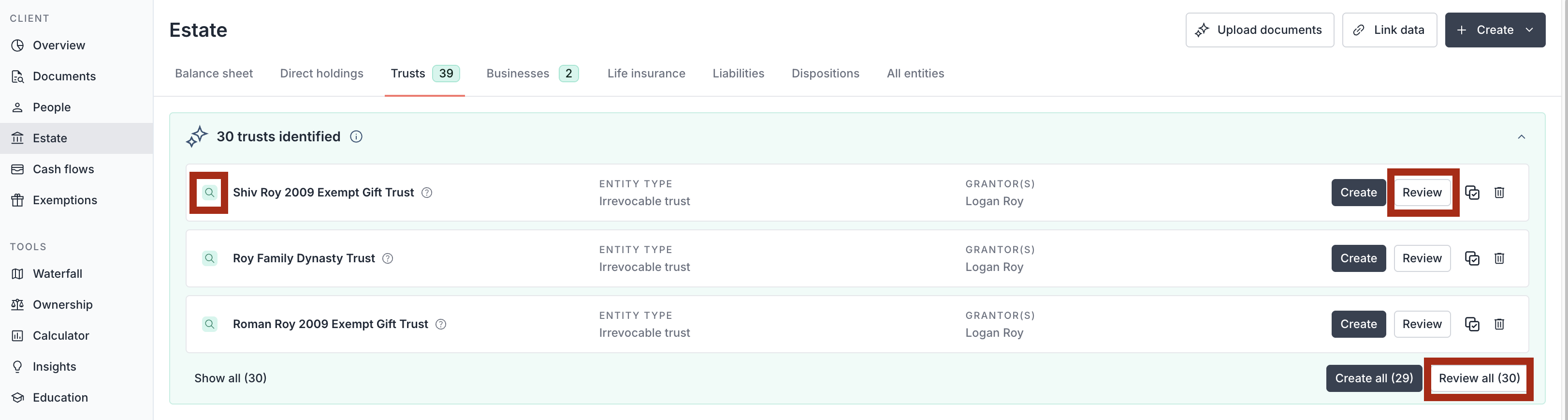
You can review suggestions one by one by clicking review or by clicking the green magnifying glass. You can review all suggestions at once by clicking Review all in the bottom right corner of the suggestions box on any tab with suggestions available.
Accept or reject suggestions in the review screen
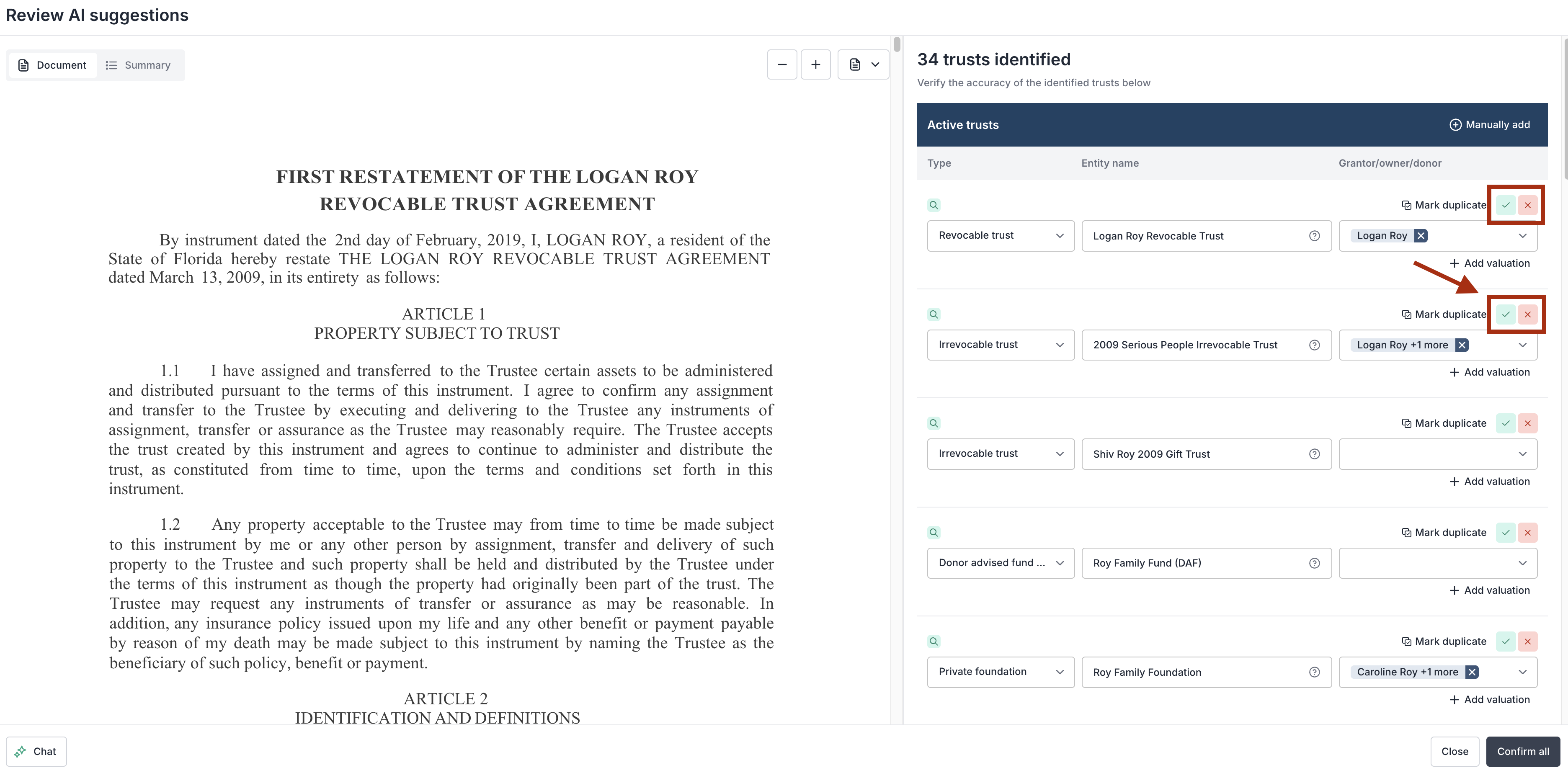
After clicking Review or Review all from the green highlighted suggestions box, Luminary AI will suggest entity details below specific fields in the entity form.
Click the green check to accept the suggestion which will fill in the associated field (and replace any existing data).
Click the red "X" to reject the suggestion which will hide it permanently.
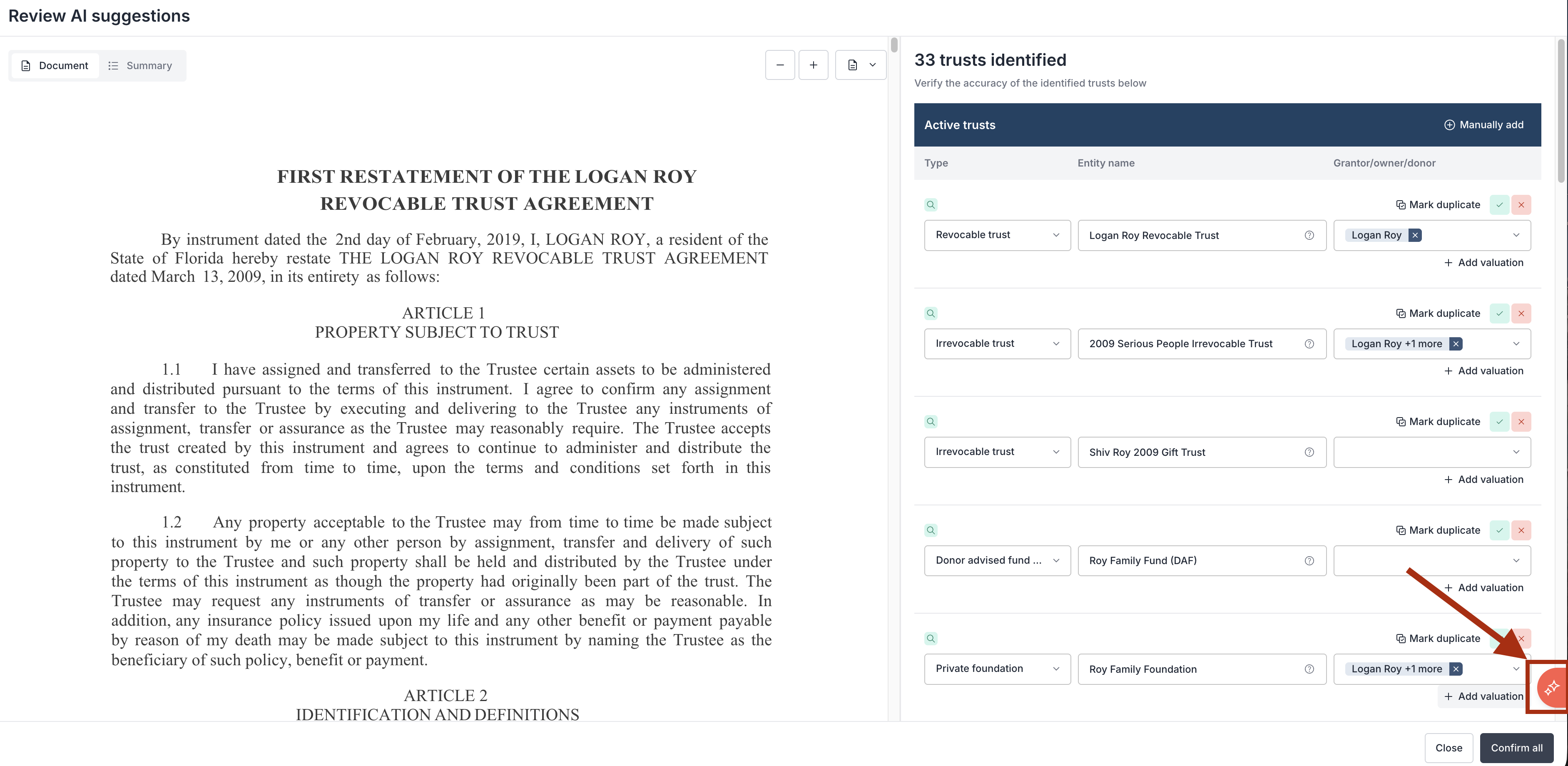
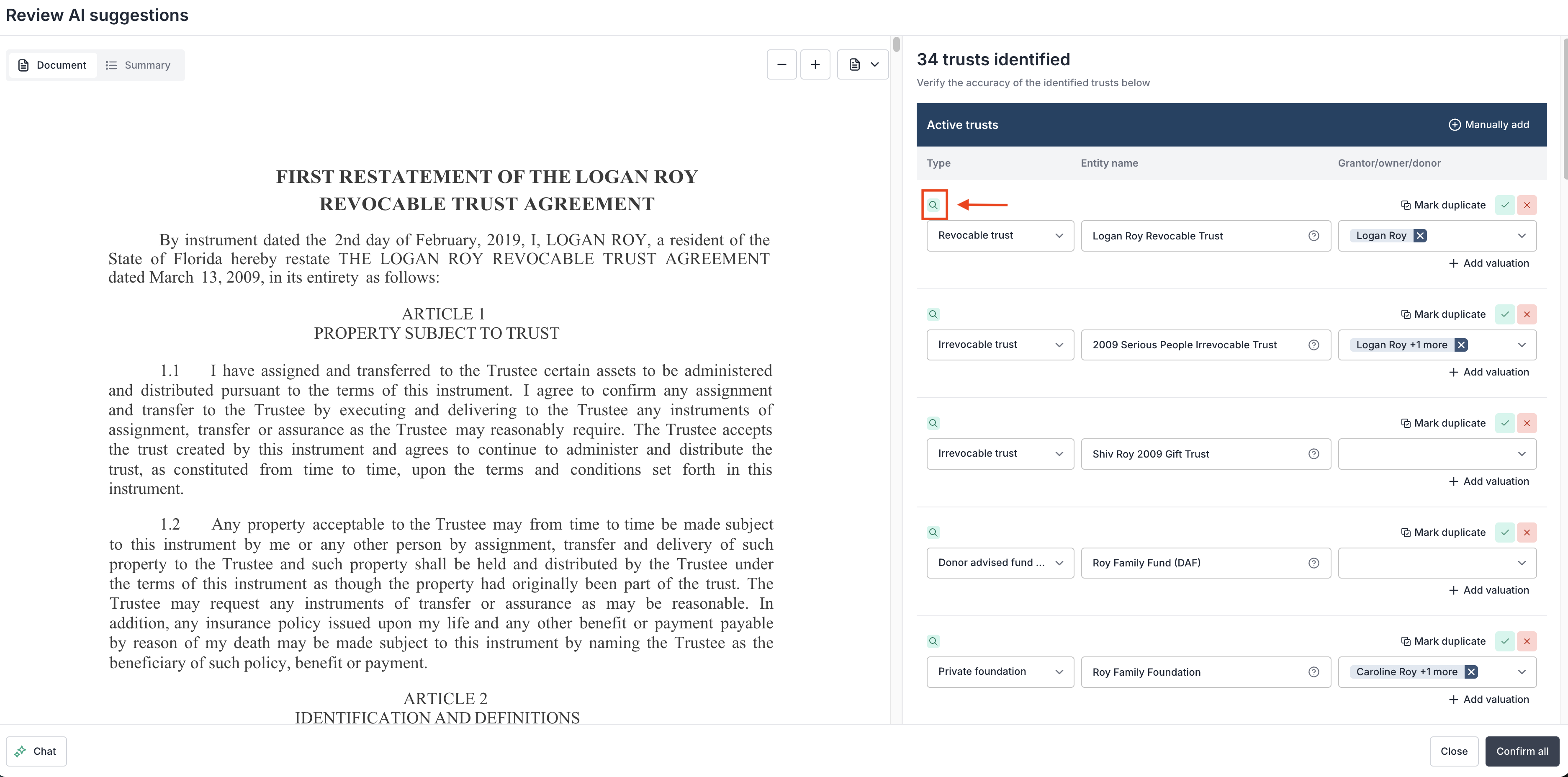
Clicking on the magnifying glass icon for any AI suggestion to show evidence found in the document.
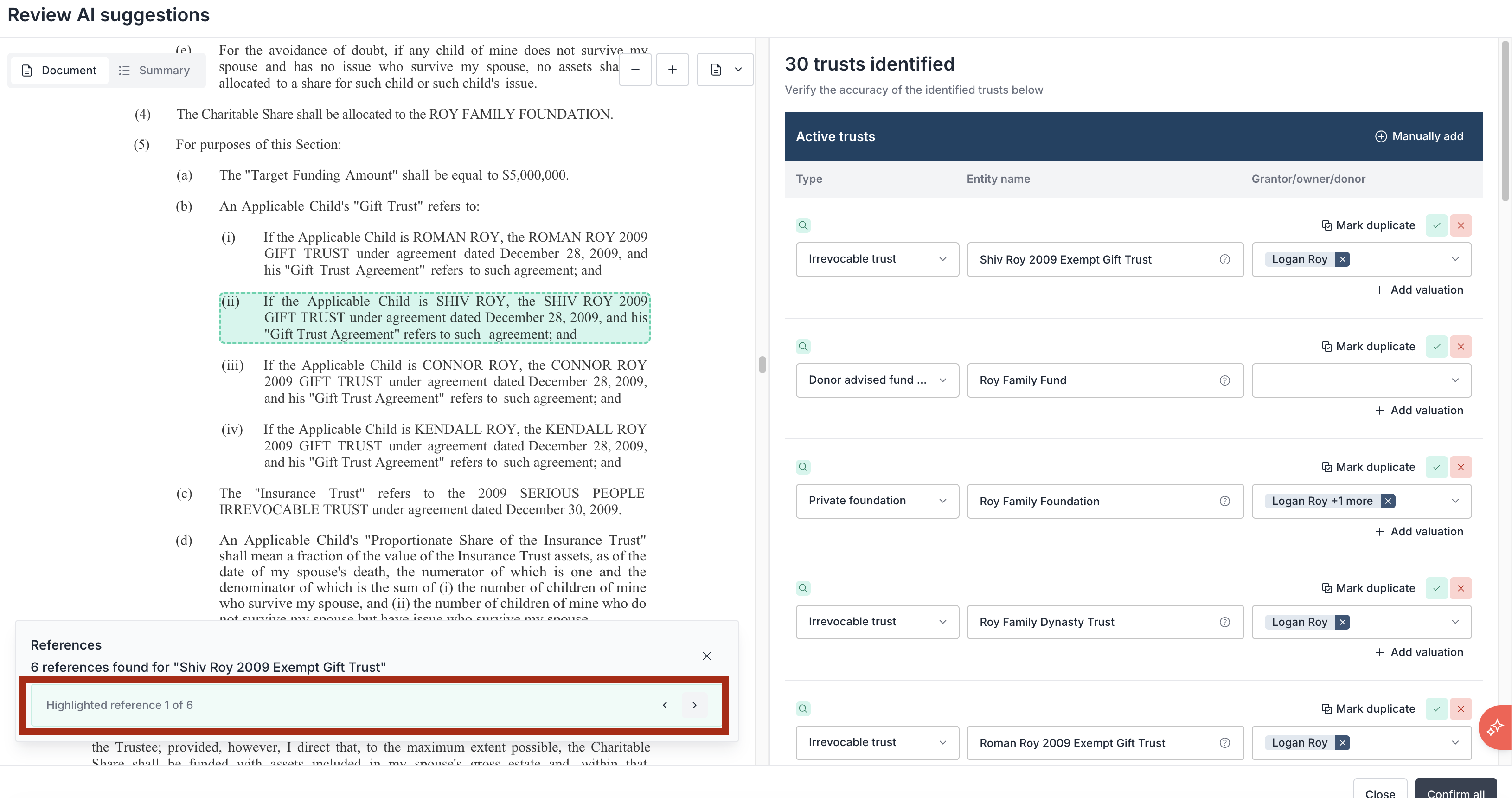
If multiple references are found, you can click the arrows on the bottom of the document viewer to see each evidence source.
Reference the Document Summary
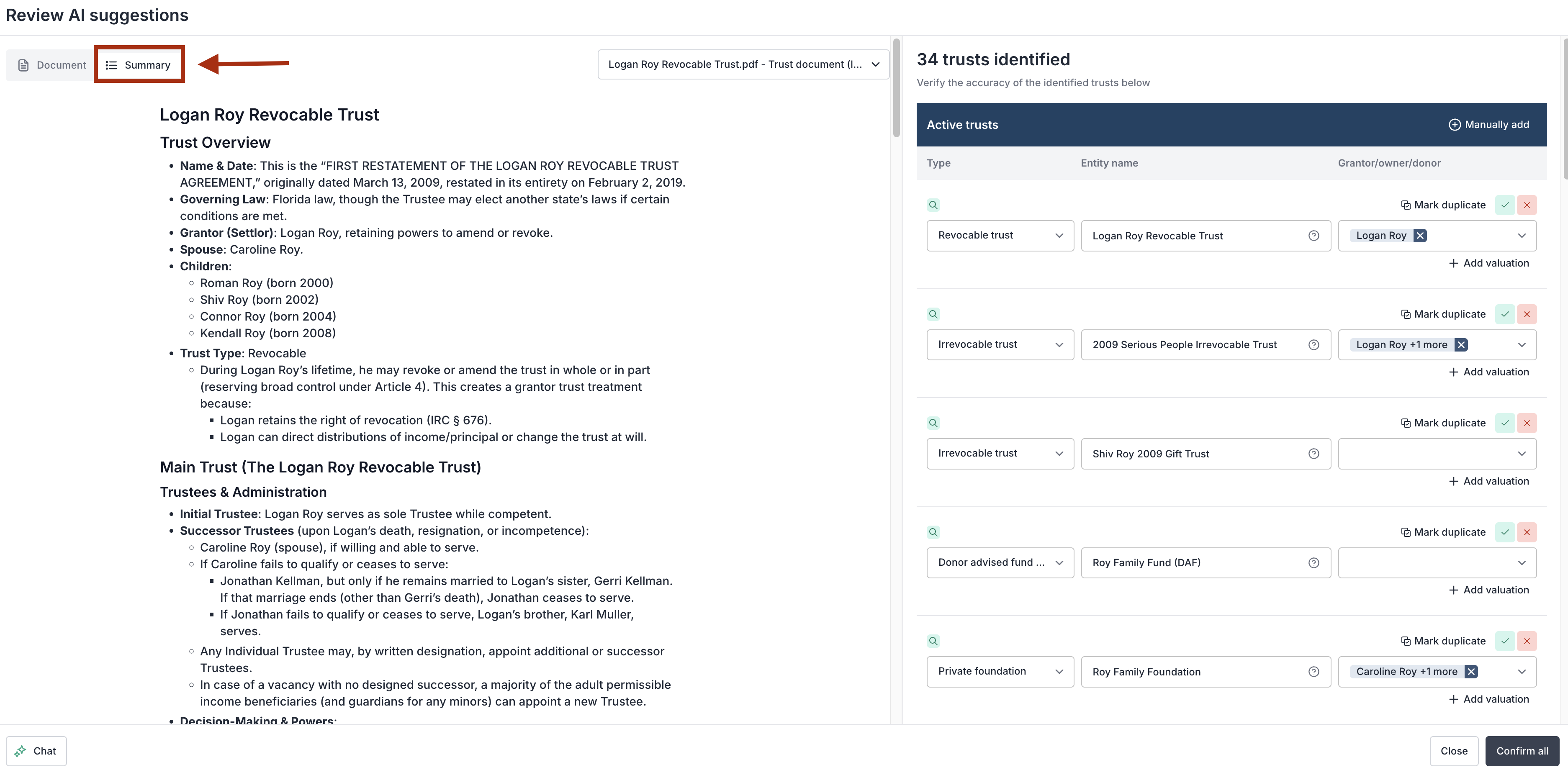
Luminary provides the document summary attached to referenced documents so you can thoroughly review suggestions. Toggle to the document summary in the upper-left corner of the screen to review summarized versions of any document.
Manage multiple documents and amendments in entity review screen
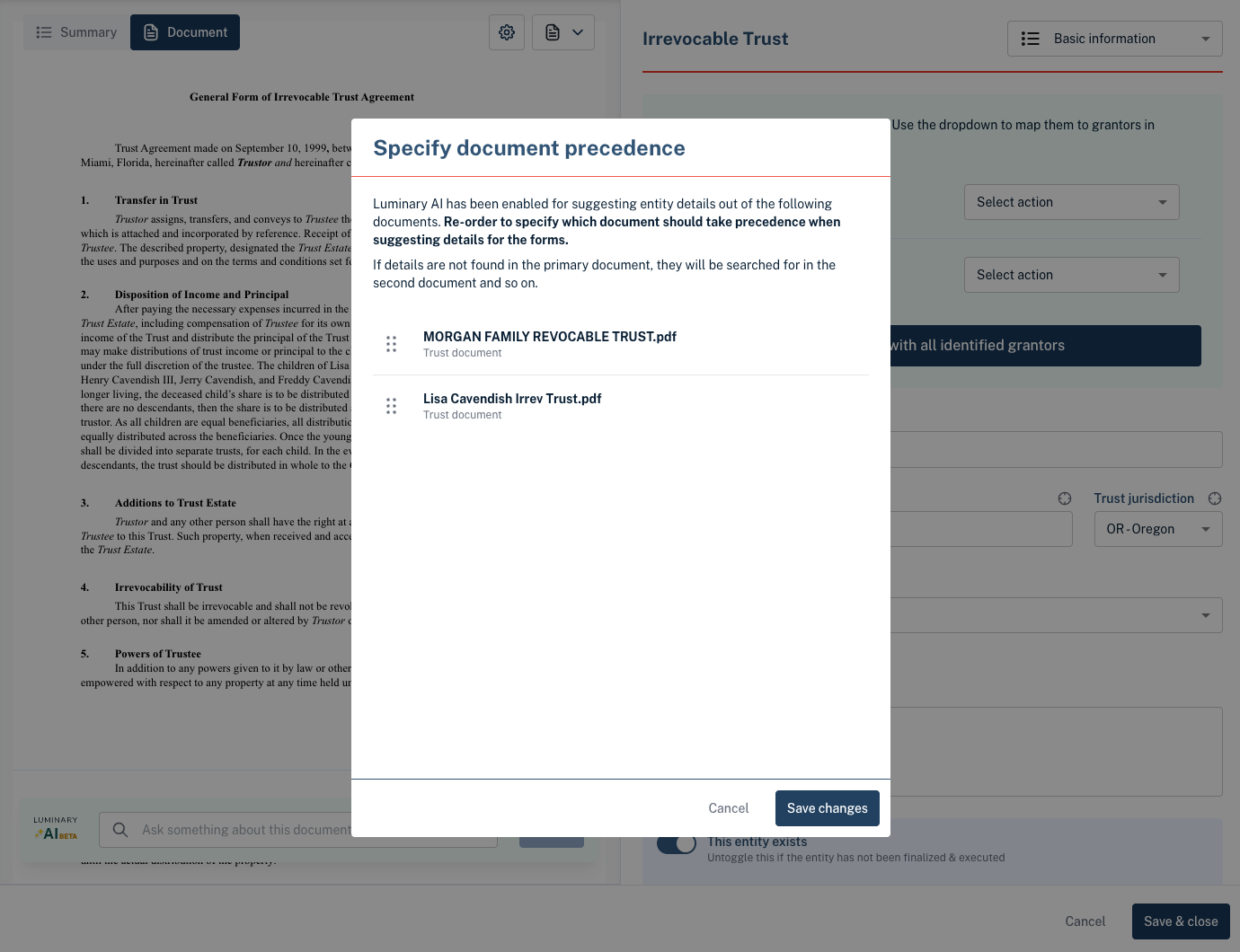
Luminary AI supports suggesting entity details from multiple documents for a single entity, such as for amendments. Set the precedence of documents to determine how AI should prioritize data extraction.
Navigate to an entity and click Edit Entity
Click the layered paper on upper left corner of the document viewer
Set the precedence of documents to source suggestions
When data conflicts for a particular field, suggestions will only be made from the document ordered first. If data is not found for a certain field, then suggestions are made from the next document in line.
Merge duplicate suggestions
If Luminary AI suggests creating a trust that already exists in your estate plan, mark the trust as a duplicate to merge their data and further AI suggestions together. To mark a trust as a duplicate of an existing trust:
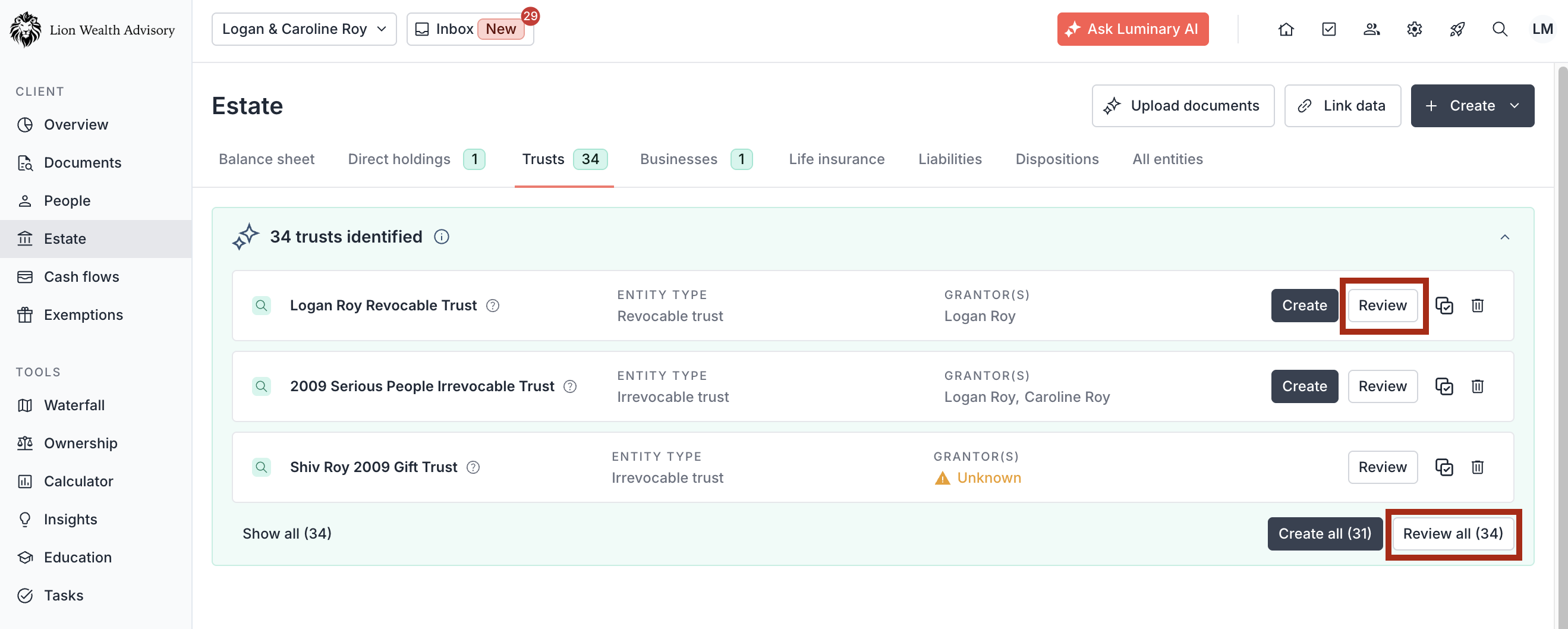
Go to the Trusts tab to review new or remaining trust suggestions.
Click Review or Review all on the list of suggested trusts.
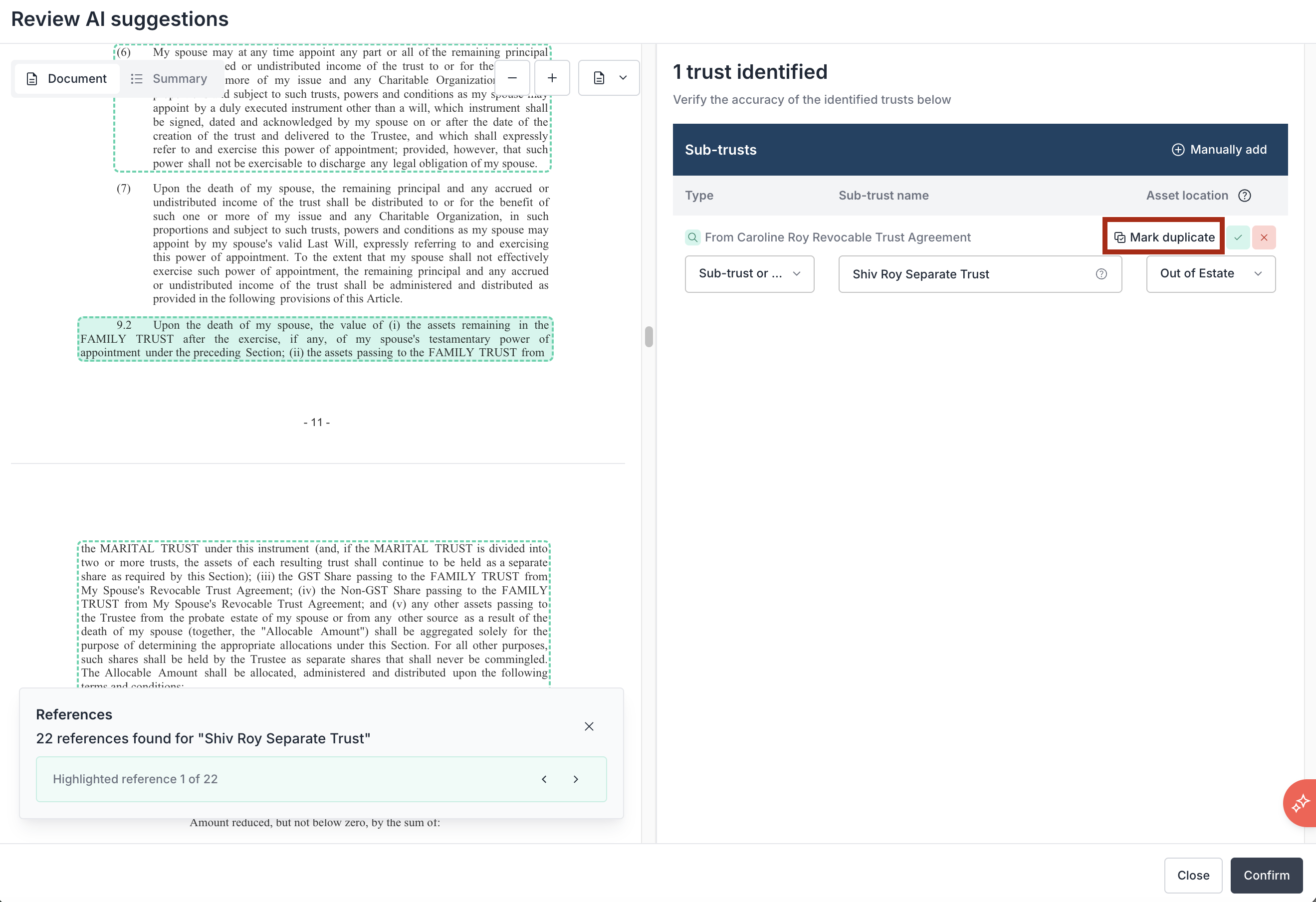
In the trust review screen, wherever you see a trust that is a duplicate of a trust you've already created, click Mark as duplicate.
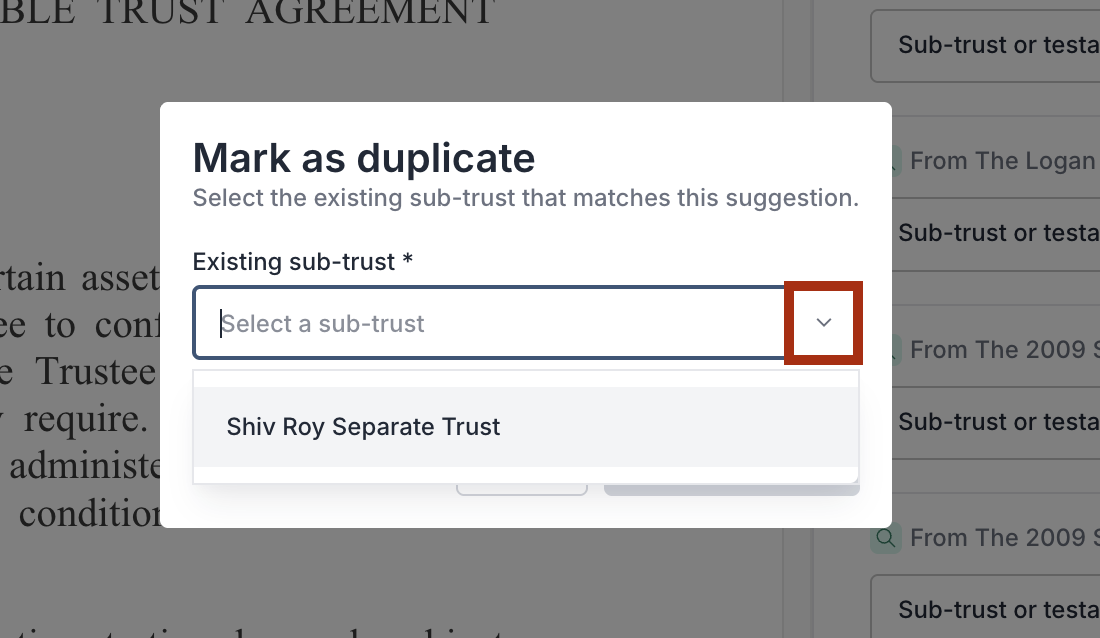
In the Mark Duplicate pop-up screen, select the existing trust this suggestion is a duplicate of, then select Mark as duplicate to merge suggestions.
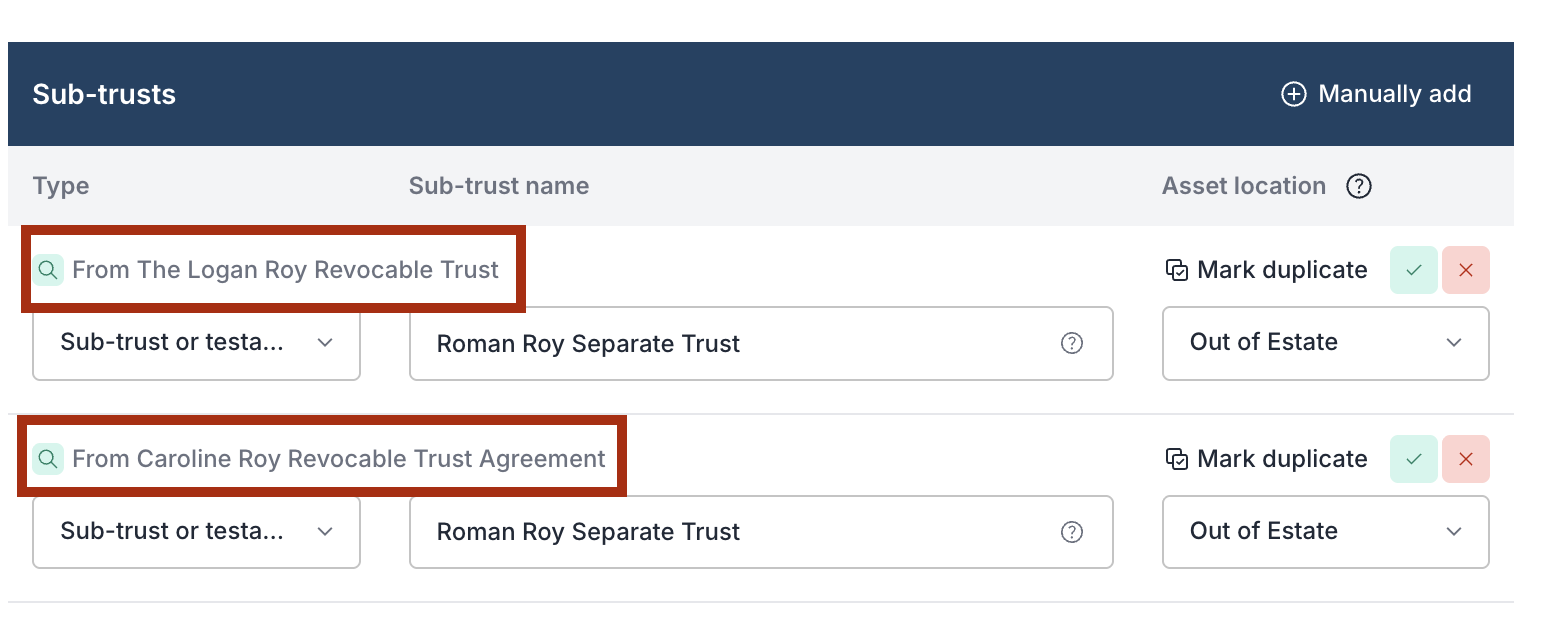
Why is this subtrust suggested multiple times?
A subtrust may be suggested more than once depending on the source document where this subtrust was found. Multiple subtrusts also may be suggested if there are differences in naming conventions.
You only need to accept one. From here, use Mark duplicate to merge other suggested subtrusts into the existing subtrust.
I already accepted the duplicate entity suggestion. Now what?
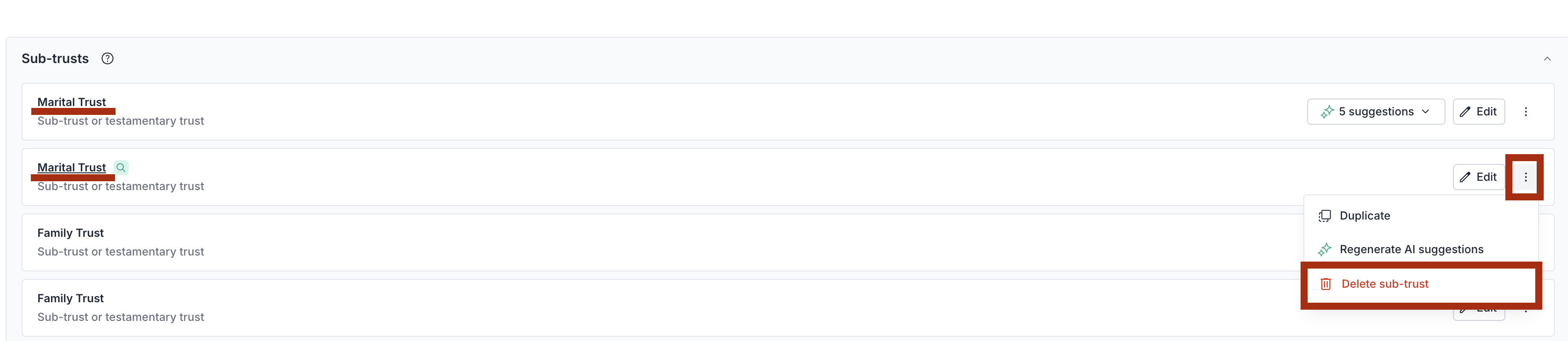
If you accepted one or more duplicate suggestions, all will show up as separate entities in the trust or business page. Wait until any further AI suggestions have completed processing, then review the AI suggestions on each duplicate entity. We recommend keeping the entity that has more AI suggestions, and deleting all others by clicking the three vertical dots on the right side of the entity, then selecting Delete entity.
Ask Luminary AI Assistant
To ask questions about the document or household more broadly, use the Luminary AI Assistant. Click the AI Assistant button in the bottom right corner of the screen to ask questions about a single document, how to do something on the platform, or more complicated estate tax calculation questions. For more information on how to use the Luminary AI Assistant, click here.