AI document summaries
Last updated: October 8, 2026
Overview
AI document summaries provide a clear, comprehensive outline of your clients’ key trust and estate documents—delivered in a fraction of the time it would take to review manually. With support for over 30 document types, Luminary helps you serve clients efficiently while ensuring no critical detail is overlooked, allowing you to scale your practice without compromising quality.
Key Benefits
Saves time: Quickly extract key details without manual review.
Editable: Add notes, restructure provisions, and preferred formatting
Auditable: Easily track when edits were made and by whom.
Scalable: Serve more clients in less time without sacrificing quality.
Versatile: Supports a wide range of document types—trusts, operating agreements, and insurance policies—in formats like PDFs, Excel, and image files.
How to generate and use summaries
Running a summary for a trust, will, or business agreement with amendments? See guide on creating combined document summaries.
Step-by-step guide
There are two ways to kick off the process of generating a new document summary:
When creating a new client, upload your client's plan documents and ensure to identify the document type correctly.
For an existing client, navigate to the Documents page, select Upload documents in the upper right hand corner
From here, drag and drop documents from your files into the pop up window or click the square labeled Drop files or click to upload a new file. Clicking this box will open your native file browser to browse relevant documents.
Review the identified document type on the right hand side of the uploaded document list. To change any document types, select the correct document type from the dropdown menu. Once all document types are correct, select Summarize documents or Save documents.
A pop-up window will stay visible to show progress as the documents are summarized. You can close this window at any time. Documents will continue processing in the background.
Allow documents to process. Depending on the length and number of documents uploaded, summaries may take several minutes.
To view completed summaries later, navigate to the Documents page.
Common pitfalls to avoid
⚠ Merged documents - Luminary supports uploading multiple documents in a single file. For example, if a trust a will are uploaded together within a single file. If this is the case, be sure to select Document binder as your document type.
⚠ Selecting the wrong document type - Each document type has a unique template designed to extract the most relevant information. If an improper document type is selected during upload, the summary may not capture the key details effectively.
To change this, open the document, then click the dropdown menu under Type on the left side of the screen. Select the correct document type, and click Save changes. Then, click the three dots in the upper right corner and select Re-generate AI summary from the menu.
⚠ Drafts likely to change - Documents uploaded into Luminary are incorporated into the estate plan. If you have draft documents that are not likely to be finalized, avoid uploading them into the household's documents.
⚠ Unclear or messy handwriting in documents - While Luminary AI can read handwritten signatures, dates, and clearly written amendments, avoid uploading fully handwritten documents or documents where handwriting is unclear.
Provide feedback
At the bottom of a summary, thumbs up and thumbs down icons allow you rate the summary. By selecting thumbs down, a feedback window appears to share details about what could be improved. Your feedback helps us generate more accurate and relevant summaries.
Additional Features
Luminary AI Assistant
Use the Luminary AI assistant to ask questions within the context of the document, or about the household more broadly. Search documents & ask follow up questions directly from the document summary edit view
Edit Summaries
To edit a summary, click the pencil icon in the top right corner of the summary, or click any green magnifying glass. Both icons will allow you to make edits to the summary, while viewing the original document on the left side of the split screen.
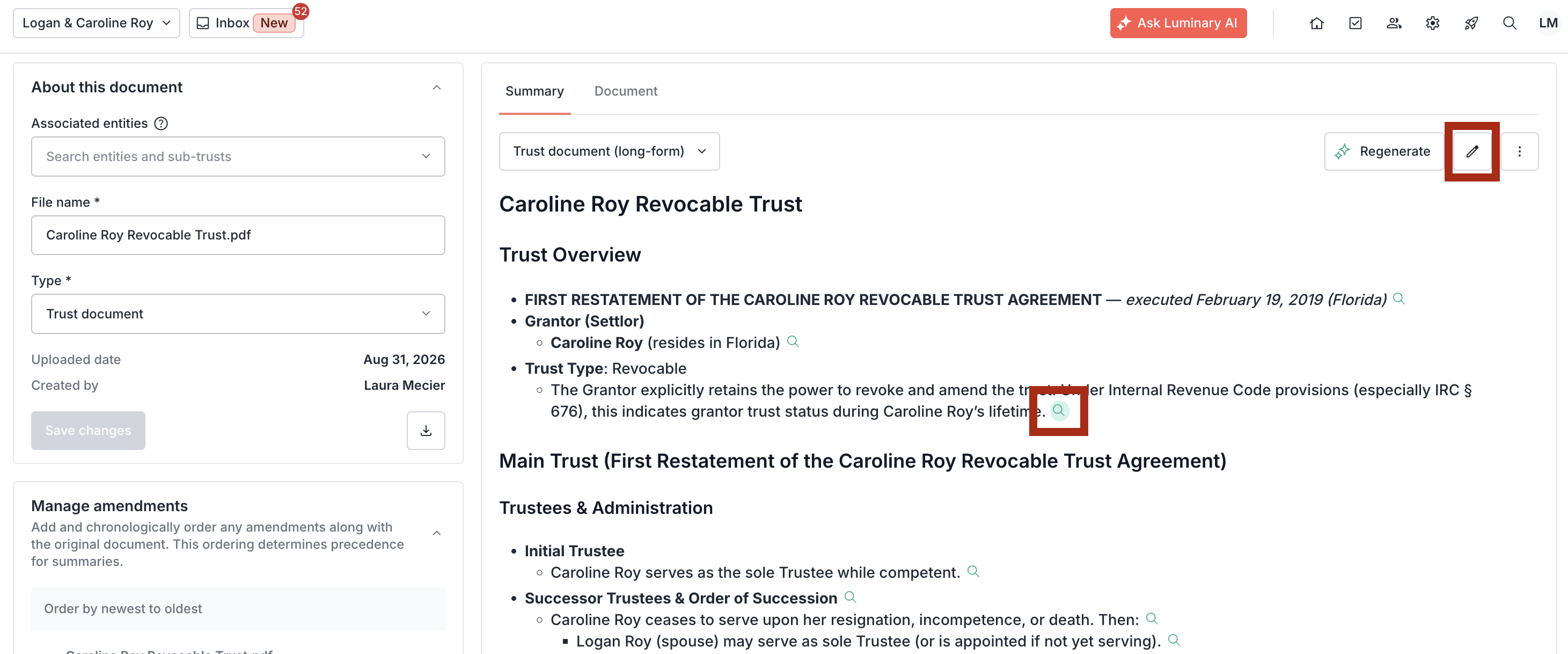
In the Edit screen, try adding, deleting, or rearranging text as needed. Apply formatting options such as bolding, italics, highlighting or using different headings.
Ask questions to our AI assistant by clicking the coral AI sparkles in the bottom right corner of the screen. Any responses from the assistant can be copied and pasted into the summary.
Remember to save changes after edits are made.
Review who made edits most recently by scrolling to the bottom of the page.
Trust and sub trust coverage
Trust summaries include sections highlighting specific details regarding sub trusts that are created from the main trust
Export and Regeneration Options
Export Options
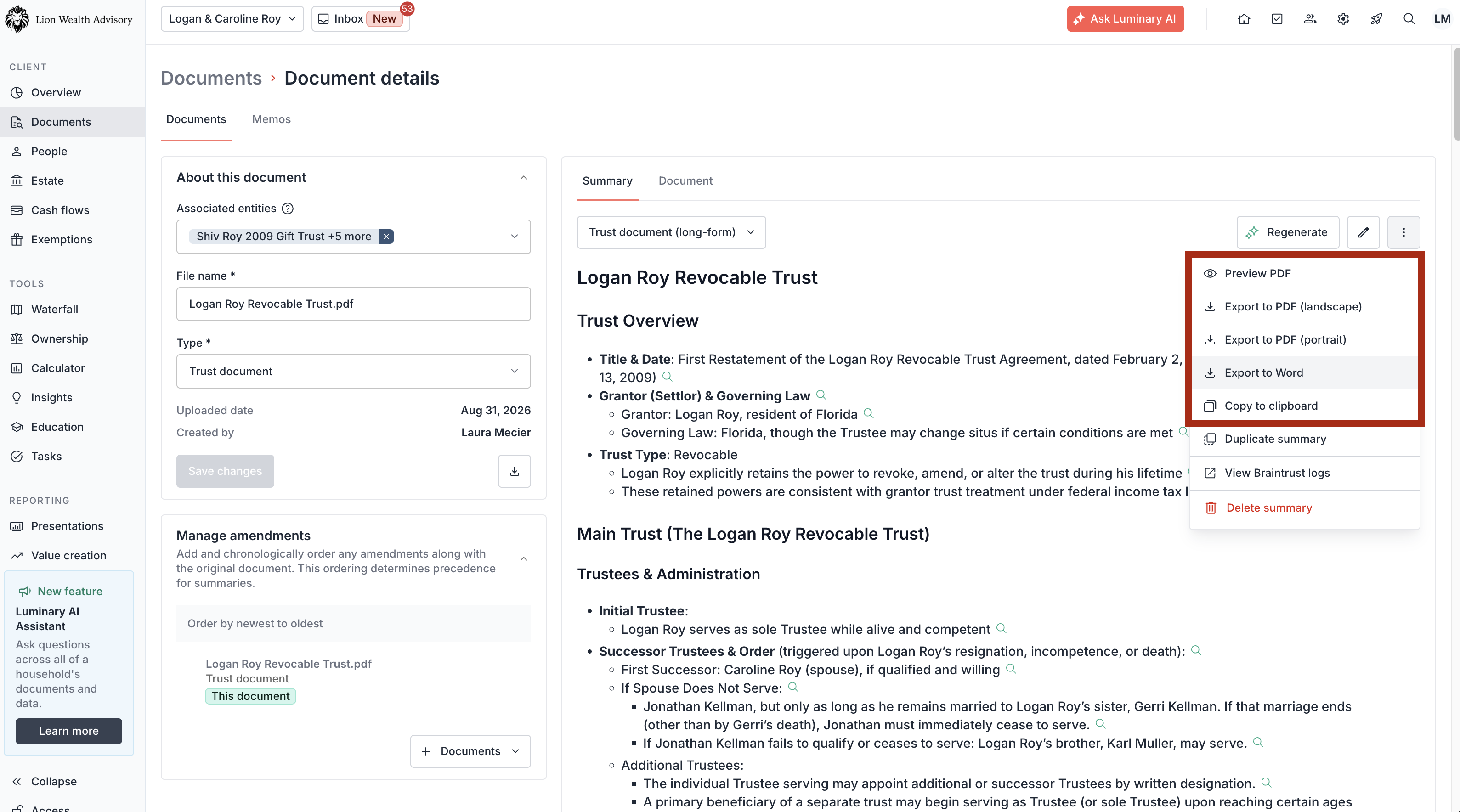
To export a summary, you have a several options. You can export it as a Word document or a PDF, or copy the summary text to your clipboard and paste it into an external document or deck. Click the three vertical dots in the top right of any summary to view export options.
You can also add a document summary directly to a client presentation from our presentation builder view.
Luminary Tip
If you have preferred changes to make to the entire summary, try re-generating it. At the top of the summary page, select Re-generate. Rename the summary if desired, and prompt AI with other changes want to make. Luminary will reprocess the document to refine the summary.
FAQs
How do I know Luminary AI is accurate?
Luminary AI is meant to be a starting point for customers. While we are constantly improving our model’s accuracy through a variety of methods, our intention is to help users more quickly review information in the document. Verify all summarized and extracted information. We appreciate all feedback on Luminary AI summaries, as we’re constantly updating our AI model.
Can I upload a pdf that contains several T&E documents?
Yes! When uploading several documents in one file, mark the file type as "binder" from the file type dropdown menu. Review files extracted from the binder for accuracy and completion.
How does Luminary AI work with amendments?
Luminary supports managing amendments or codicils to create combined summaries. Click here to learn more about AI document summaries with amendments.