Change assigned relationship owners and key details
Last updated: March 27, 2026
Reassigning Relationship Owners
If client ownership or coverage changes, follow the steps below to update the relationship owner. Please keep in mind that only administrators are able to edit access details.
From the landing page, select the client you'd like to change ownership of.
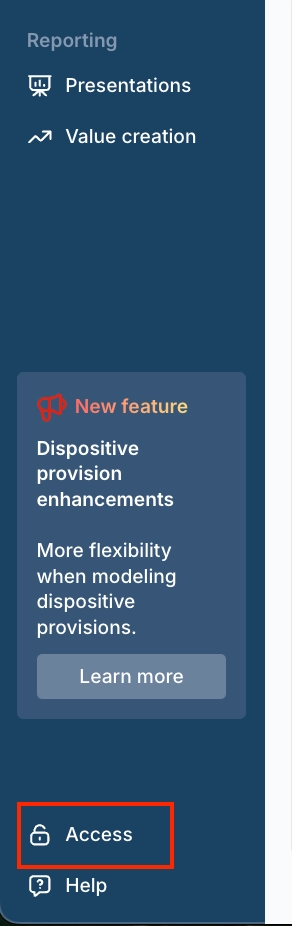
Navigate to the Access tab located in the bottom-left corner of the Client Overview tab.
You can also access it from any tab after selecting your client.
In the Client Access tab, locate the Key Details section.
Use the drop downs to update the Relationship Owner and Teams.
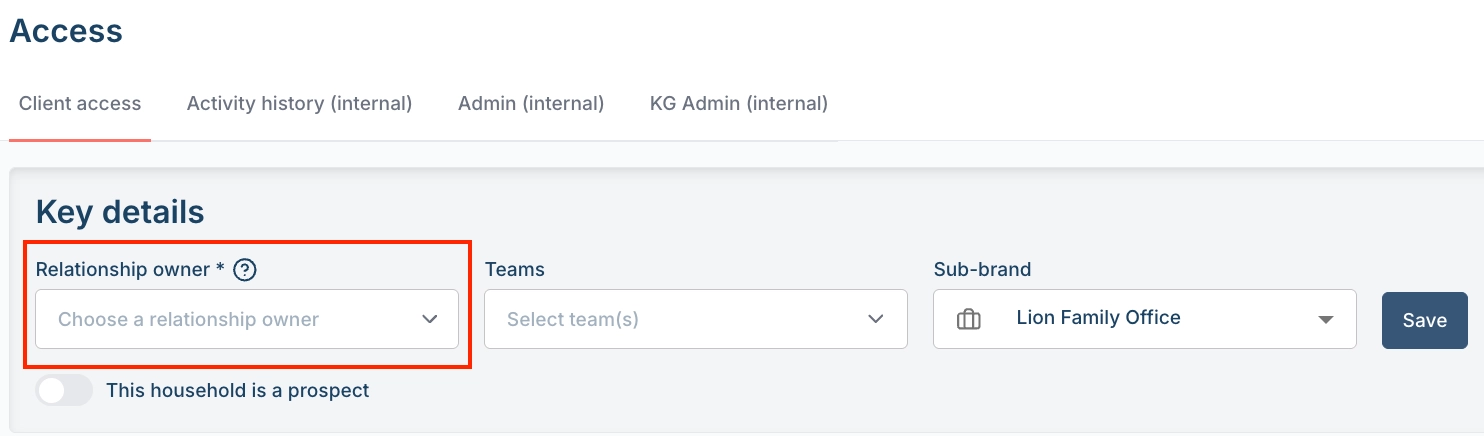
Save updated information on the right hand side.
Reassigning Teams
To create specific team coverage for a client, follow the same steps as above, then select all applicable teams from the dropdown labeled Teams, or click here to see our Luminary Academy FAQ about team management.
Assigning Sub-Brands
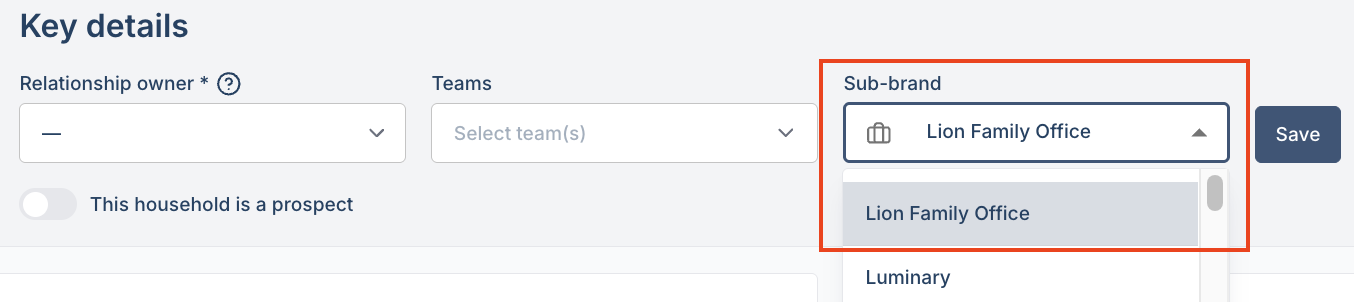
You can use the access tab to change the sub-brand used on client presentations and analyses. Follow the same steps as above, then select a sub-brand from the dropdown labeled Sub-brand.
If you're an administrator looking to change or add a sub-brand, click here.