Linking clients and holdings to Luminary
Last updated: May 12, 2026
Pre-requisites
Please ensure your Luminary admin has completed the initial Firm level setup, and individual user connection steps are completed before getting started.
Please ensure your Luminary admin has completed the initial Firm level setup.
📄 Firm set up for admins: Addepar
📄 Firm set up for admins: Black Diamond
📄 Firm set up for admins: Orion
📄 Firm set up for admins: eMoney
📄 Connect and set up your individual user
Getting Started
The steps below outline how to connect clients and entities or accounts to the corresponding ownership structure in Luminary.
Link Luminary Client
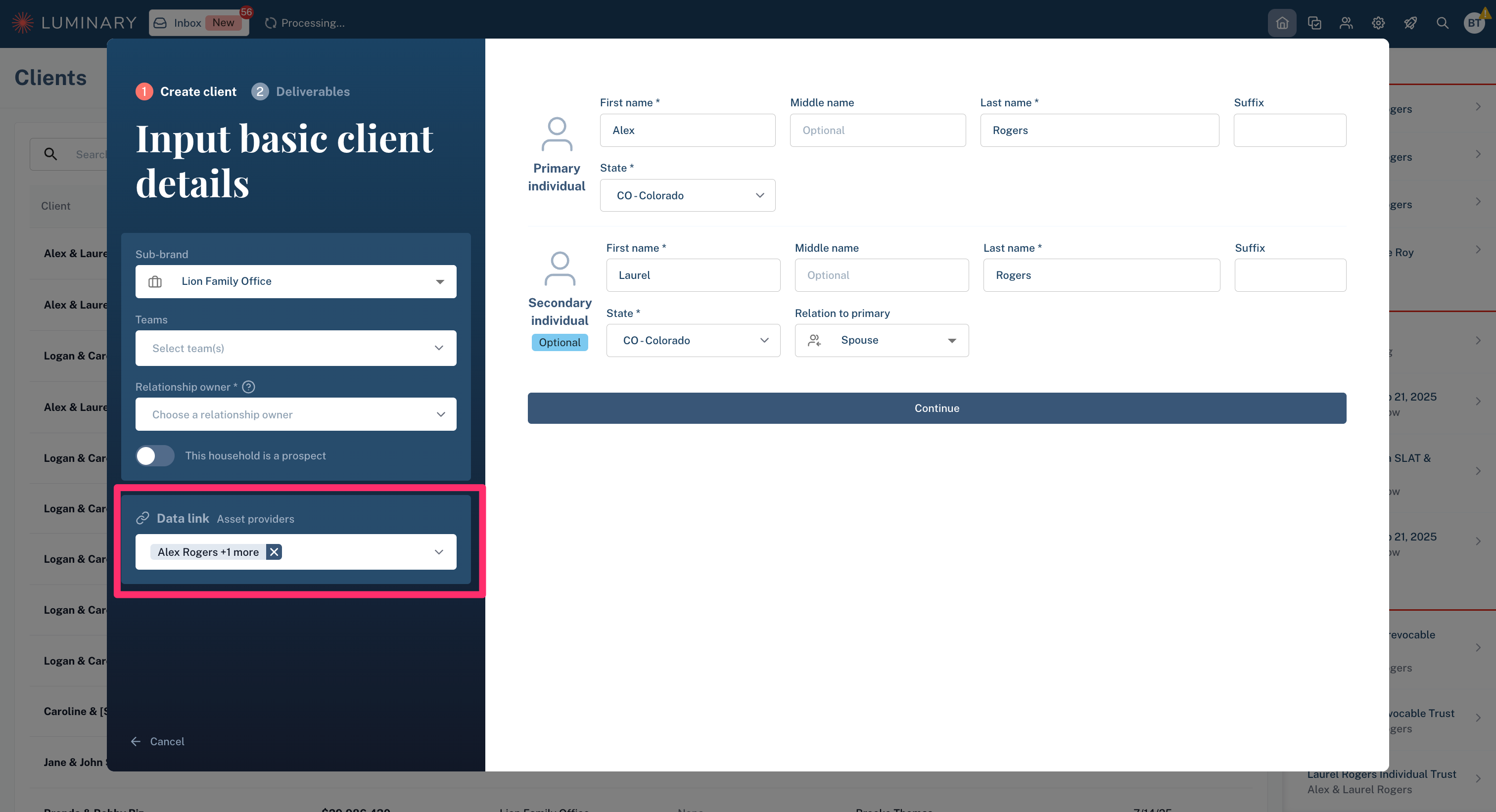
Link a Luminary client to enable linking the client’s entities.
Step 1: Click "Add Client" from the client list
Step 2: In the data link drop down in the lower left, select the corresponding client(s) or household
This field is type search enabled, so you don't have to scroll to find your client(s)
Step 3: Proceed with client creation
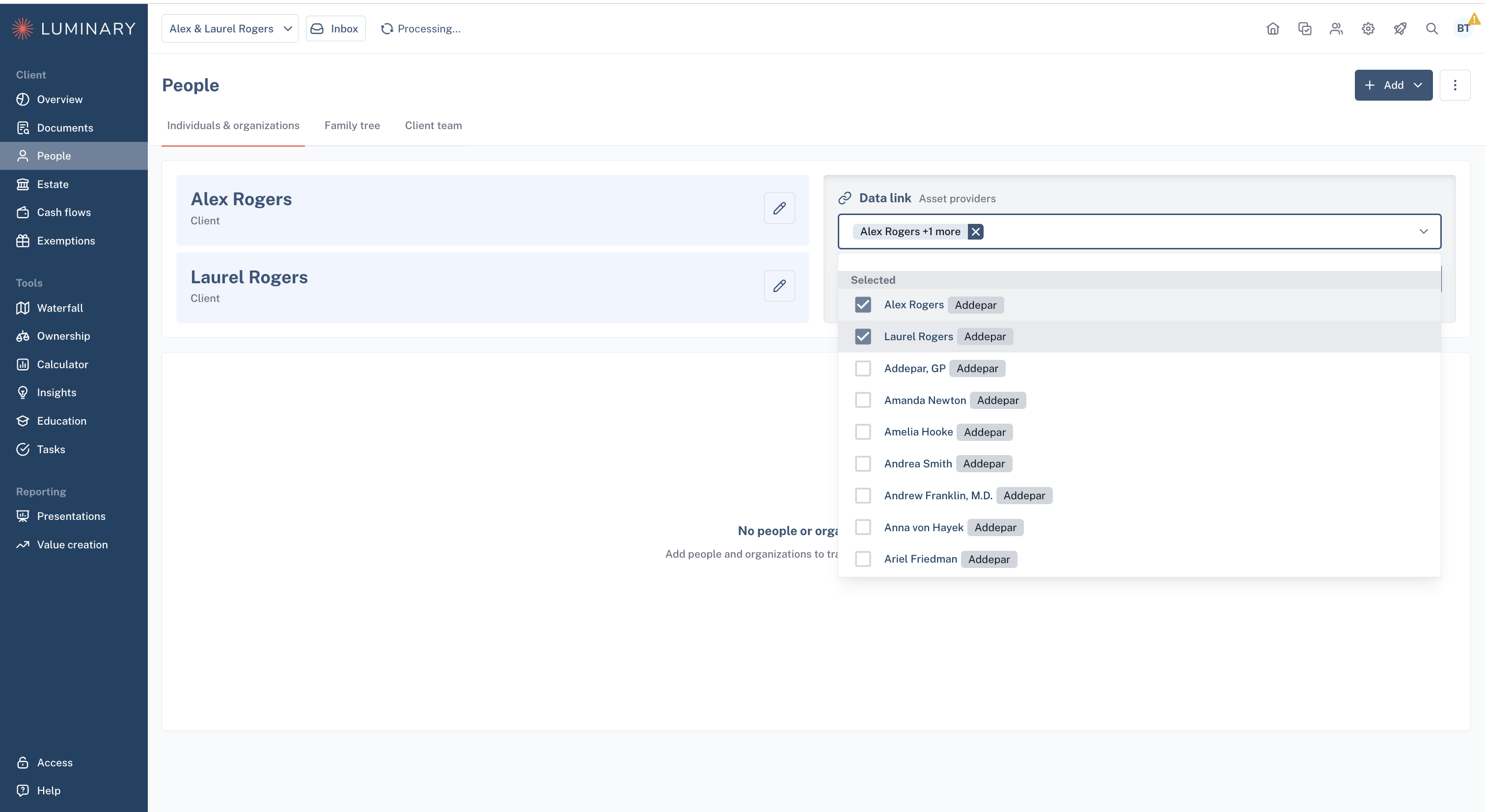
If you did not link your client upon client creation, you can create the link afterwards.
Step 1: Open the client in Luminary
Step 2: Select the “People” tab
Step 3: Open the data link dropdown and select the individual to link
Step 4: Click "Save"
FAQs and Troubleshooting Client Link
How do I link non-client individuals such as G1 spouses or other family members to Luminary?
You can link individuals in two ways:
For primary clients (like G1 spouses):
When you’re setting up a new client, just use the dropdown during client set up for linking both client individuals. This will let you connect them to Addepar right away.For other individuals (like family members or related contacts):
Go to the People tab in Luminary. There, you’ll find a Data Link dropdown. Just click it, pick all the individuals you want to link from Addepar, and you’re all set! You’re not limited to just primary clients — you can link anyone you need and you can select multiple individuals. This will allow you to use the entities and accounts associated with those individuals to link entities in Luminary.
Why can't I see my client as an option in the dropdown for the data link on the People tab?
Currently, Luminary supports syncing with groups, households, and clients. If you have individuals modeled as Legal Entities or other types, they will not show up in this dropdown. Please reach out to support@withluminary.com for additional help.
I linked my data after creating trusts/businesses and now they are duplicated. What can I do?
Currently, Luminary does not support merging assets or entities. To remove a duplicated active entity or holding group in Luminary, click the overview button of the entity you want to delete. Then click the three vertical dots in the upper right hand corner of the overview page. Select Delete entity. To delete a sub-trust, click the three vertical dots on the right hand side of the sub-trust in question from the Trusts page, then click Delete sub-trust.
I linked my data, and some of the underlying holdings are duplicated. What can I do?
When syncing data from an integration, Luminary runs a de-duplication process. If you've linked data and see holdings duplicated, go to the Entity overview then click the Edit current holdings dropdown. From here, select Resync valuation data. Resyncing will update values and run the de-duplication process.
Add holdings from a 3rd party integration
Holdings are automatically structured when linked to a portfolio reporting provider.
Once linked, accounts are structured within the owning trust, business, and holding group and split up by asset category. A single account might be repeated if it holds many different asset categories.
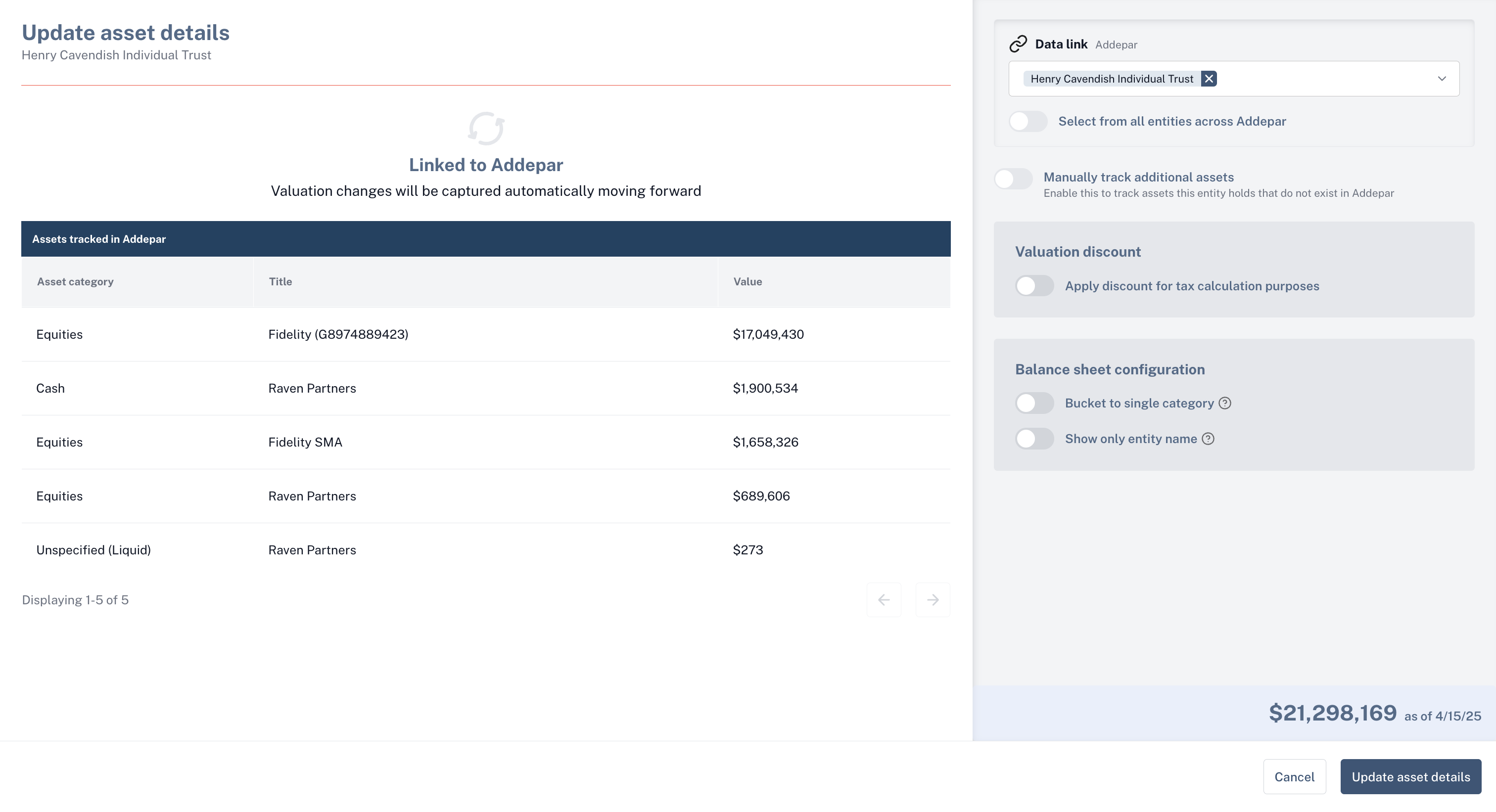
If more a structured account has a dominant asset class category (90%) then it is not broken down any further beyond that and all assets are set to that dominant asset category.
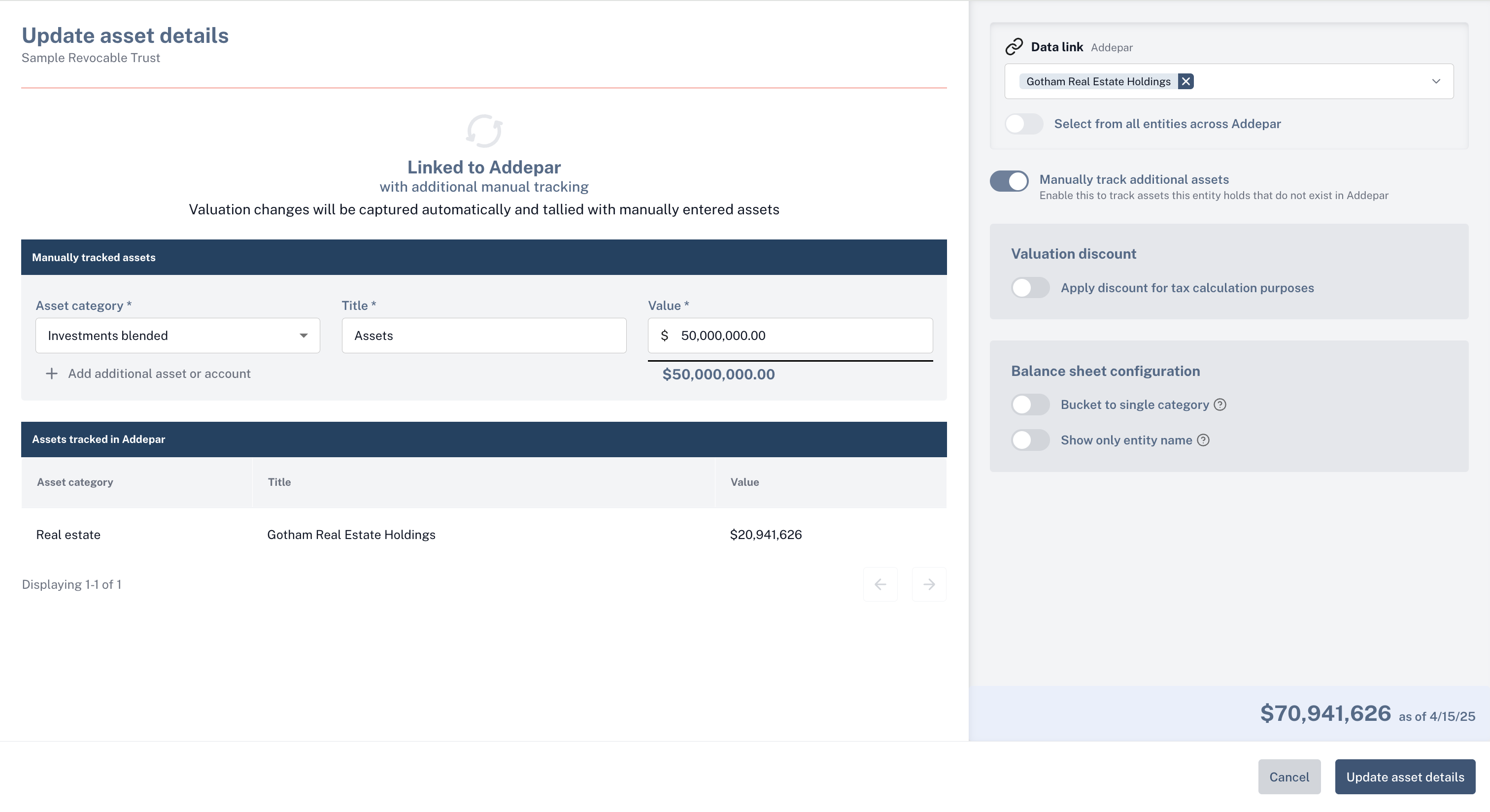
If some holdings are not captured by the assets in the portfolio reporting tool, you can simply use the "Add holding" modal from the Create dropdown or you can toggle on "Manually track additional assets" add additional assets to the entity from the update holdings page (option 3 above).