Firm set up for admins: Orion
Last updated: February 17, 2026
Create Integration User for Luminary
The integration user enables a nightly sync of data across all your firm’s clients in Luminary. A new user is required so as to not invalidate the credentials used for the individual user link.
Step 1: Log into Orion
Step 2: Create a new user for the integration
Name can be anything you wish to identify the user (example: Luminary Integration)
Email should be any firm email with an alias (“+luminary”) –
Such as vprasad+luminary@firm.com
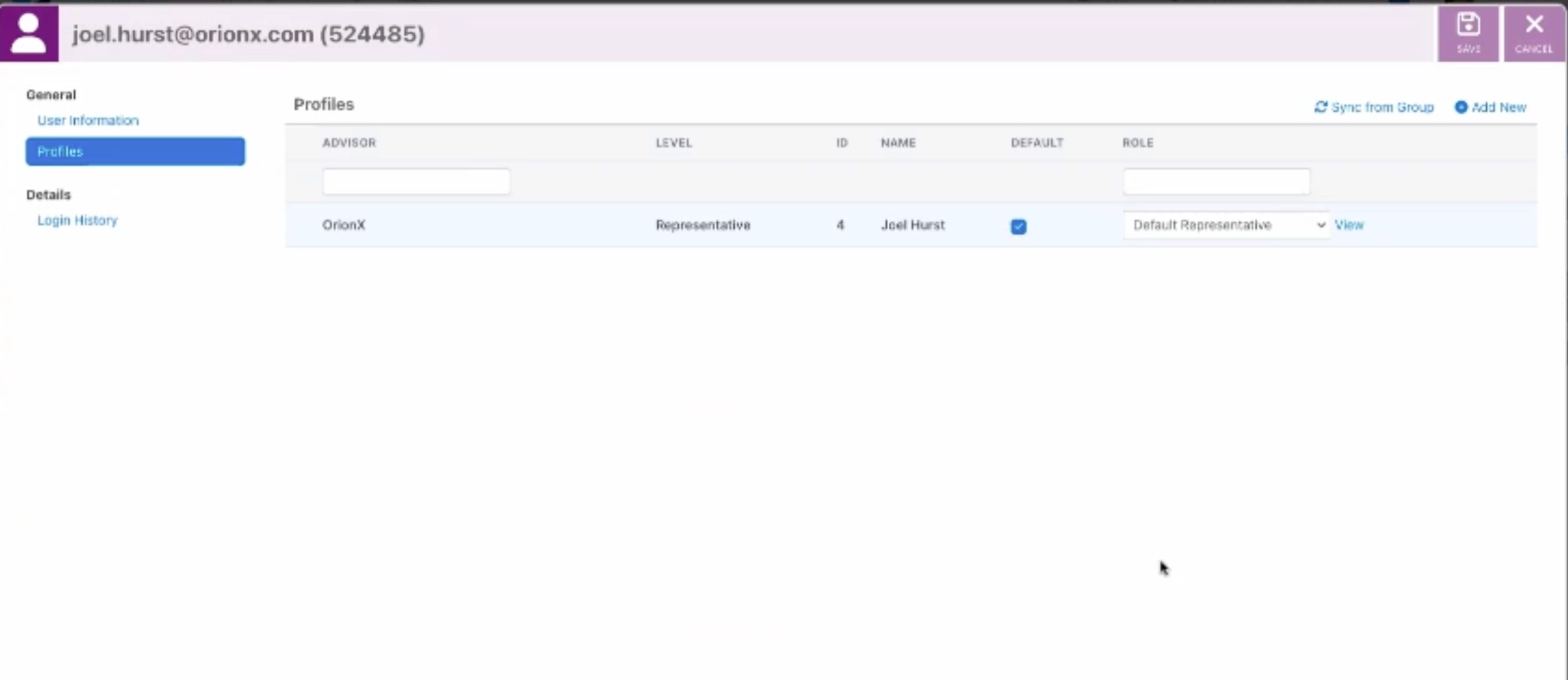
When creating a new integration user, there are a few options for permissions. The simplest is to make this new user an “Advisor” so that it has access to everything in Orion.
If more granular data sharing control is desired, then create the new user as a “Representative.” Then for each household in Orion that you want to share to Luminary, go into the household and assign this new representative OR assign an Orion Profile(s) to the new user.
✨ Tip: Most email providers will forward emails to aliases to your inbox if you add “+aliasname” to your email address
Step 3: Open the welcome email sent from Orion for this new user and follow the steps to sign in using the temporary password provided by Orion
You will need to reset the password for the new integration user as part of this step
The integration user must at least have access to all of Orion’s features to enable syncing but does not need to have access to all clients
Troubleshooting: No welcome email received from Orion for the new user
Check spam to see if the invite may have gone to that folder
Try to create a new integration user again to see if was just a one-off error
If still not working, check with the IT team at your firm to confirm if email address aliases are supported
If email address aliases are not supported, then the IT team should create a new email address entirely to serve as the integration user </aside>
Link Integration User to Luminary
Linking your firm’s Orion integration user will start the nightly sync officially.
Step 1: Log into Luminary
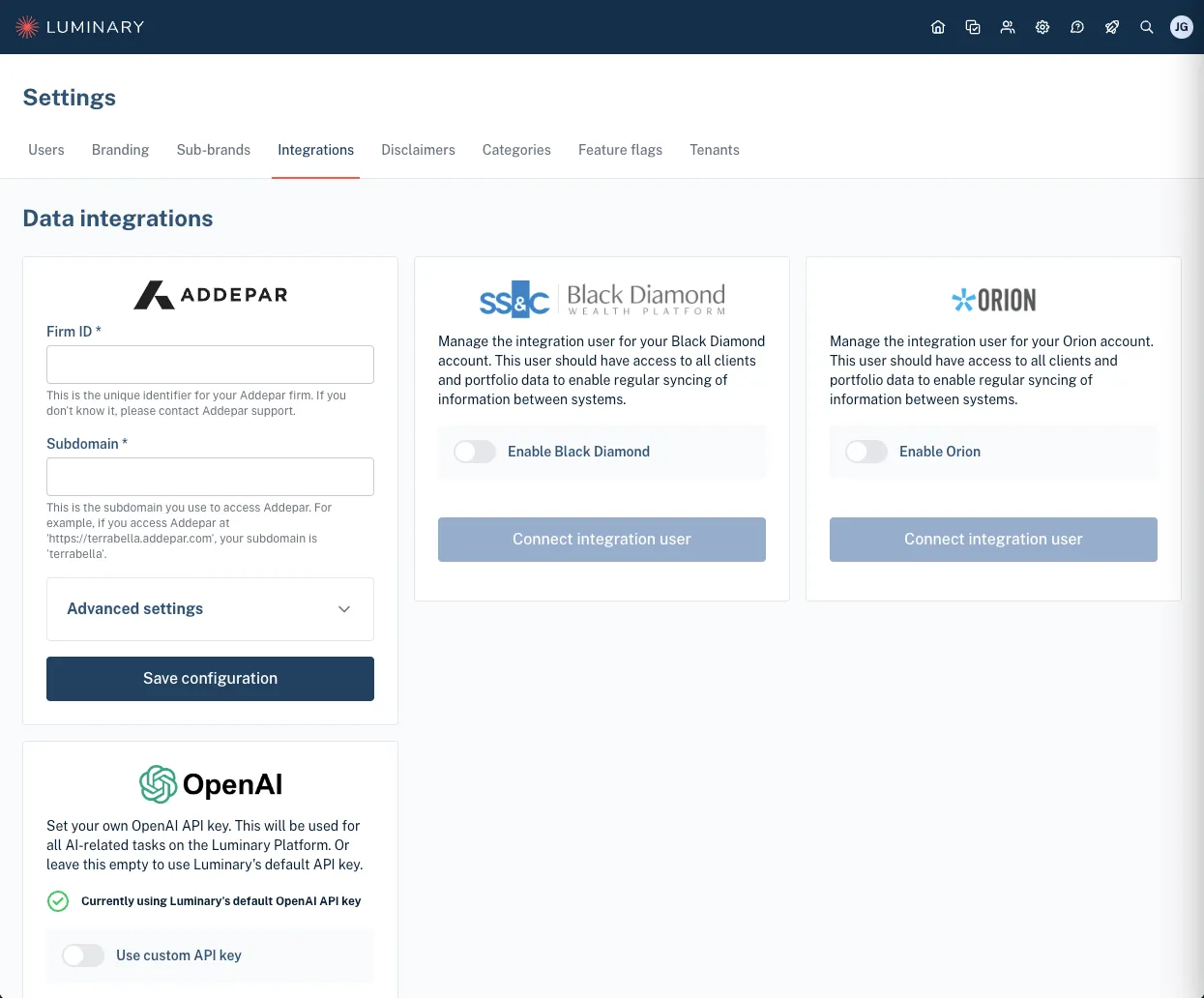
Step 2: Click the gear icon (Settings) from the top right corner and select the “Integrations” tab
Your Luminary user must have “administrator” permissions to access this. Please reach out to support@withluminary.com if you need to be granted Luminary administrator access.
Step 3: Check the box to “Enable Orion”
Step 4: Click “Connect integration user” which will redirect you to the Orion sign in
Step 5: Sign into Orion with your new integration user (if not already signed in)
Relink Orion Integration User
Relinking your firm’s Orion integration user will fix any disconnection errors that occurred.
Step 1: Log into Luminary
Step 2: Click the gear icon (Settings) from the top right corner and select the “Integrations” tab
Your Luminary user must have “administrator” permissions to access this. Please reach out to support@withluminary.com if you need to be granted Luminary administrator access.
Step 3: Click “Disconnect integration user” for Orion which will enable you to relink after
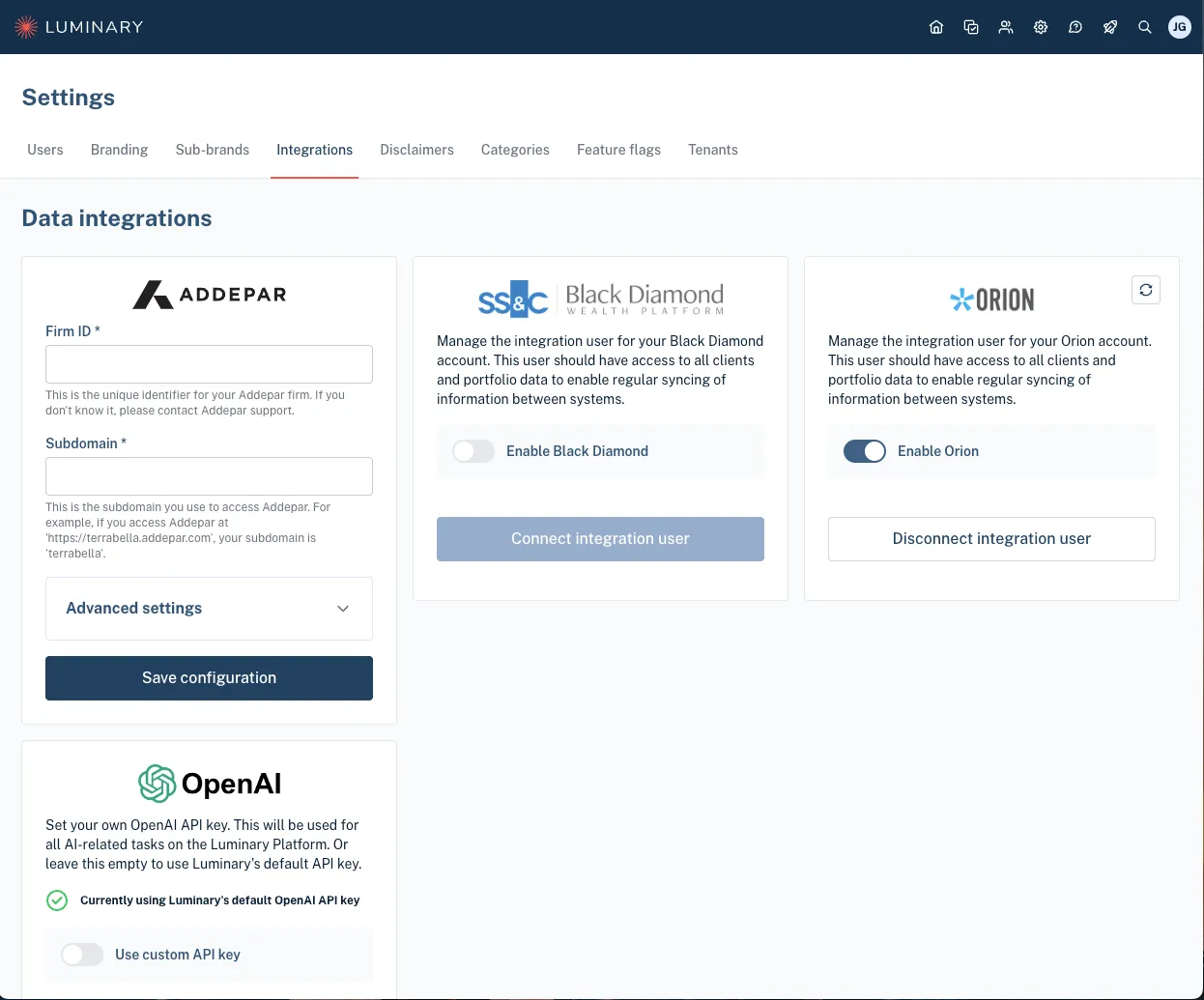
Step 4: Click “Connect integration user” which will redirect you to the Orion sign in

Step 5: Sign into Orion with your firm’s Luminary integration user