AI data extraction for entities
Last updated: August 19, 2026
Overview
Luminary AI enables efficient extraction of data from trust documents via suggestions inside the entity details form.
AI suggestions are supported for revocable trusts, irrevocable trusts, SLATs, ILITs, LLCs, LPs, GPs, S-corporations, and C-corporations.
How to Use AI Extraction
Looking to upload many documents or set up a new client?
Follow the AI section under our new client set up.
Extracted Individuals and Organizations
Once suggestions are ready, you will see a banner under the relevant entity details sections. Luminary AI will first suggest individuals and/or organizations identified in the document.
Click the magnifying glass icon next to each line to see the evidence in the document
These can be added to the platform or you can match them to an existing individual or organization.
After clicking update form, details from the document will populate below using AI.
If data already exists for the same individual/organization then a new entry will appear in the form so that no previous manually entered data is replaced. After which, users can delete the duplicate after reviewing the form details Luminary AI extracted.
Reviewing extracted data on a trust or business entity
Luminary AI will automatically suggest entities to extract from uploaded documents. Review the above tutorial video for the optimal flow when creating a new entity from Luminary AI.
Manage multiple documents and amendments
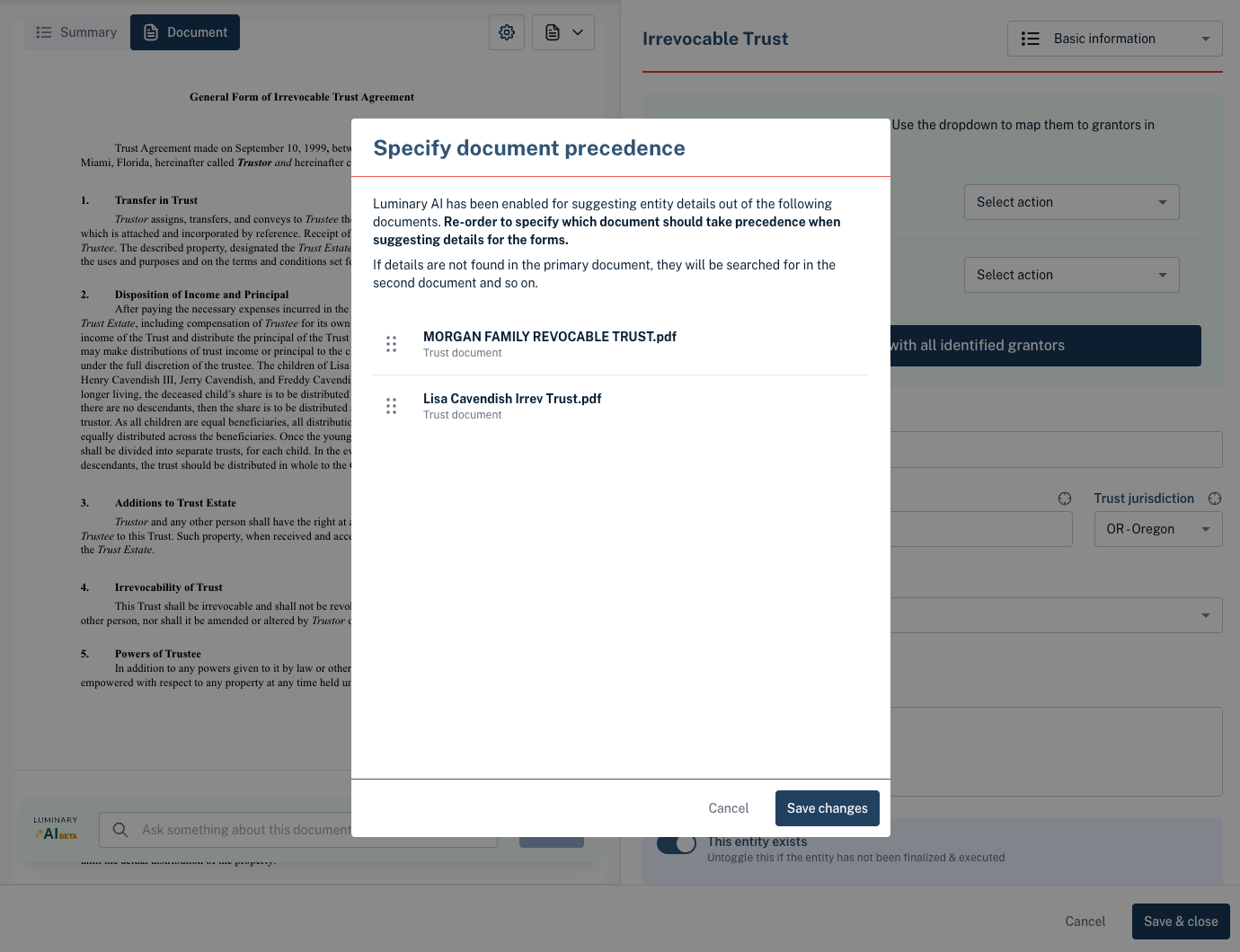
Luminary AI supports suggesting entity details from multiple documents for a single entity, such as for amendments. Set the precedence of documents to determine how AI should prioritize data extraction.
Navigate to an entity and click Edit Entity
Click the layered paper on upper left corner of the document viewer
Set the precedence of documents to source suggestions
When data conflicts for a particular field, suggestions will only be made from the document ordered first. If data is not found for a certain field, then suggestions are made from the next document in line.
Accept or Reject Suggestions
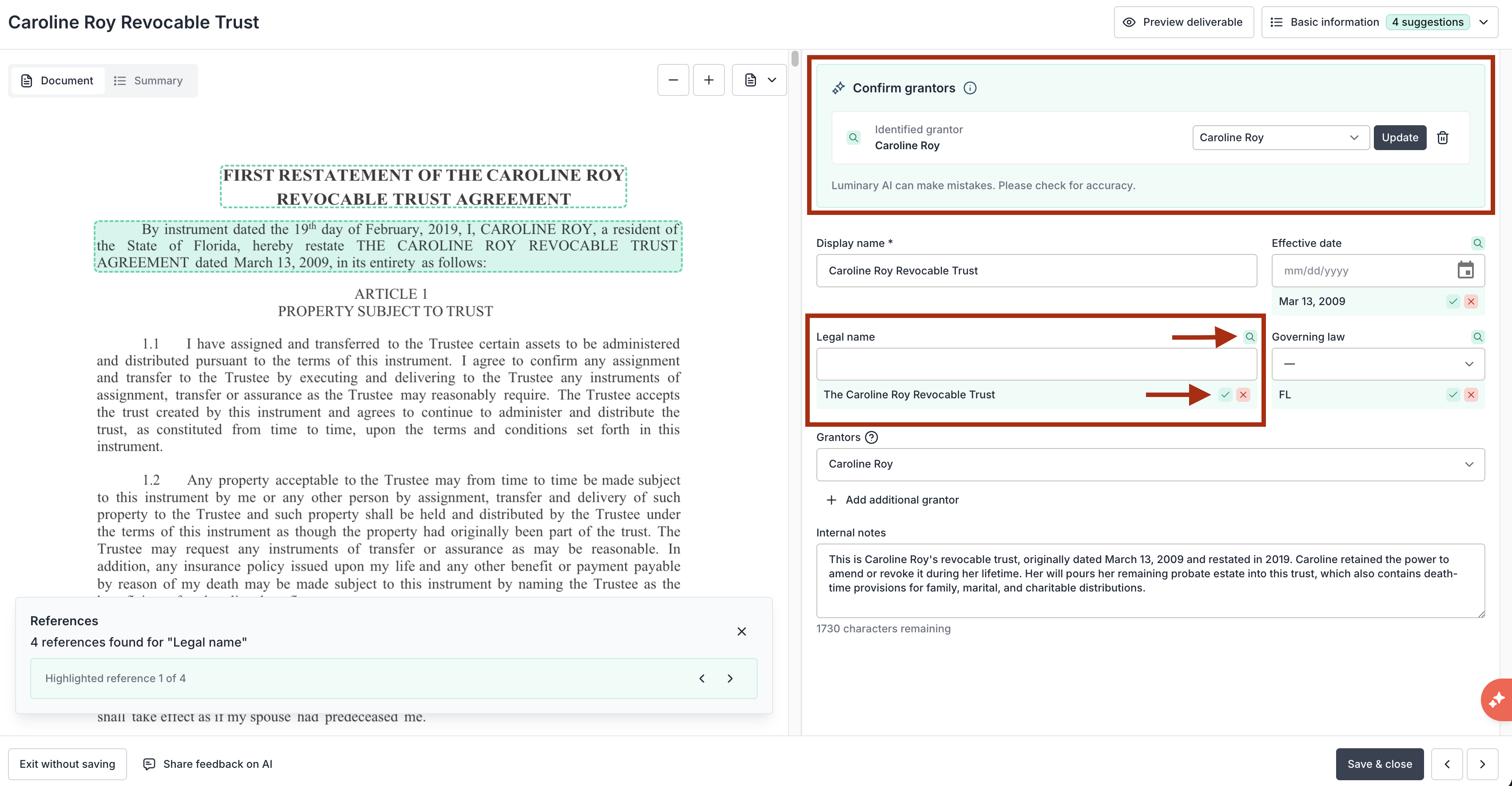
Luminary AI will suggest entity details below specific fields in the entity form.
Click the green check to accept the suggestion which will fill in the associated field (and replace any existing data).
Click the red "X" to reject the suggestion which will hide it permanently.
Clicking on the magnifying glass icon for any AI suggestion to show evidence found in the document.
If multiple evidences are found, you can click the arrows on the bottom of the document viewer to see each evidence source.
Reference the Document Summary
Luminary provides the document summary attached to referenced documents so you can thoroughly review suggestions. Toggle to the document summary in the upper-left corner of the screen to review summarized versions of any document.
Ask Luminary AI Assistant
To ask questions about the document or household more broadly, use the Luminary AI Assistant. Click the AI Assistant button in the bottom right corner of the screen to ask questions about a single document, how to do something on the platform, or more complicated estate tax calculation questions. For more information on how to use the Luminary AI Assistant, click here.