Preferred names & display names
Last updated: November 20, 2026
Luminary provides flexibility around your client's legal or preferred name across the platform. In case your client has a name they'd prefer to go by outside their legal name or names listed in estate planning documents, use the following features to update their name across the platform:
Preferred name
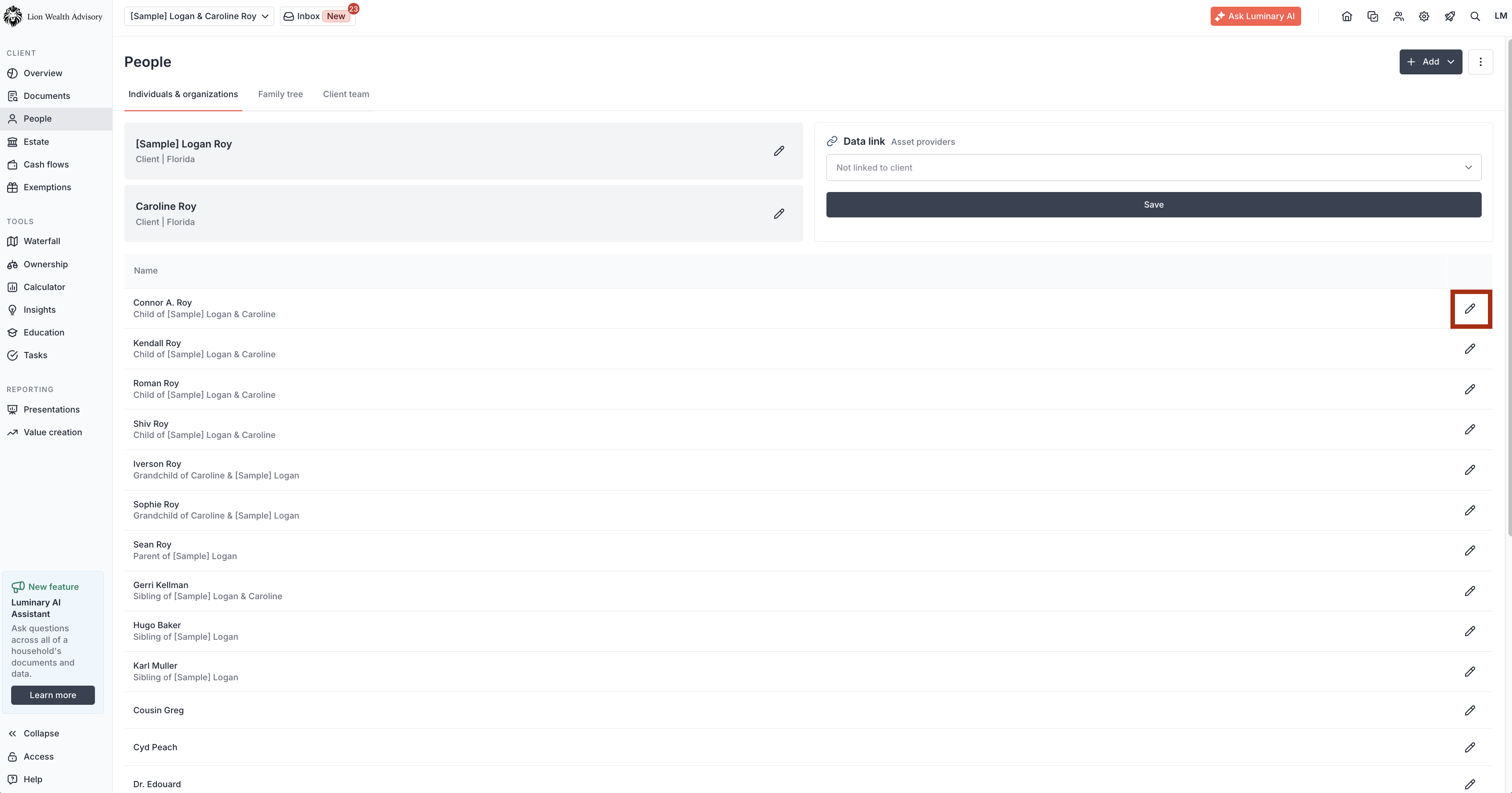
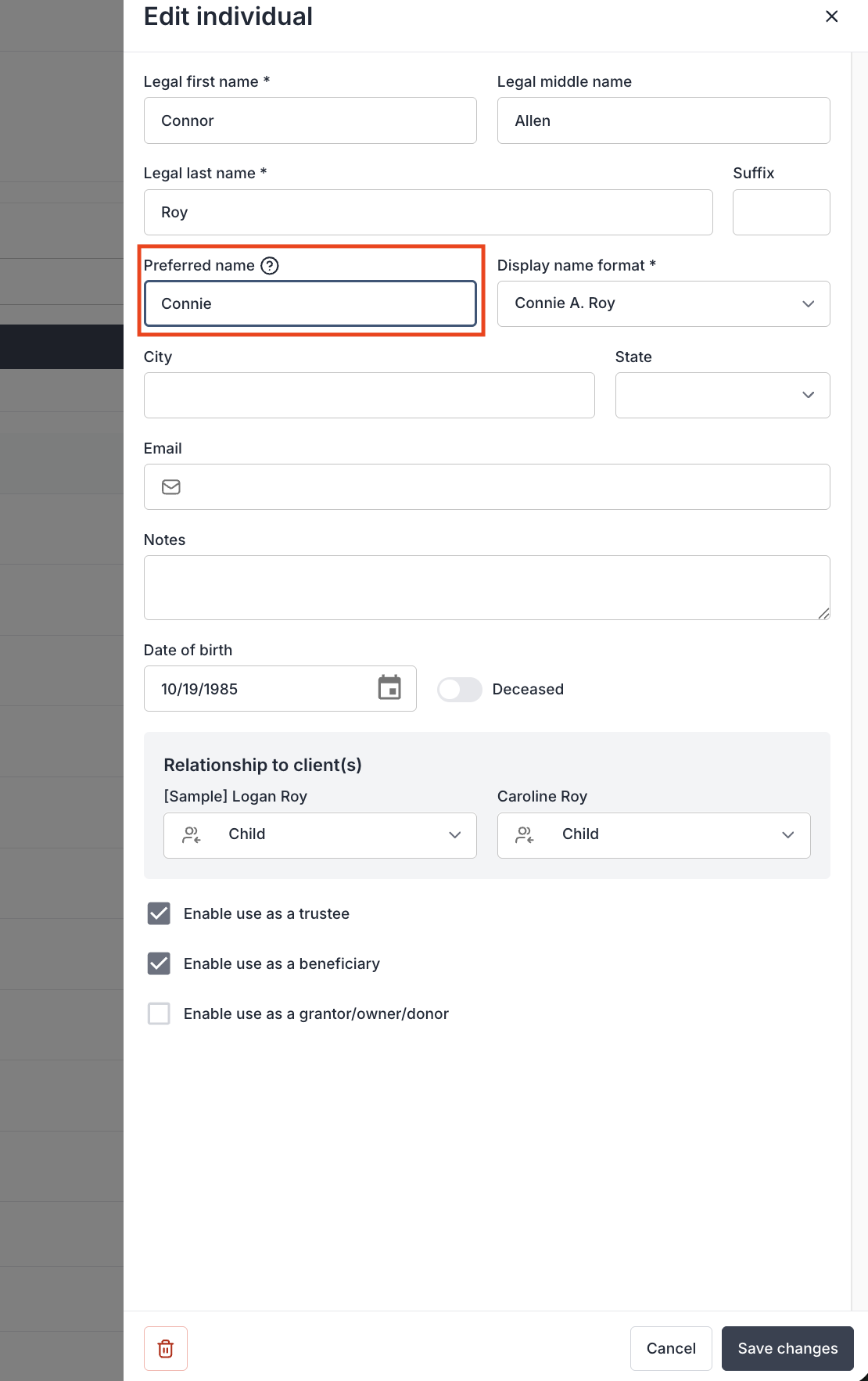
In the People tab, click the pencil icon to edit their information. In the preferred name box, type their preferred or alternate name.
Display name
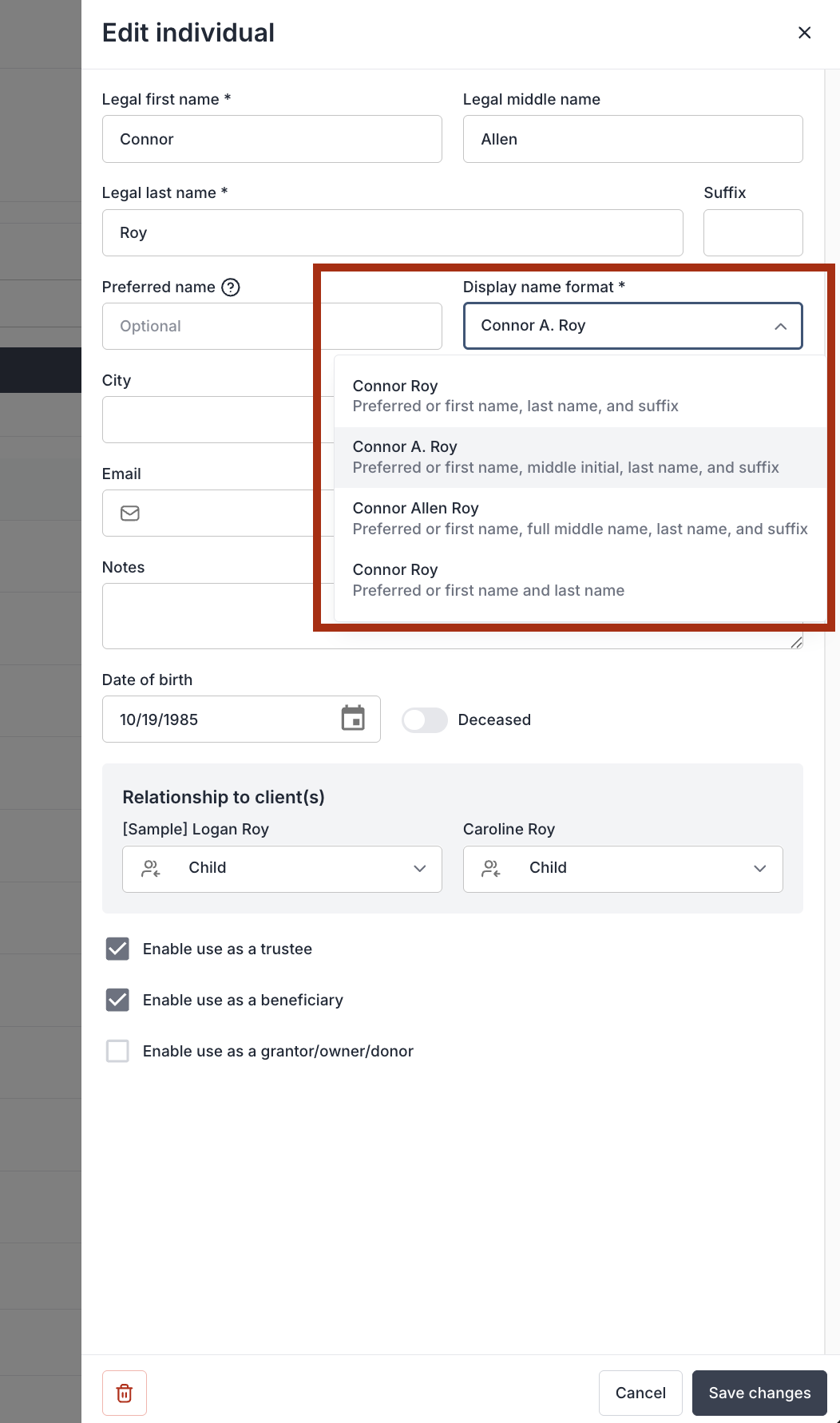
If your client's estate plan includes multiple people with the same name or namesakes, differentiate them using display name options.
From the People tab, click the pencil icon next to any person outlined in the estate plan. In the display name drop down, choose between a combination of their preferred, first, middle, last name, and/or suffix.
Note: Entering a preferred client name will auto-update dropdown options to only preferred name choices.
Manual Name Changes
Updating preferred names or display names will not change their name across the entire platform. To see where manual updates are still required after updating names, see the below list, or review our Luminary Academy article for duplicating households.
Manual edits after changing a main client's name
If you're changing one or both main clients after Luminary duplicates a profile, keep the following list of manual changes in mind:
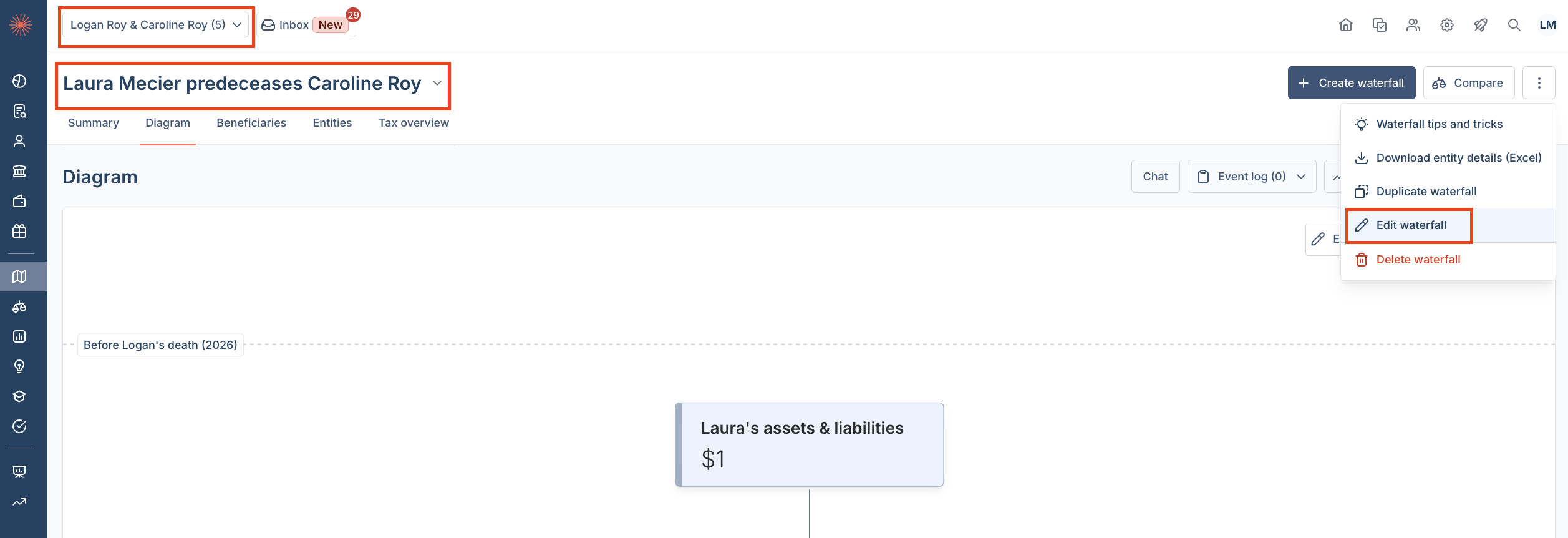
The waterfall diagram title will not change names. To update, click the three vertical dots in the upper right corner of the waterfall diagram, then select Edit waterfall.
Holding group names in the Direct Holdings page of the Estate tab will not change. To update these, follow the steps below:
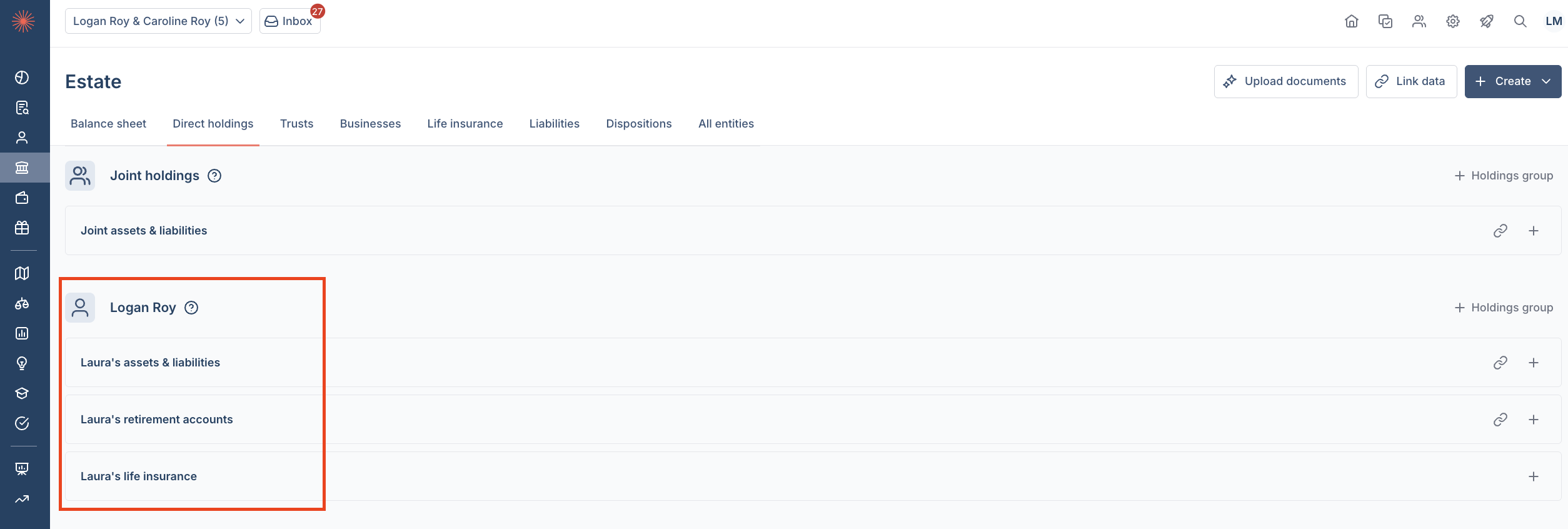
If the entities hold assets, go to the three vertical dots located next to the overview of each entity. Click the three vertical dots in the upper right corner, and select Edit entity > Basic information. There you can edit the display name.
If the entities do not hold assets, the three dots won't populate. Add at least $1 of assets to the entity using the plus icon on the right side of each entity or holding group, then follow the same steps above.
To add entities or holding groups, click + Holding group on the right side of each owner.
Cash flows do not change. To edit, click on the cash flow. To delete, click the three vertical dots on the right side of any unwanted cash flows.

Document Summaries, which depend on the client name according to the document uploaded.
Old Estate360 Presentations where AI generated content depends on naming in documents, or where updates may become outdated if more documents are uploaded. Examples of documents that will not retain display name updates are:
Document Summaries
Executive Summaries
Trust Overviews
Entity Overview