Building the People Tab
Last updated: October 27, 2026
People
Luminary's People tab has three core sections:
Individuals & Organizations: The list view of all people eligible to be beneficiaries and trustees in an estate plan
Family Tree: A client-facing, customizable visual illustration of the relationships between individuals
Client Team: A repository for you or your clients to maintain a list of individuals or organizations supporting the clients in a financial or administrative capacity.
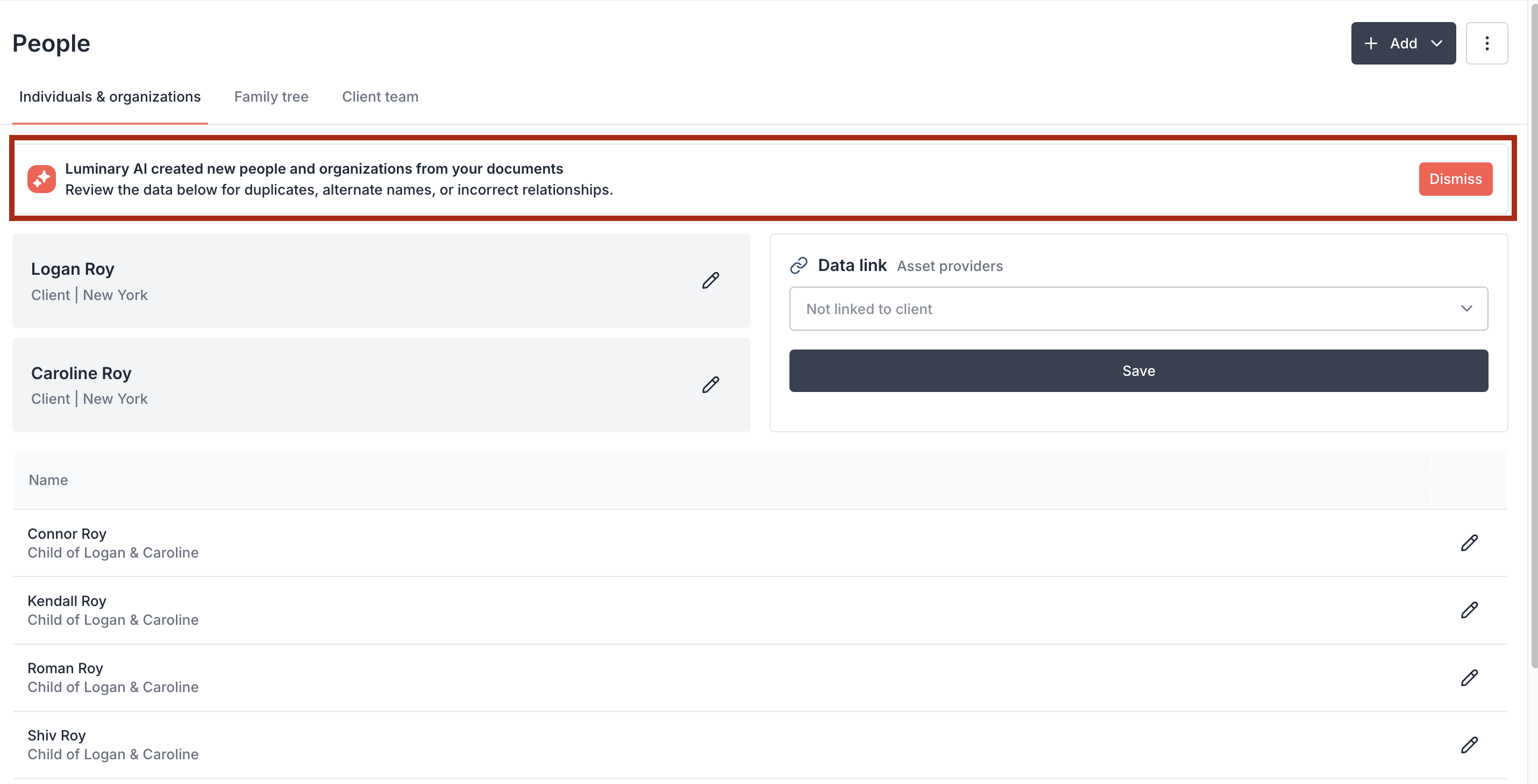
AI Generated People
After uploading core documents, Luminary AI identifies people, corporate trustees, or charitable organizations mentioned in the estate planning documents. All created people, corporate trustees, and organizations are listed underneath the main client callout boxes.
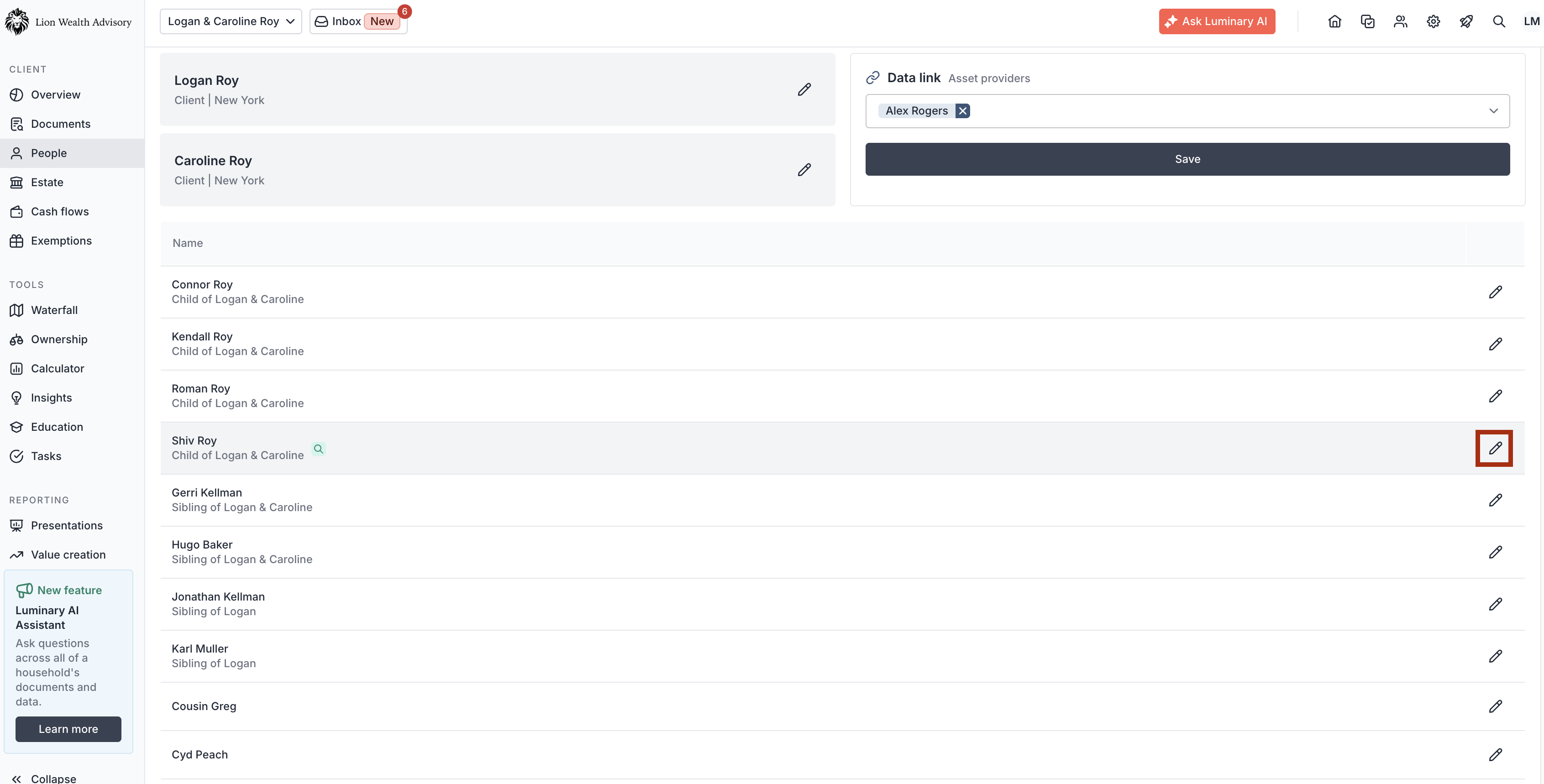
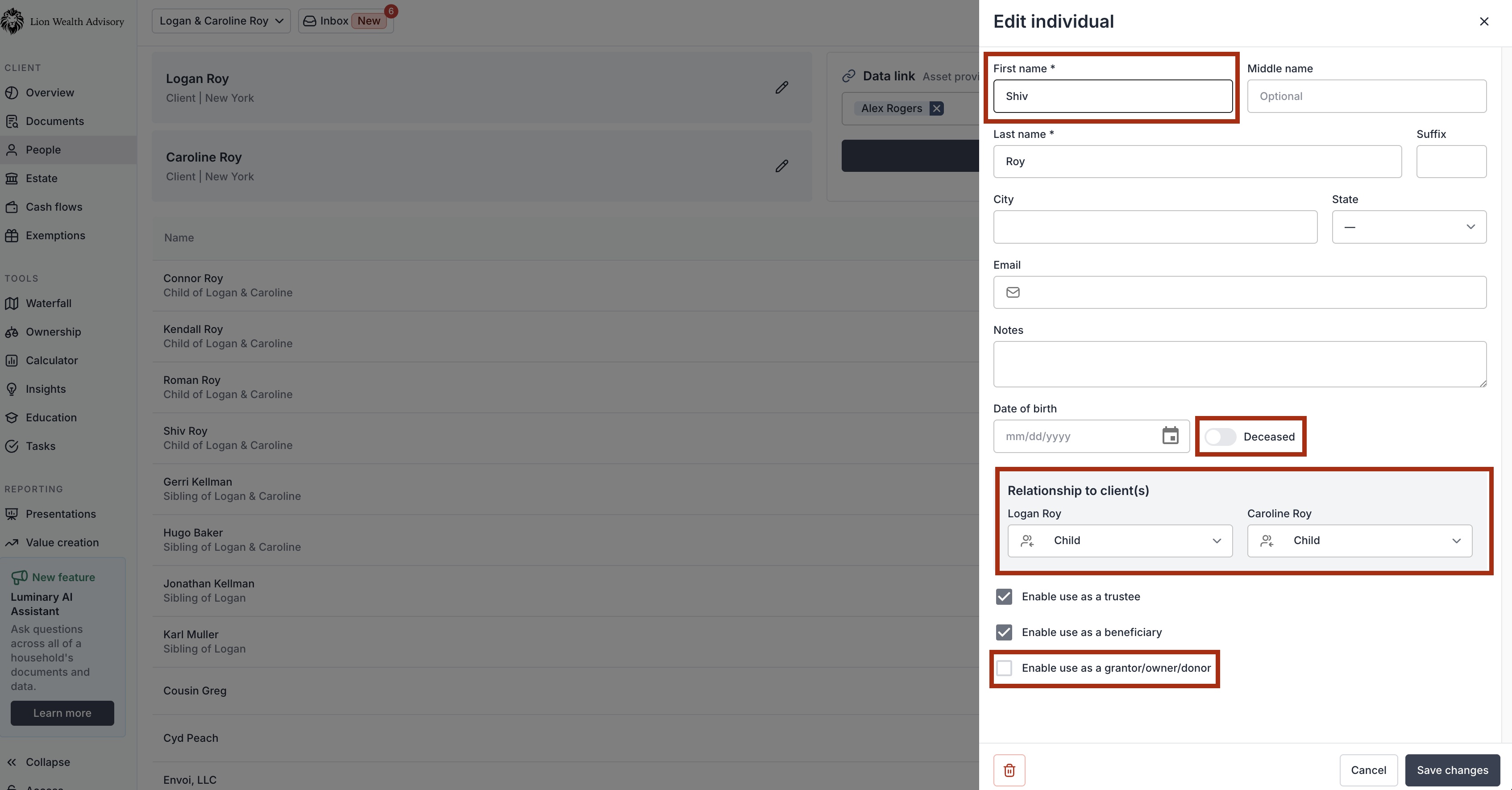
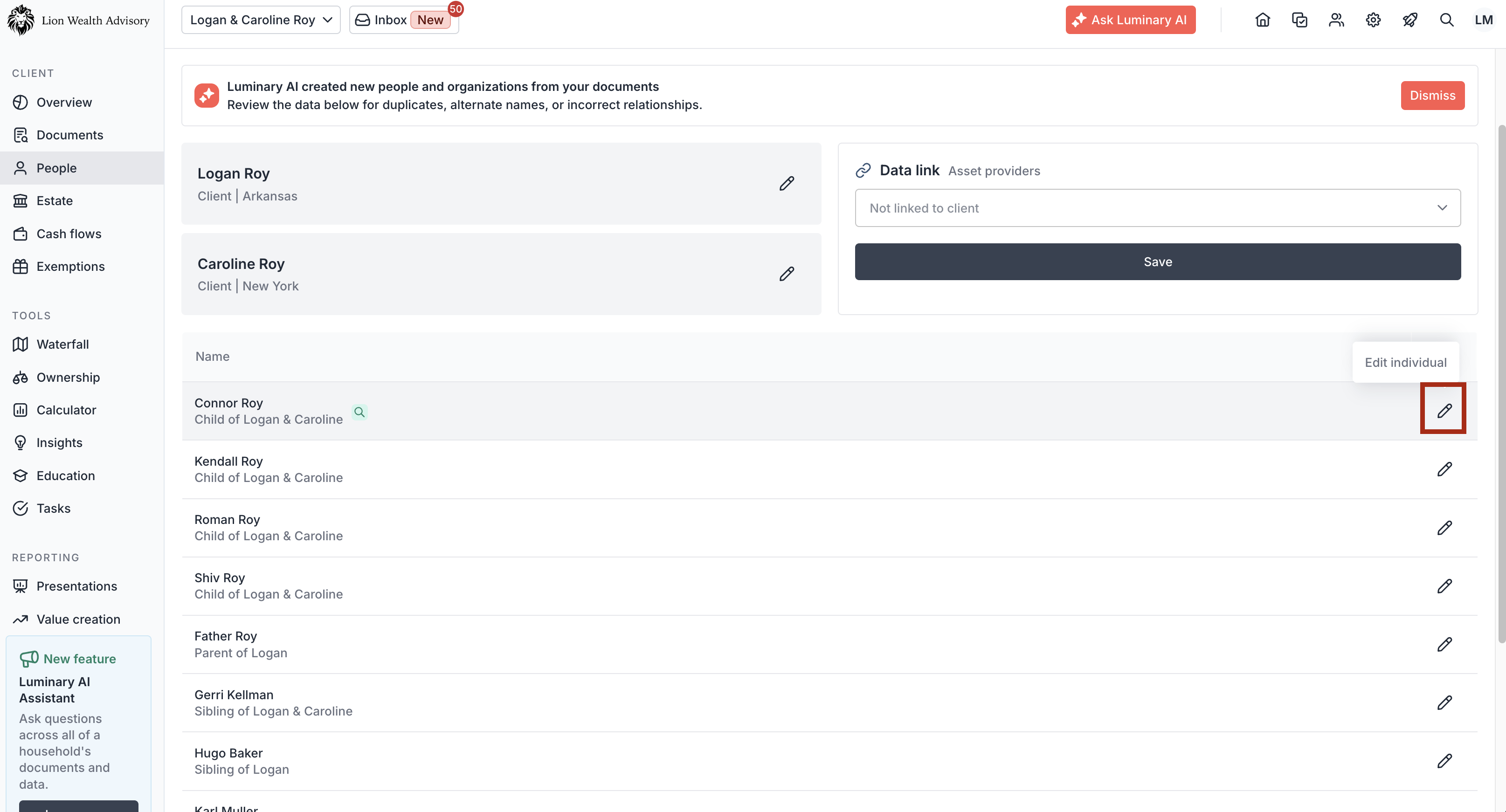
Review all accepted people and organizations created, using the pencil icon on the right side of the screen to edit or add information like date of birth, date of death, relationship to client, grantor status, and more.
People References
If you're unsure who a person is after they're added to the estate plan, hover over their name, then click the green magnifying glass to see all references to them across the estate plan.
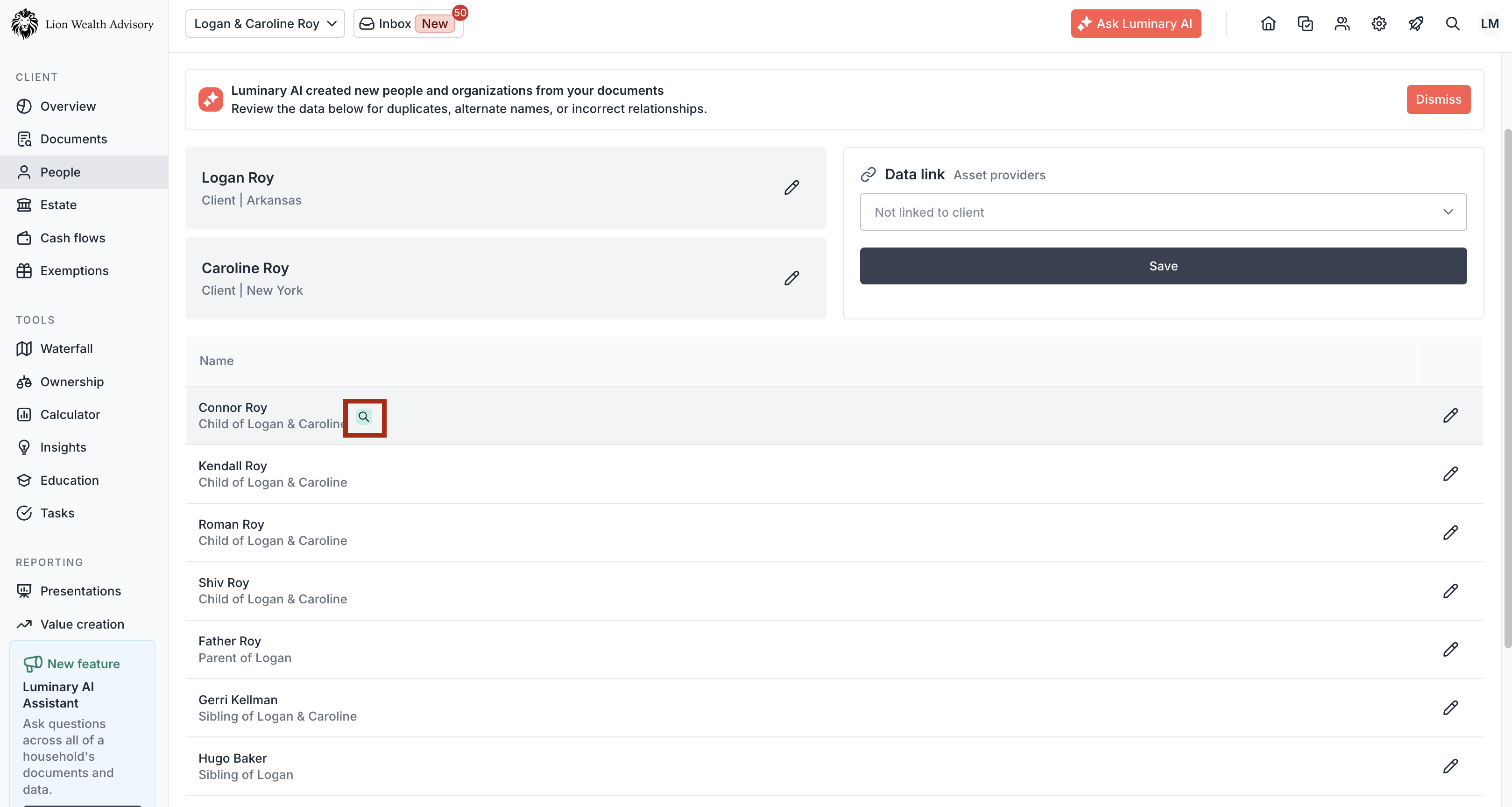
Note: The green magnifying glass shows up on most pages of Luminary: Document summaries, presentations, trust or entity suggestions, and more. Any time you see the green magnifying glass, click it to cite the source, and view all references to that person, entity, plan, or mention. For further questions about the plan, try asking the Luminary AI assistant.
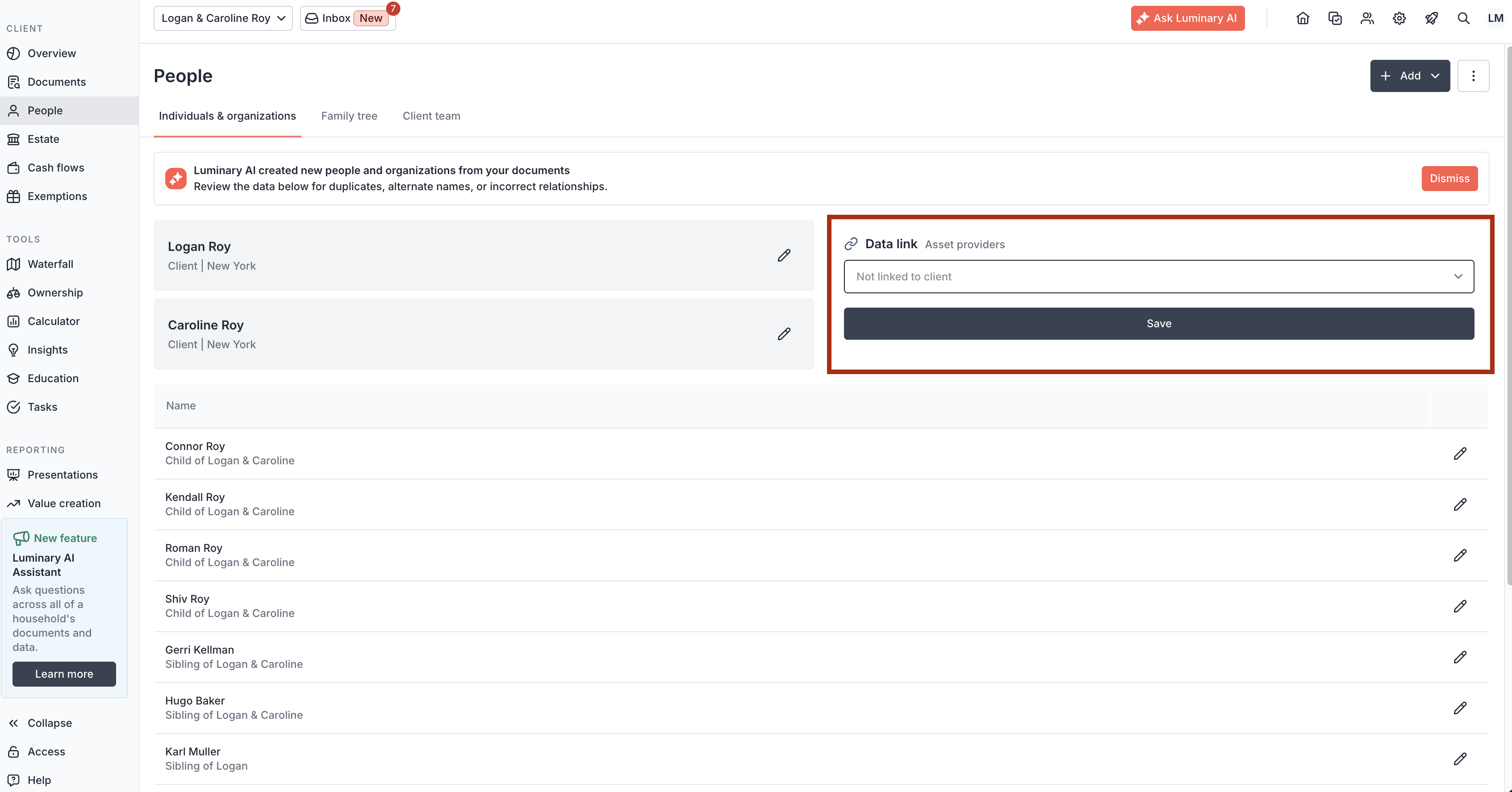
Linking Individuals
To link a client profile to their profile in an integrated platform like Addepar, eMoney, or Black Diamond, click here.
Merging Duplicate People
In the event you end up with a duplicate person or organization on a client profile, we now offer a quick way to merge duplicates. Merging brings all of those connections together on a single record, so nothing is lost.
To merge duplicates:
On the People page, navigate to the Individuals & Organization tab.
Select the duplicate record by clicking the pencil icon to the right of the individual's name.
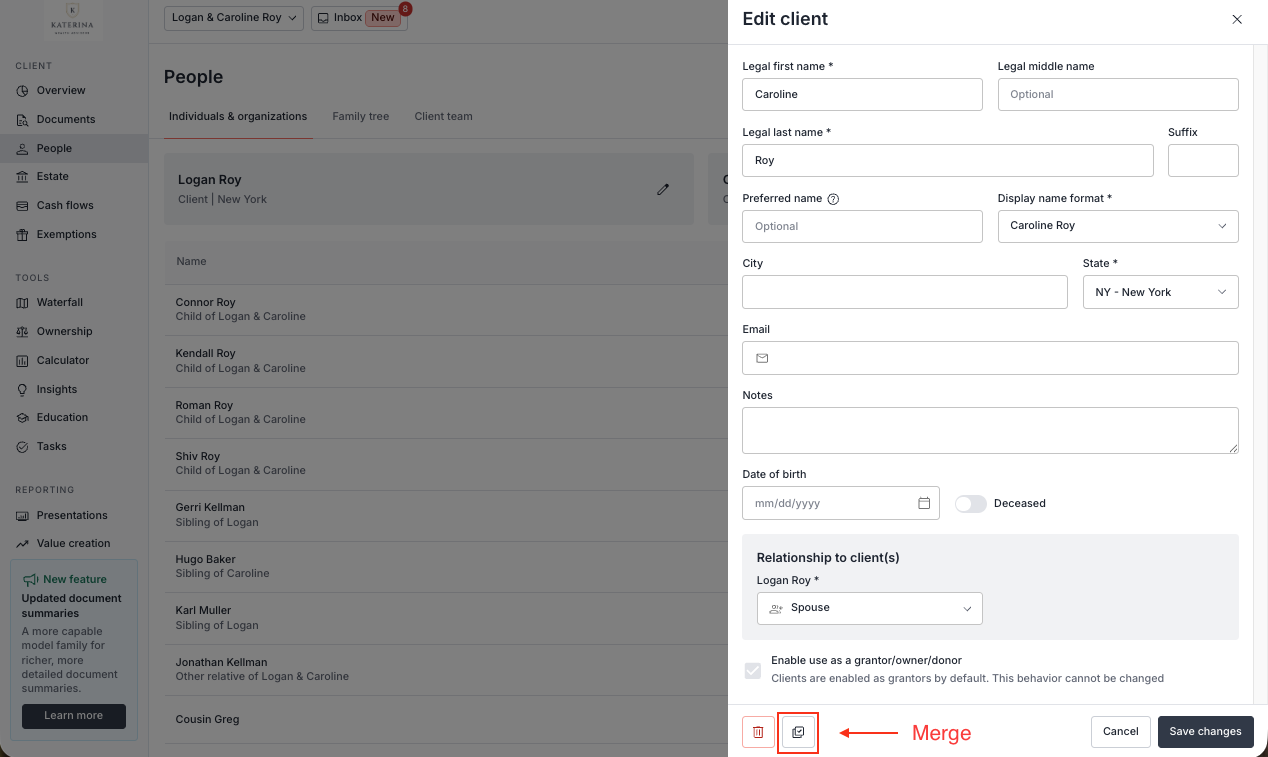
In the pop up menu, navigate to the bottom left corner and select the merge icon as shown below.
In the dropdown menu on the right, select the duplicate that you wish to merge. See example merging duplicate people below.
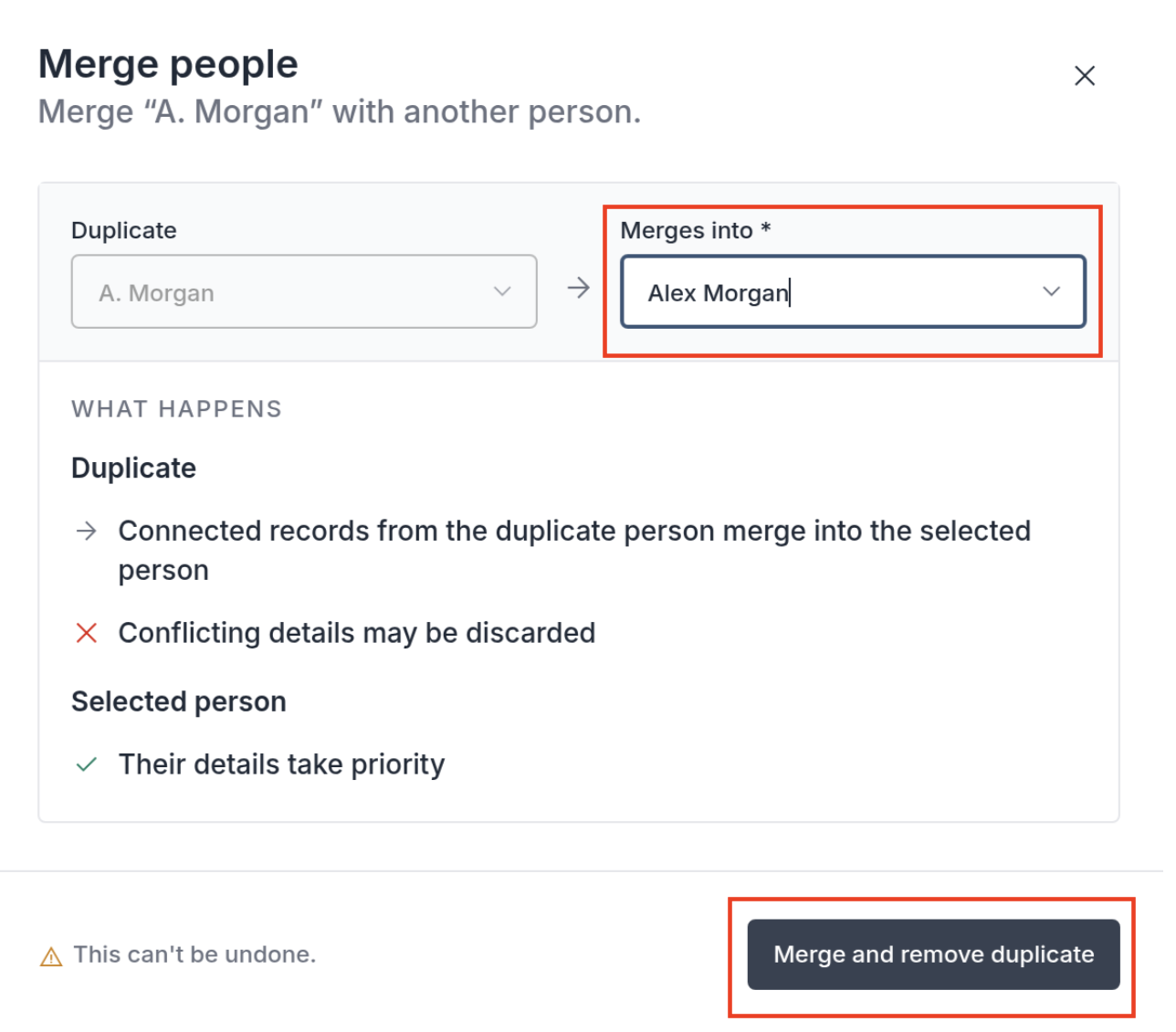
Review the summary before confirming. It shows what will move to the record you’re keeping, what will stay, and what will be discarded.
Confirm the merge.
Adding important information
The People tab can serve as a repository for client personal and familial information. By identifying relationships, DOB/DOD, and grantor status, you can build out a robust family tree for your team or your clients to better visualize key people in their plan.
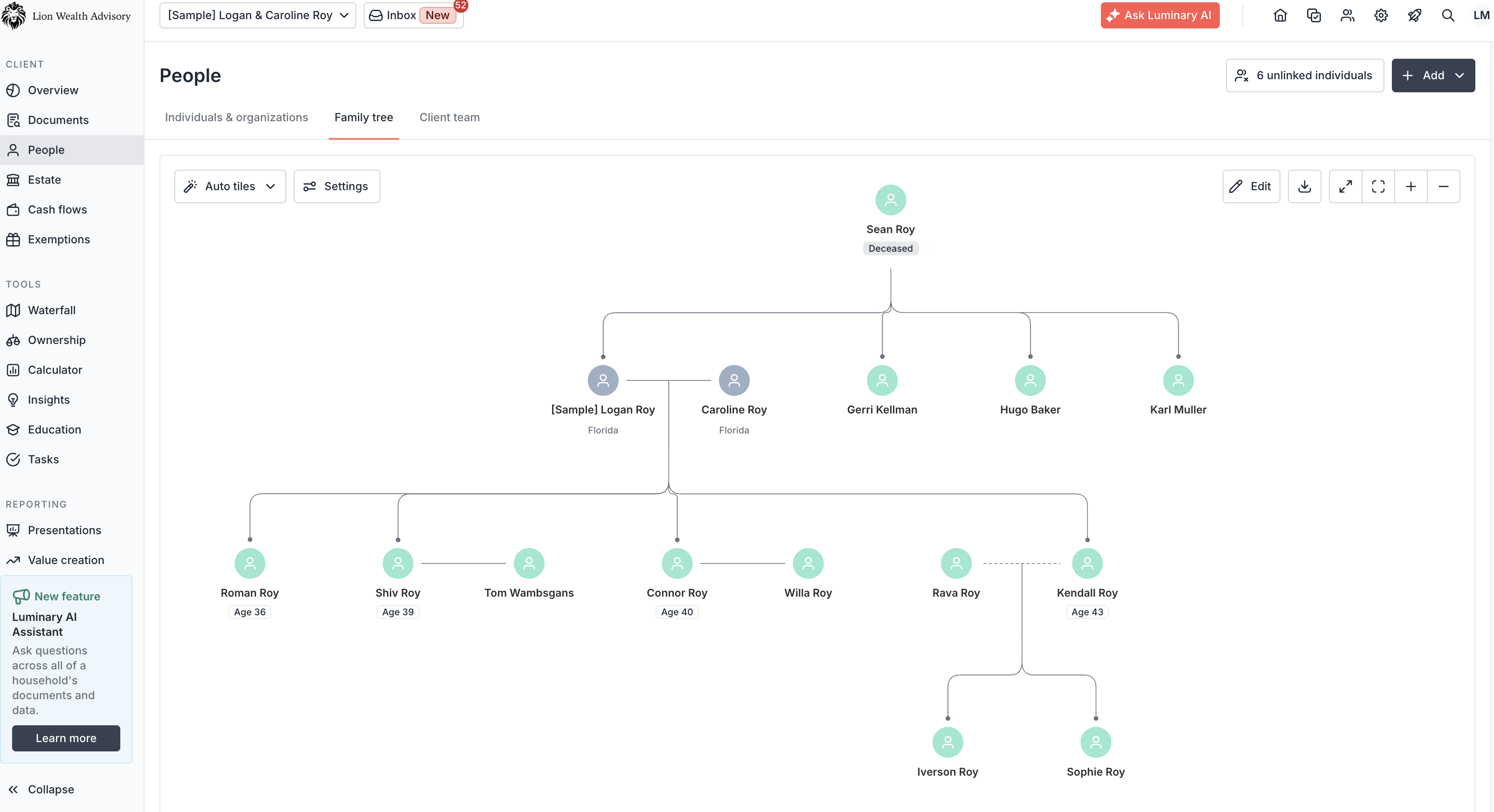
To add detail to any person, corporate trustee, or organization click the pencil icon to the right of their name, then edit and save as necessary.
Adding other grantors
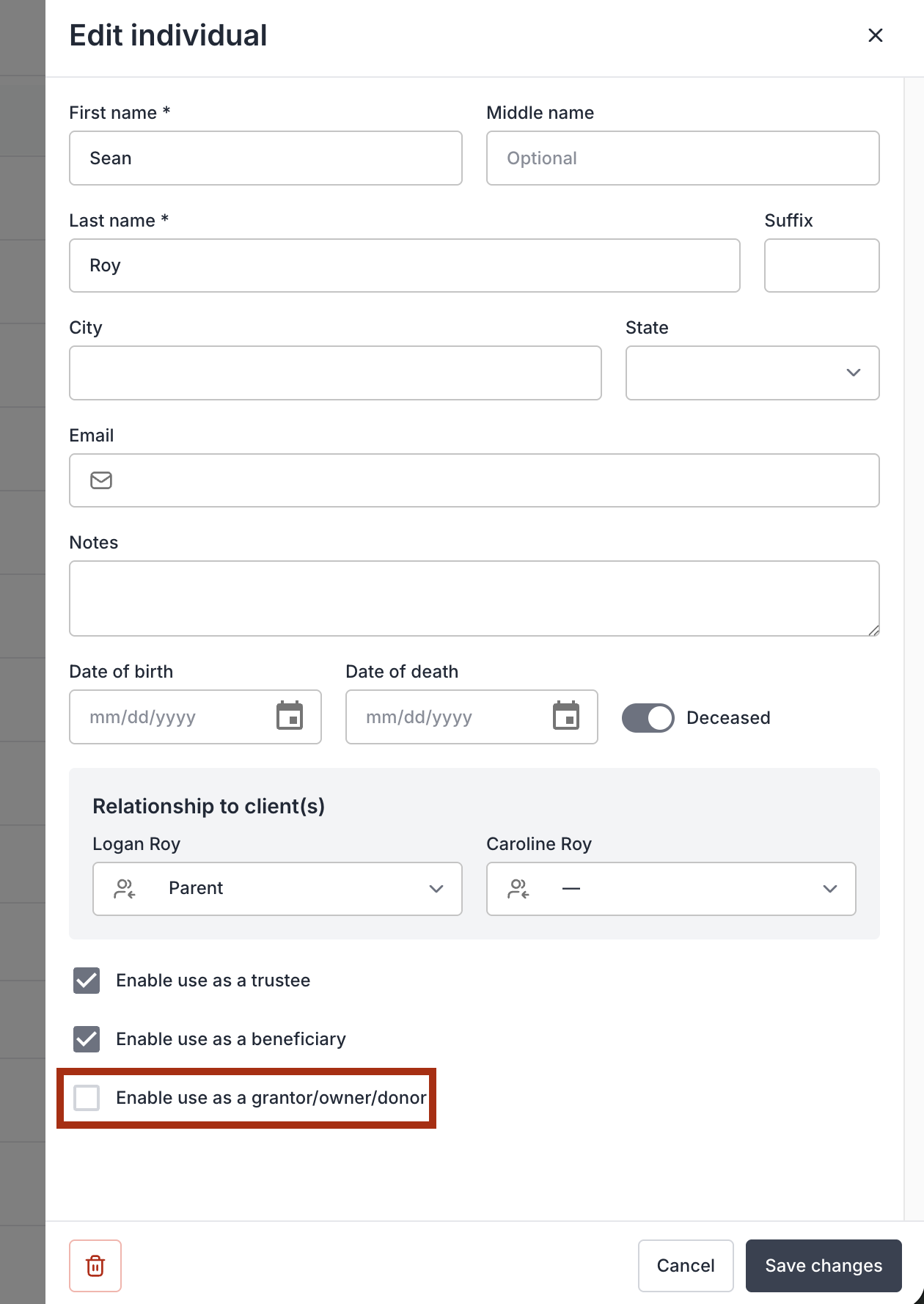
If another person outside the main clients is a grantor for trusts applicable to the estate plan, add them as a grantor by editing their personal information.
To add another person as a grantor, follow the below steps:
Click the Edit icon to the right of the person you want to add as a grantor
Check the box to Enable use as a grantor/owner/donor
Save changes
Alternatively, read our Luminary Academy article about adding non-client Grantors.
Client team
The client team page in the People tab is not AI-enabled. Add information about your clients' accountants, attorneys, and other advisors, or use it as a point of reference for the clients' physicians, healthcare agents, estate executors, and more.
Note: All people must be created before adding into the client team tab.