Modeling complex dispositions (% of exemption, asset-specific, more)
Last updated: June 29, 2026
The following outlines more complex disposition patterns that you can model in Luminary.
Percentage of formulaic — distribute a percentage of any formulaic option, such as 50% of the remaining lifetime or GST exemption.
Select the formulaic distribution type, and select the amount distribute in the dropdown menu.
Click the "Advanced settings" button to the right of the drop down menu and in the Percentage of formula field, specify the percentage to distribute.
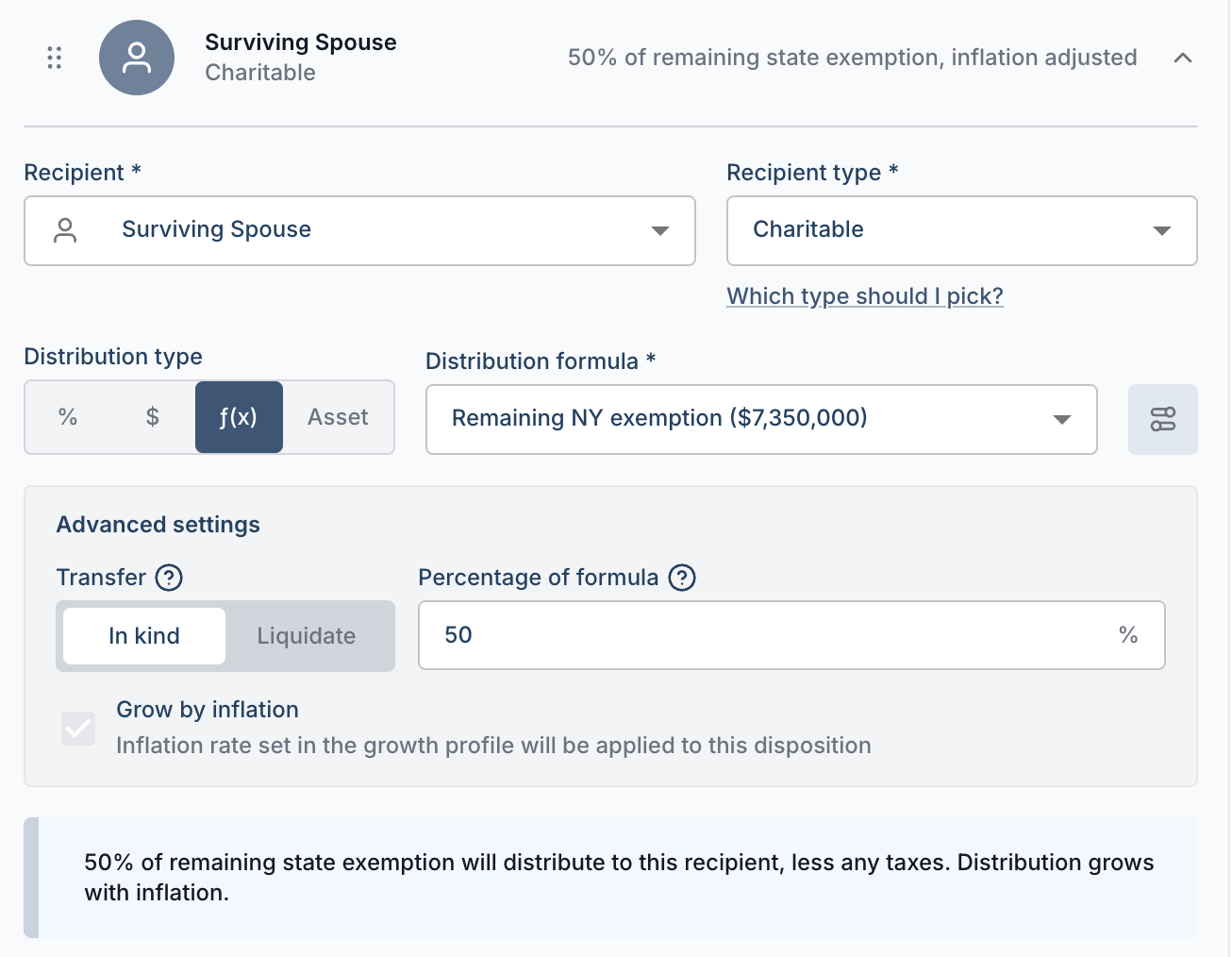
Luminary distributes based on the actual entity value, not the full exemption amount, so recipients are treated equitably. For example, if two beneficiaries each receive 50% of a $15M remaining exemption ($7.5M each) but the entity is only worth $6M, each recipient receives $3M rather than one receiving the full $6M and the other receiving nothing.
However, if your formulaic percentages across all recipients don't add up to 100% (e.g. you're directing 50% of the remaining exemption to a single recipient) the entity value ceiling doesn't apply. In that case, the recipient receives the full entity value (up to their formulaic amount). The ceiling only kicks in when multiple recipients together account for 100% of the distribution.
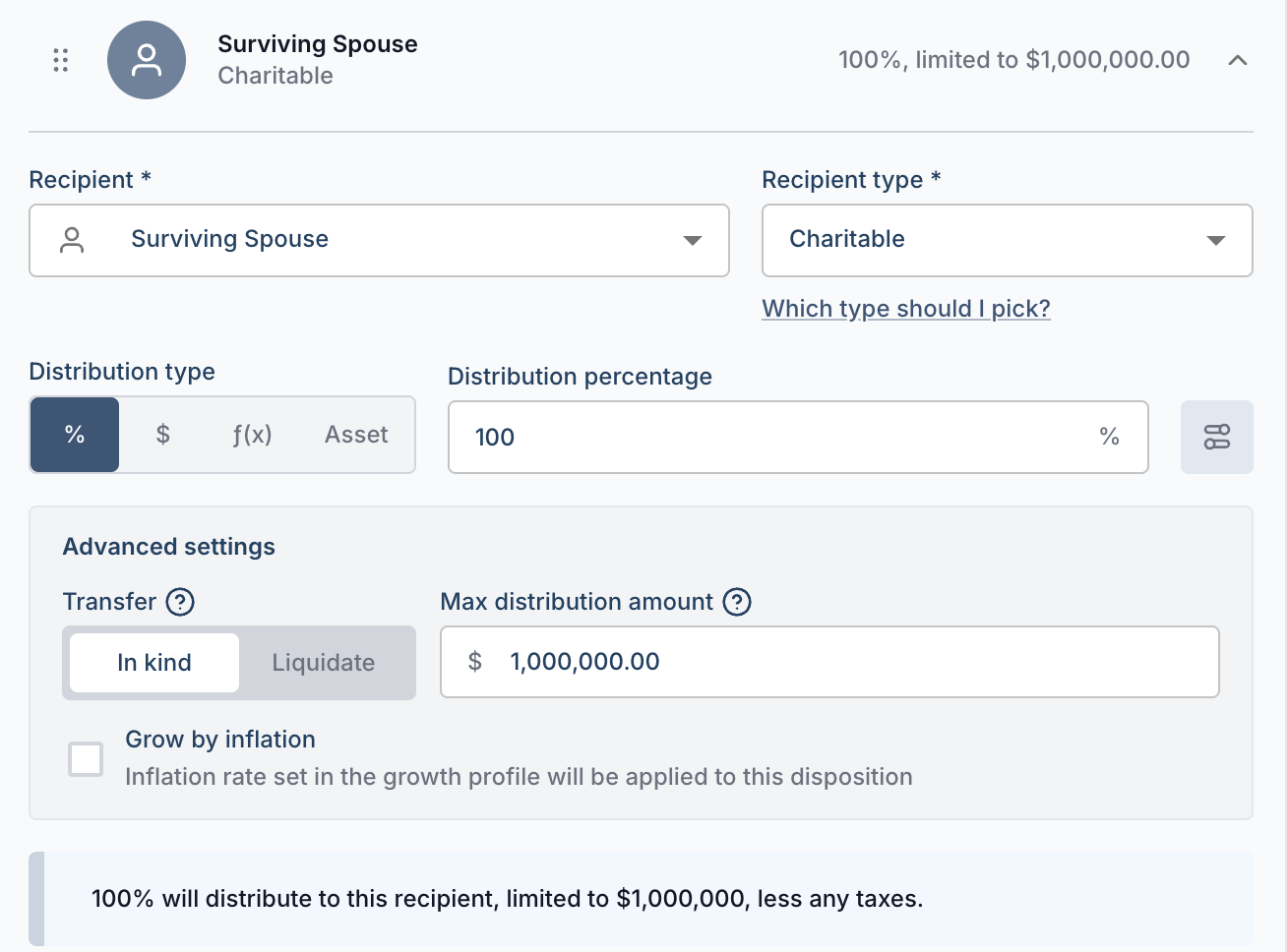
Percentage capped at a maximum dollar amount — Distribute a percentage from an entity while setting a ceiling on the total dollar amount distributed.
Select the percentage distribution type, and enter the amount distribute.
Click the "Advanced settings" button to the right of the percentage input and enter a desired dollar cap amount to distribute.
Split evenly among recipients — For dispositions that need to be divided equally but don't round to a clean decimal (e.g., 1/3 to each beneficiary), this shortcut automatically handles the math so every recipient receives a precise, even amount.
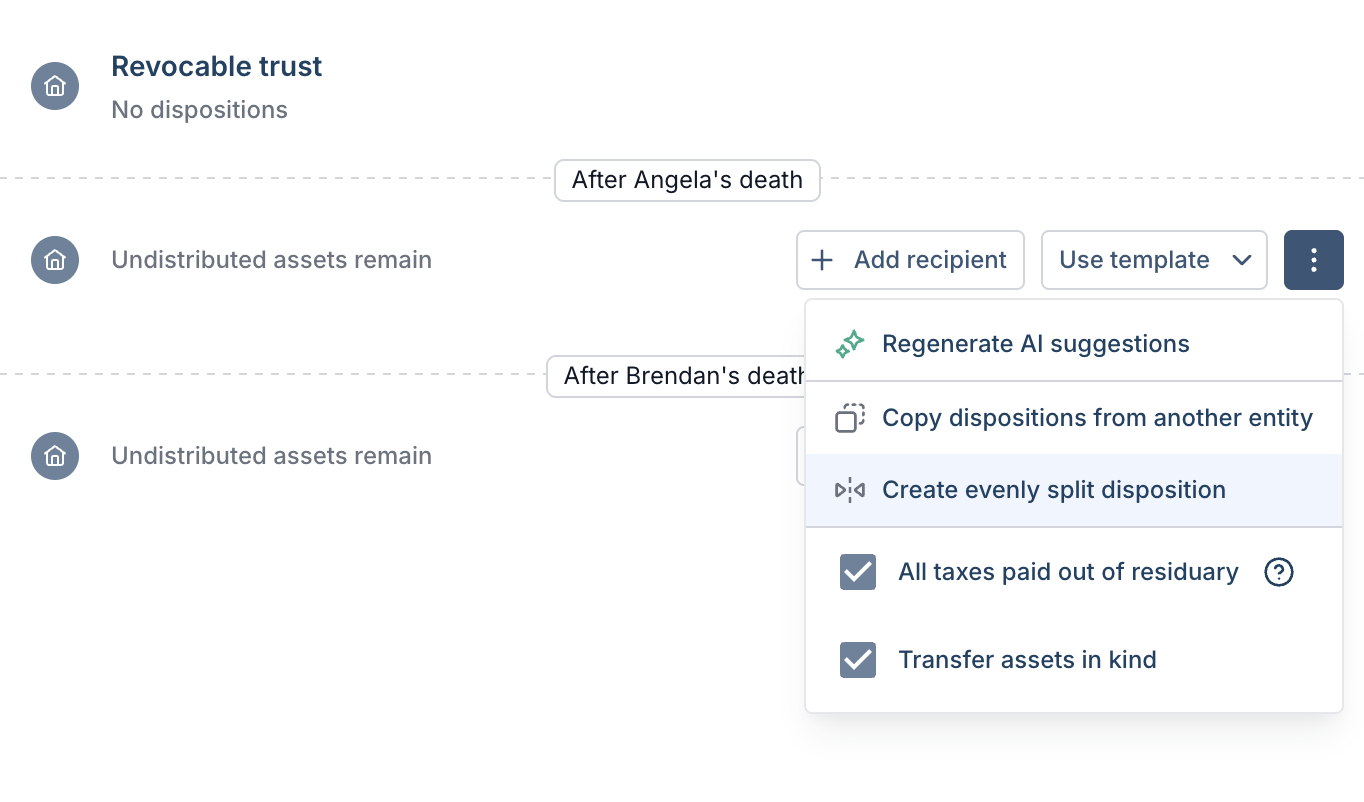
In the overflow menu, select "Create evenly split disposition"
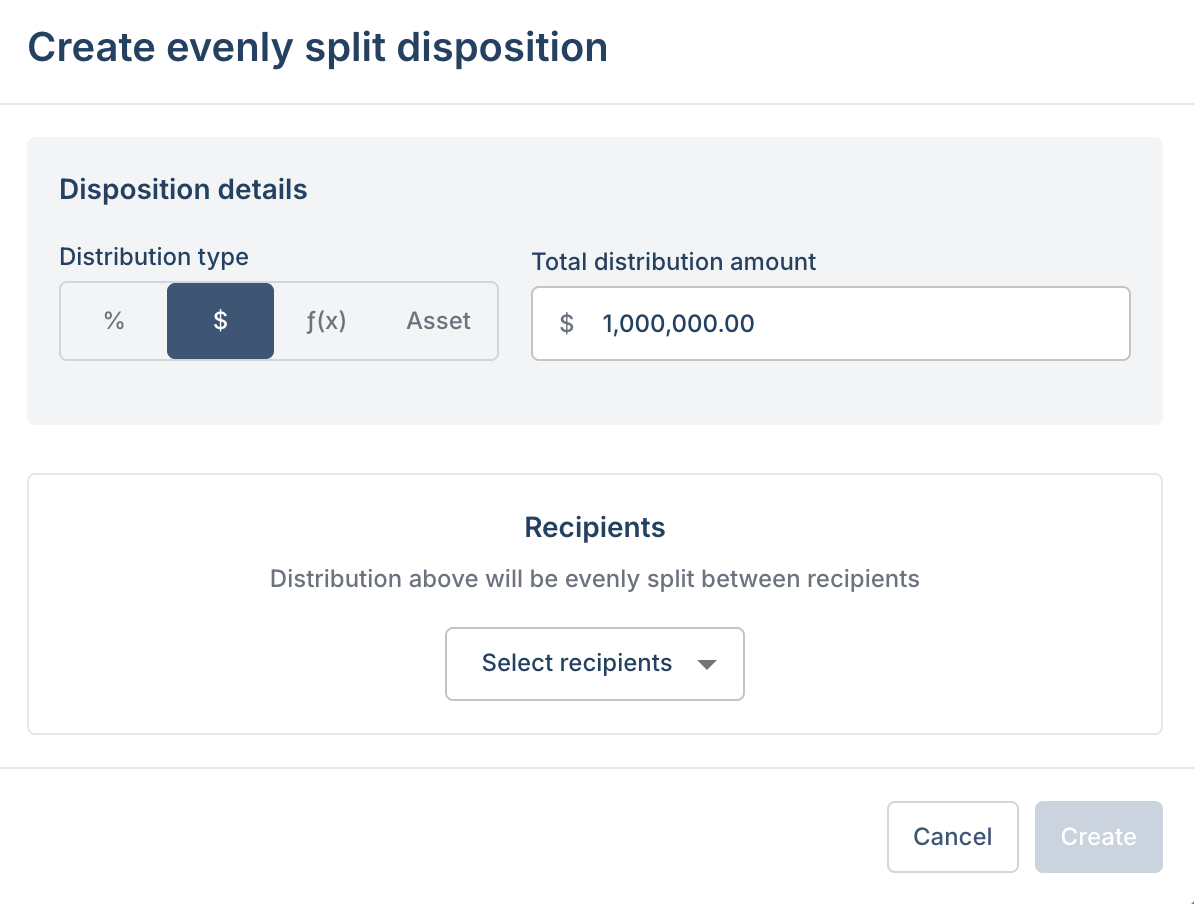
Specify the amount (%, $ or f(x)) to distribute along with the recipients, and click save.
The dispositions form will populate based on the recipients and amount entered and will automatically split the disposition equally.
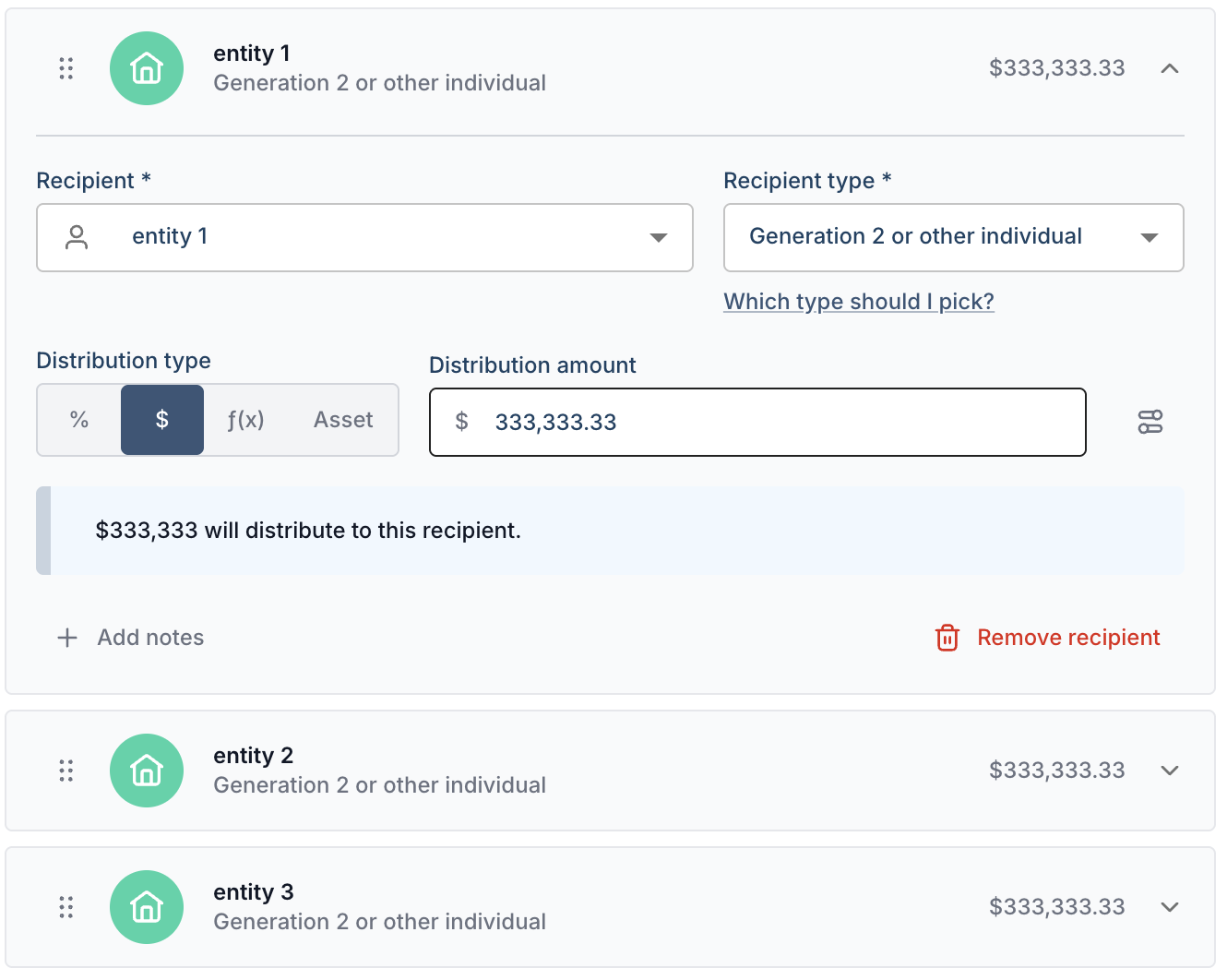
Source dispositions from multiple entities — You can apply a single set of dispositions across a group of entities, drawing from their combined value as a shared pool. For example, a $1M bequest assigned to 3 entities would be funded collectively across all three, rather than $1M from each, resulting in $1M total.
To apply a single disposition across multiple entities, this is configured under disposition templates. At the top of the template form are two radio options: Pro rata and Per entity.
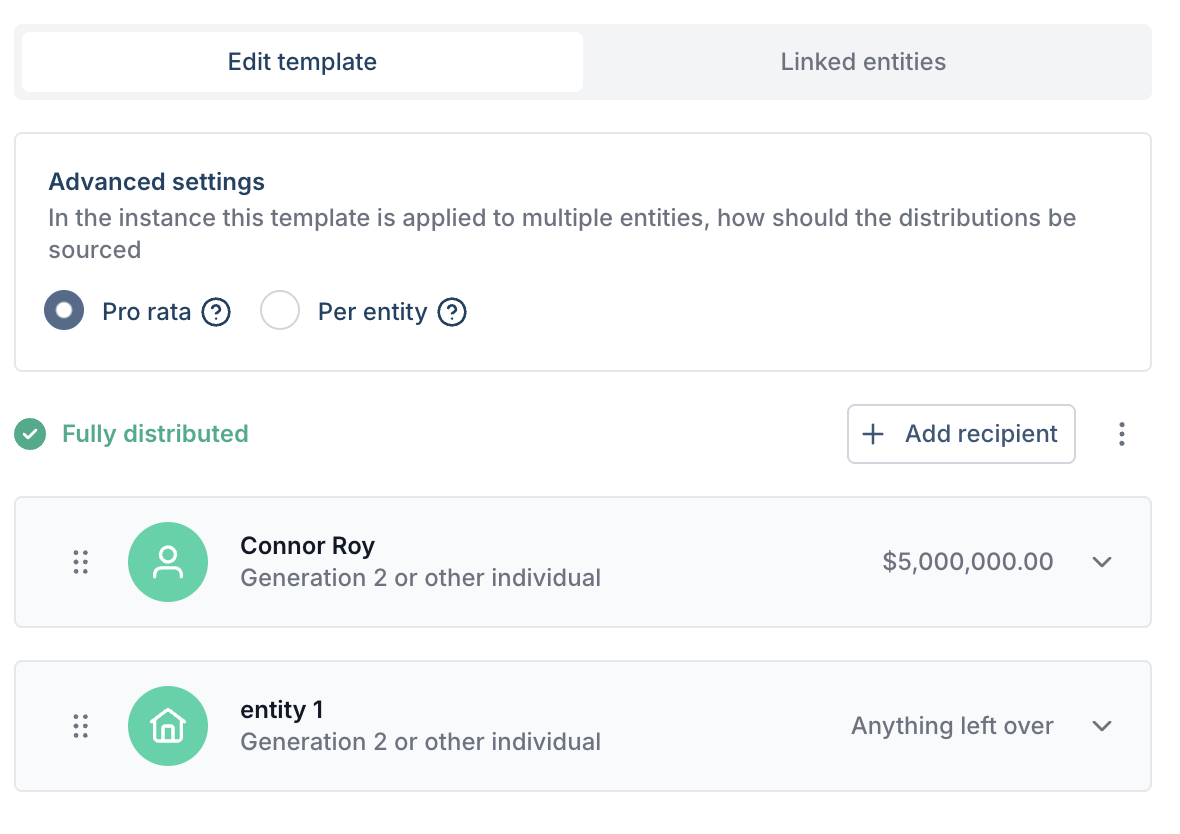
Pro rata: if the template is applied to multiple entities, the disposition amount will be sourced from the total sum of the entities. Example: $5M in total will distribute from the 3 entities the template is linked to.
Per entity: dispositions will be sourced from each entity linked to the template. Example: each entity linked to the template will distribute $5M
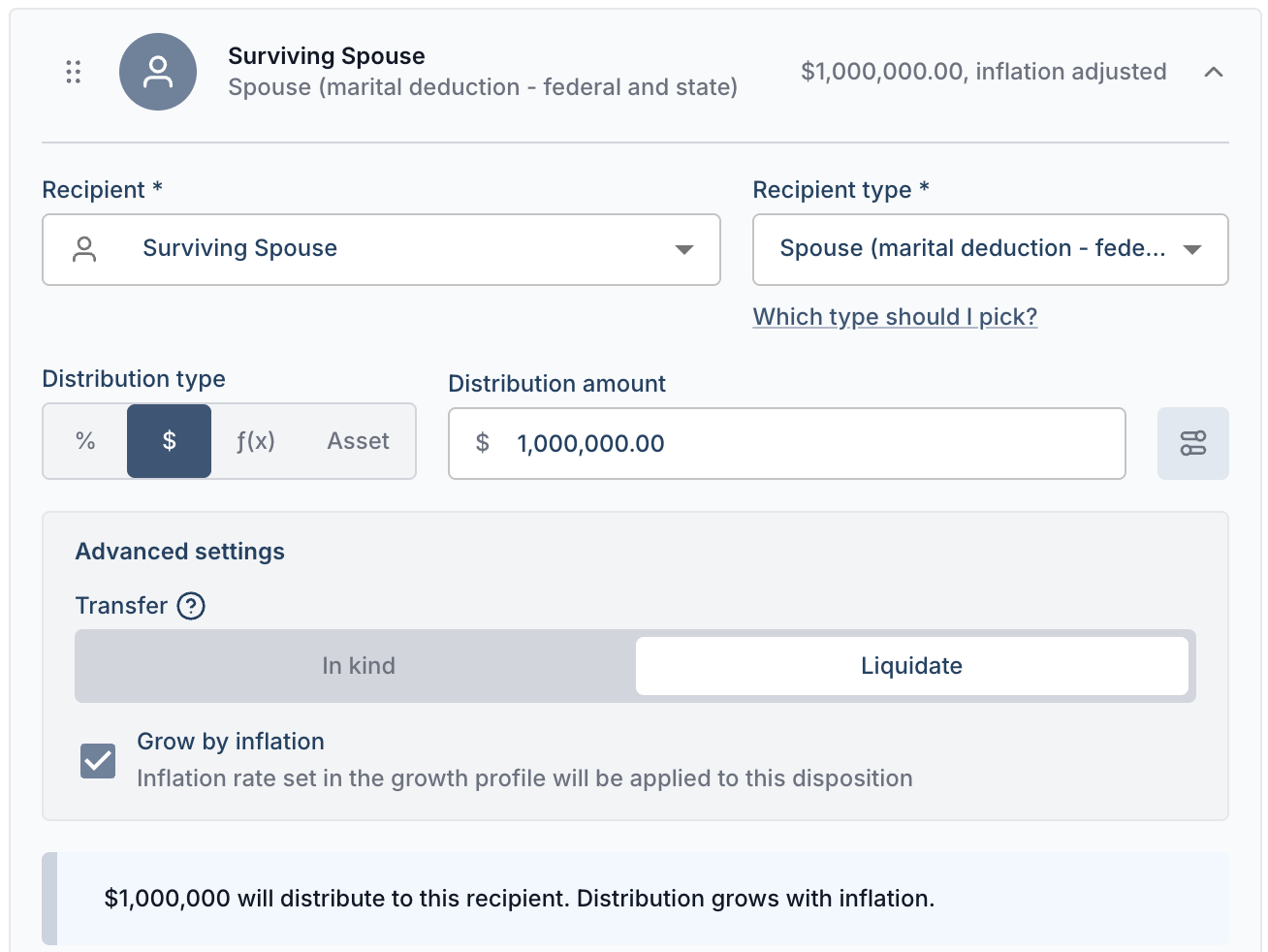
Inflation adjustment — For any fixed-dollar dispositions and current access, you can specify whether the amount should adjust with inflation over time. Inflation rates are configurable via growth profiles.
Select the $ distribution type, and enter the amount distribute.
Click the "Advanced settings" button to the right of the $ input. Select the "Grow by inflation" checkbox.
We also assume that any of the formulaic options grow with inflation by default.
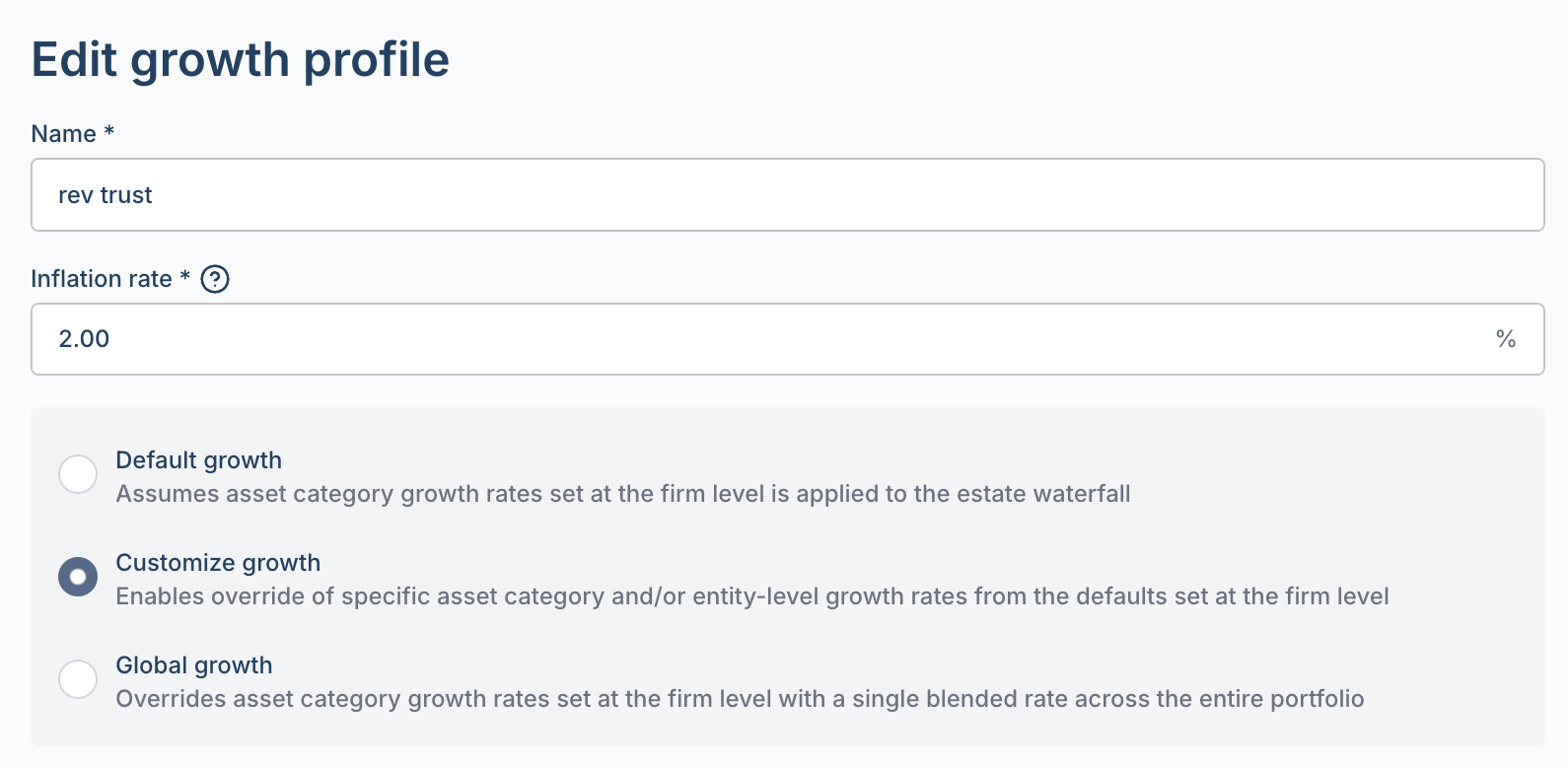
To configure the inflation growth rate, navigate to growth profiles where you can manage/create growth profiles with the desired inflation rate. Note, this also impacts the annual rate of growth for federal exemptions.
Asset specific dispositions
Select the Asset button group and specify one or more assets to distribute.
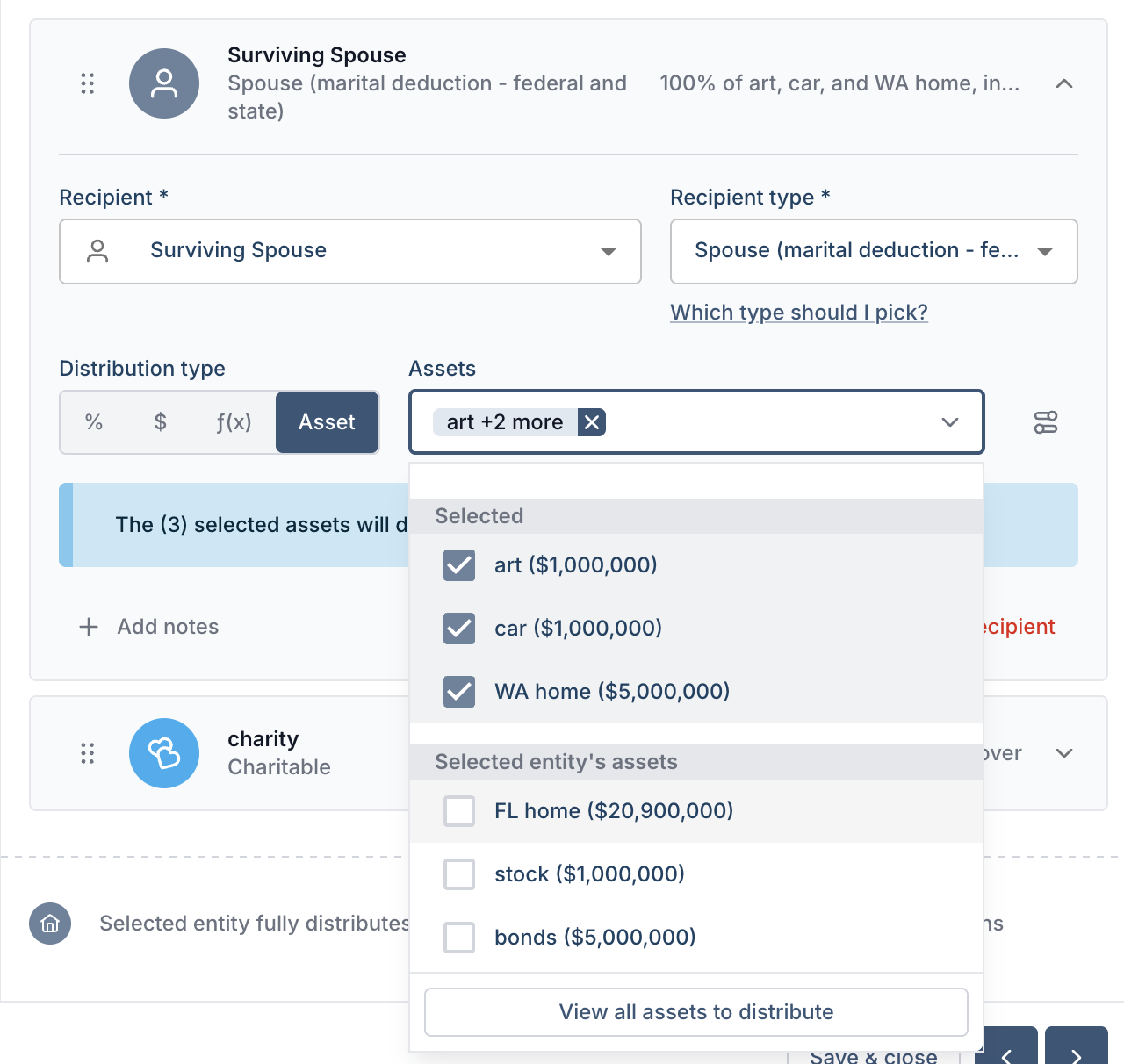
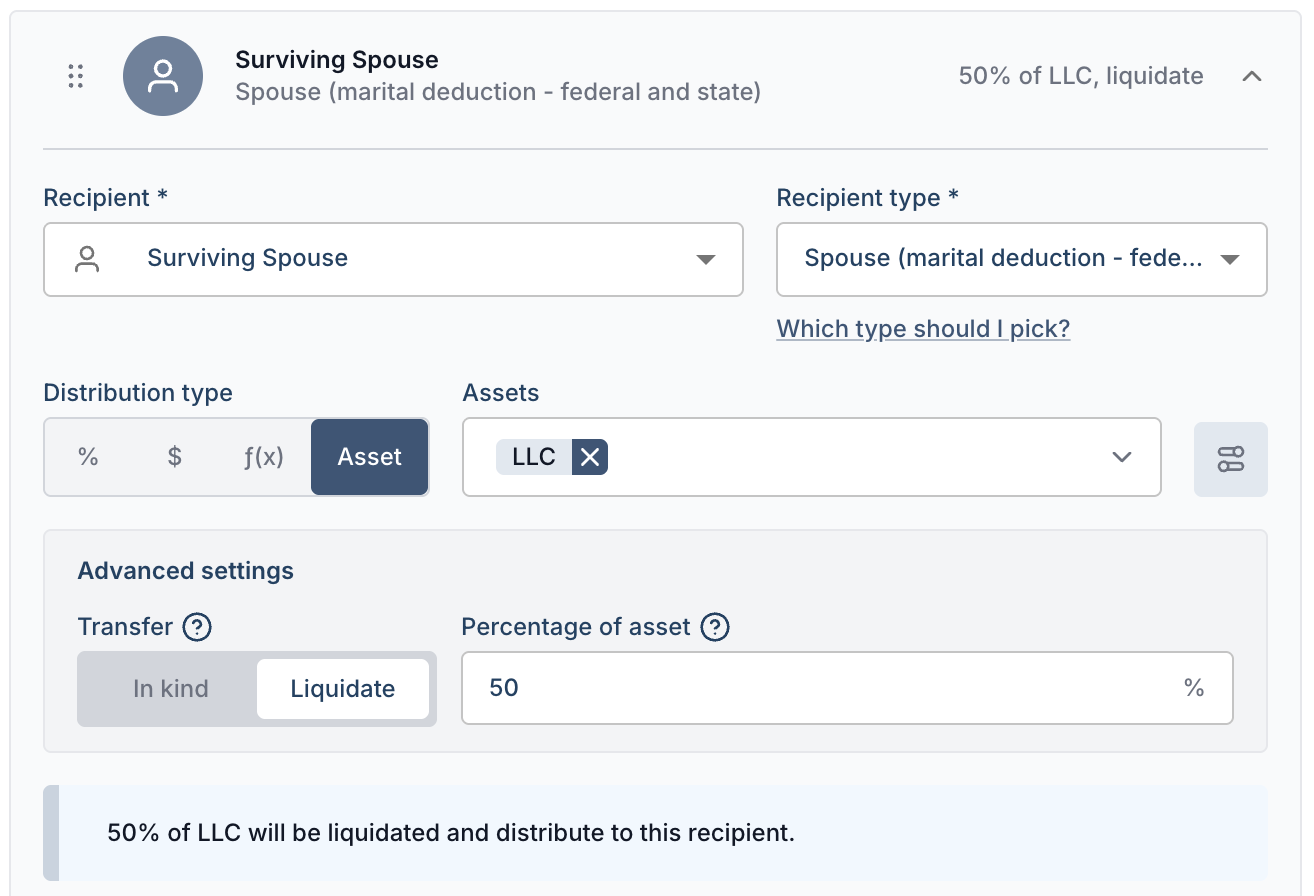
By default we assume 100% of assets are transferred in kind, meaning growth rates and discounts for the source entity will be carried through the death event.
You can also opt to transfer less than 100% or "liquidate", which assumes growth rates and discounts don't carry through the death event. Click the Advanced settings button, to the right of the Asset selector, to modify the transfer assumption and % amount.
Modeling asset dispositions through multiple events
When an asset needs to pass through more than one stop before reaching its final recipient, for example, from a client's personal assets into a revocable trust at first death, then from that trust into a marital trust at second death, you need to set up each transfer separately, using the asset's current location as the starting point for each step.
Set up the first transfer: Configure the initial disposition as you normally would. For example, direct an asset from the client's personal assets to their revocable trust at the first death event.
Start the second transfer from the trust: Now you need to move the asset from the revocable trust to its next destination (e.g., the marital trust). When you set up this disposition:
Choose the Asset distribution type
Open the asset dropdown and you'll see a list of assets currently held by the selected entity. At the bottom of that dropdown, click "View all assets to distribute"
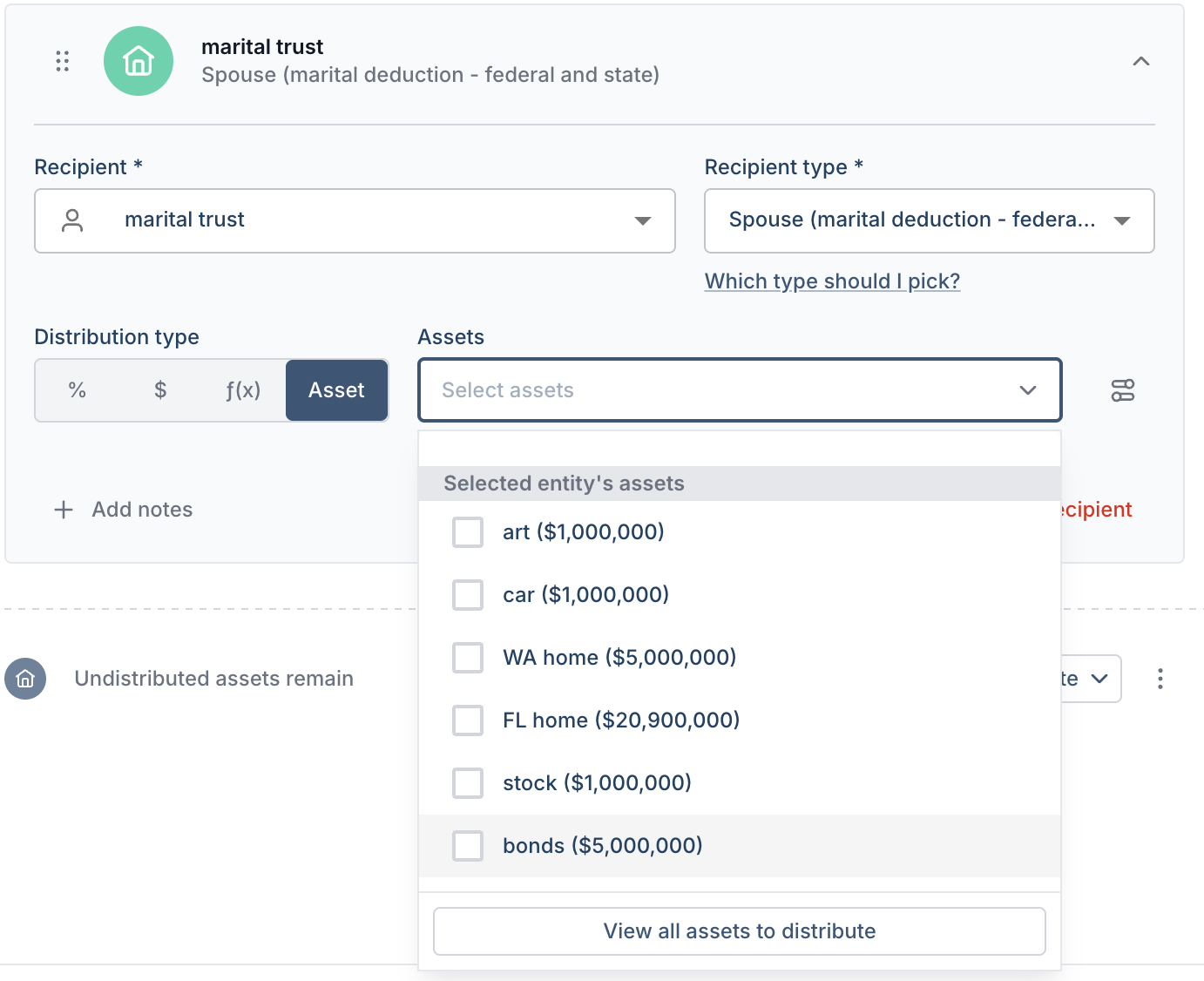
Select the asset from its current holder: Clicking "View all assets to distribute" opens a side panel that shows all assets currently held across the client's trusts and entities, not just the ones in the current entity's name.
Find the asset by locating the entity that holds it today. For example, if the house and car are currently held under Jack's personal assets and liabilities, look under that grouping and check the box next to each asset you want to transfer.
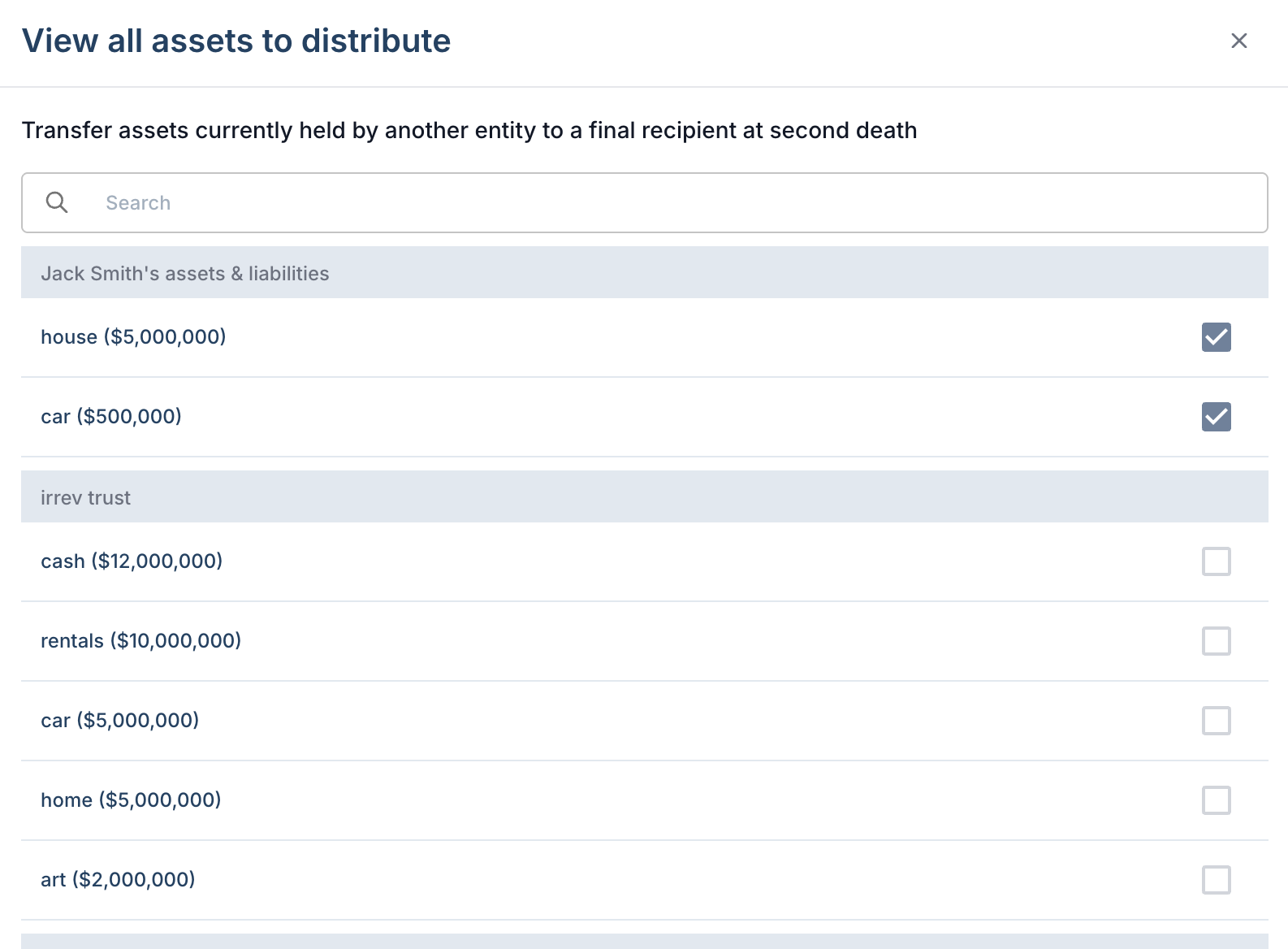
Once selected, those assets will be included in this disposition leg and will flow to the intended recipient at the appropriate death event.
Why This Matters
If you skip "View all assets to distribute" and only look at the default dropdown, you'll only see assets the current entity holds directly. Assets that are mid-chain (already queued to move at a prior death) won't appear there. Using the full panel ensures you're capturing the complete picture across the estate.