Requesting SSO
Last updated: April 28, 2026
Single Sign-On (SSO) allows your organization to securely access Luminary using your company's existing identity provider (IdP). This simplifies login, improves security, and helps ensure compliance with your organization’s authentication policies.
For most IT teams, SSO setup requires minimal effort. The configuration is completed by your organization’s IT contact.
Note: Users may be unable to login during SSO setup. Please plan accordingly.
Steps: How SSO Setup Works
Your firm admin requests SSO be setup. Note that SSO is included in enterprise Luminary agreements.
Your designated IT Administrator receives an email invitation to begin SSO setup
The administrator:
Opens the email and selects your organization’s identity provider (e.g., Okta, Azure AD, Google Workspace, ADP) from the available options.
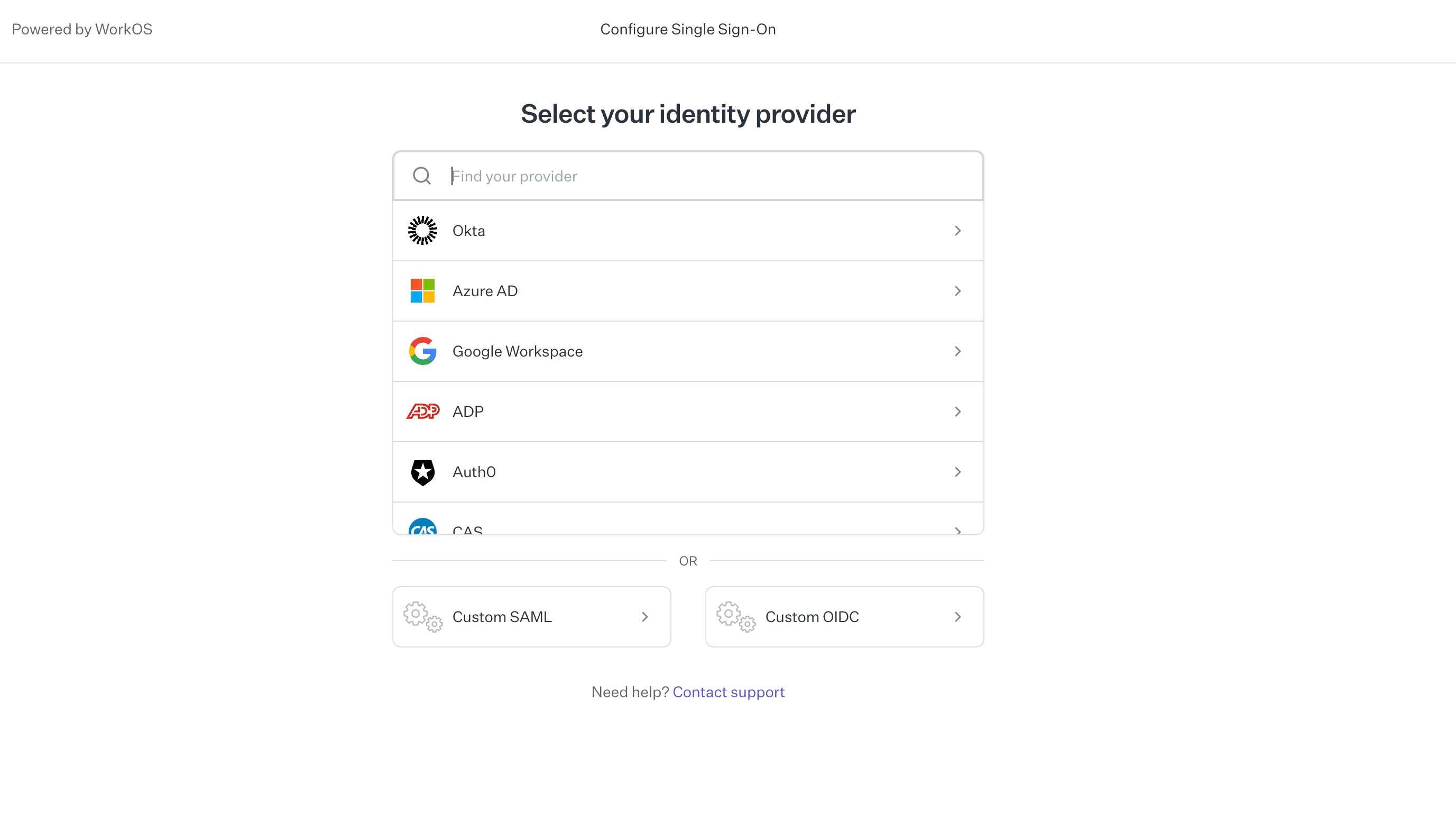
Follows step-by-step setup instructions, which typically includes:
Creating a new application in your identity provider
Configuring SAML or OIDC settings (e.g., ACS URL, Entity ID)
Uploading or copying metadata
Assigning users or groups
Each provider has their own detailed, step-by-step instructions within the setup flow
Complete configuration: Once all required fields are configured, finalize the setup. You may be prompted to test the connection.
Troubleshooting
If you encounter issues during setup:
Double-check that all SAML fields match the provided instructions
Ensure the correct users/groups are assigned in your identity provider
Confirm that metadata (URLs, certificates) is correctly entered
FAQs:
What Happens after setup?
Users will log in using their company credentials via your identity provider.
Password management is handled by your organization.
Access can be controlled centrally by your IT team.
Who needs to take action?
Advisors, CPAs, Financial Planners, Trust Officers (End Users):
No action required beyond continuing to log in as usual once SSO is enabled
IT Administrator / System Administrator:
Responsible for completing the SSO setup using instructions provided via email
Need Help?
If you need assistance at any point during setup, please contact our support team by navigating to the Help button in the bottom left of the platform, or emailing support@withluminary.com