Add/edit dispositions
Last updated: November 12, 2026
Quick notes on Dispositions, or Dispositive Provisions:
Dispositions are the data that drive the Estate Waterfall in Luminary, and allow users to see how a trust or entity distributes when the client passes away.
Luminary AI will suggest dispositions, and this article will walk through how to add or edit AI suggestions for Dispositions manually. Dispositions can also be added via Luminary's AI Assistant.
Note that if an entity does not make any distributions at either of the main clients' deaths, you can leave dispositions blank.
For retirement accounts and life insurance, dispositions are called Beneficiary Designations, and behave the same way as Dispositions.
Overview video
Getting started
There are 5 ways that you can add or edit Dispositions.
Ask Luminary AI Assistant!
Open the Luminary Assistant chat, and type in plain language which trusts or entities you'd like to apply distributions for, and state where (and how much) gets distributed at each death.
To see more information about the capabilities of the AI assistant, click here.
Use AI suggestions created from Luminary Smartreview
After entities and holding groups are automatically created with Luminary Smartreview, navigate to the Estate tab to review suggested holdings and dispositions.
For more information about adding dispositions with AI suggestions, click here.
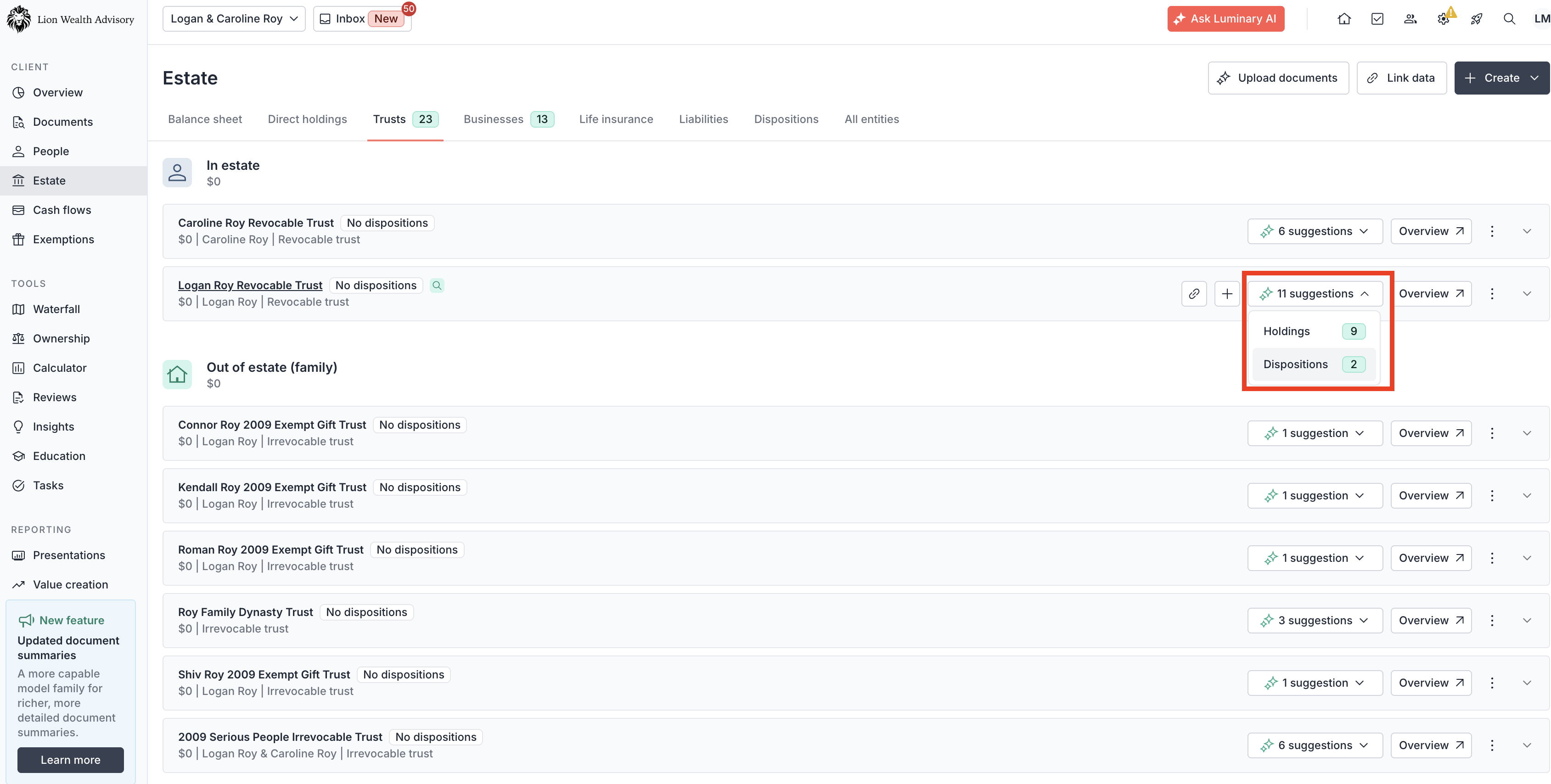
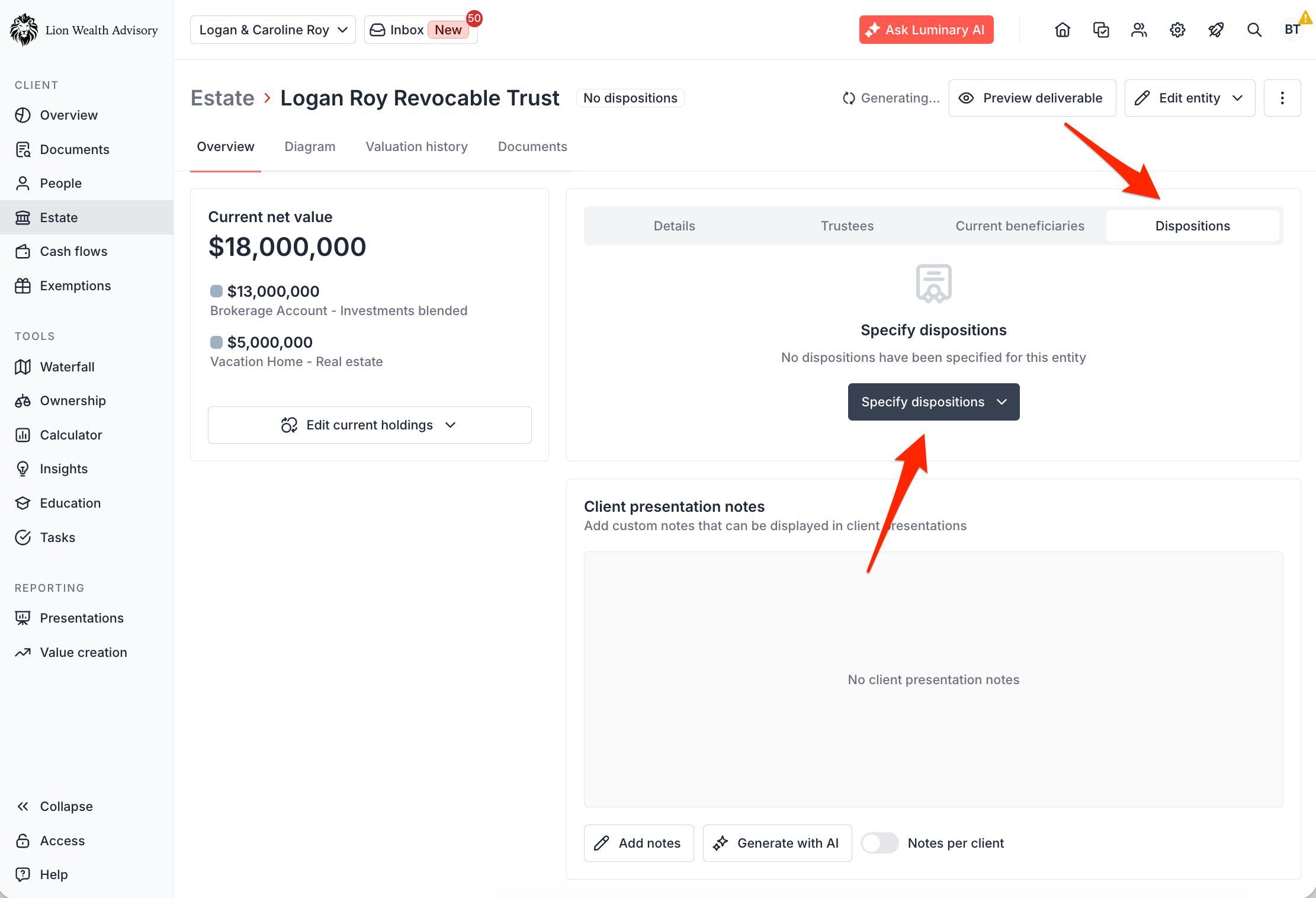
Navigate to Estate > Trust or holding group name > Dispositions (or Beneficiary designations)
Click Dispositions and Specify dispositions.
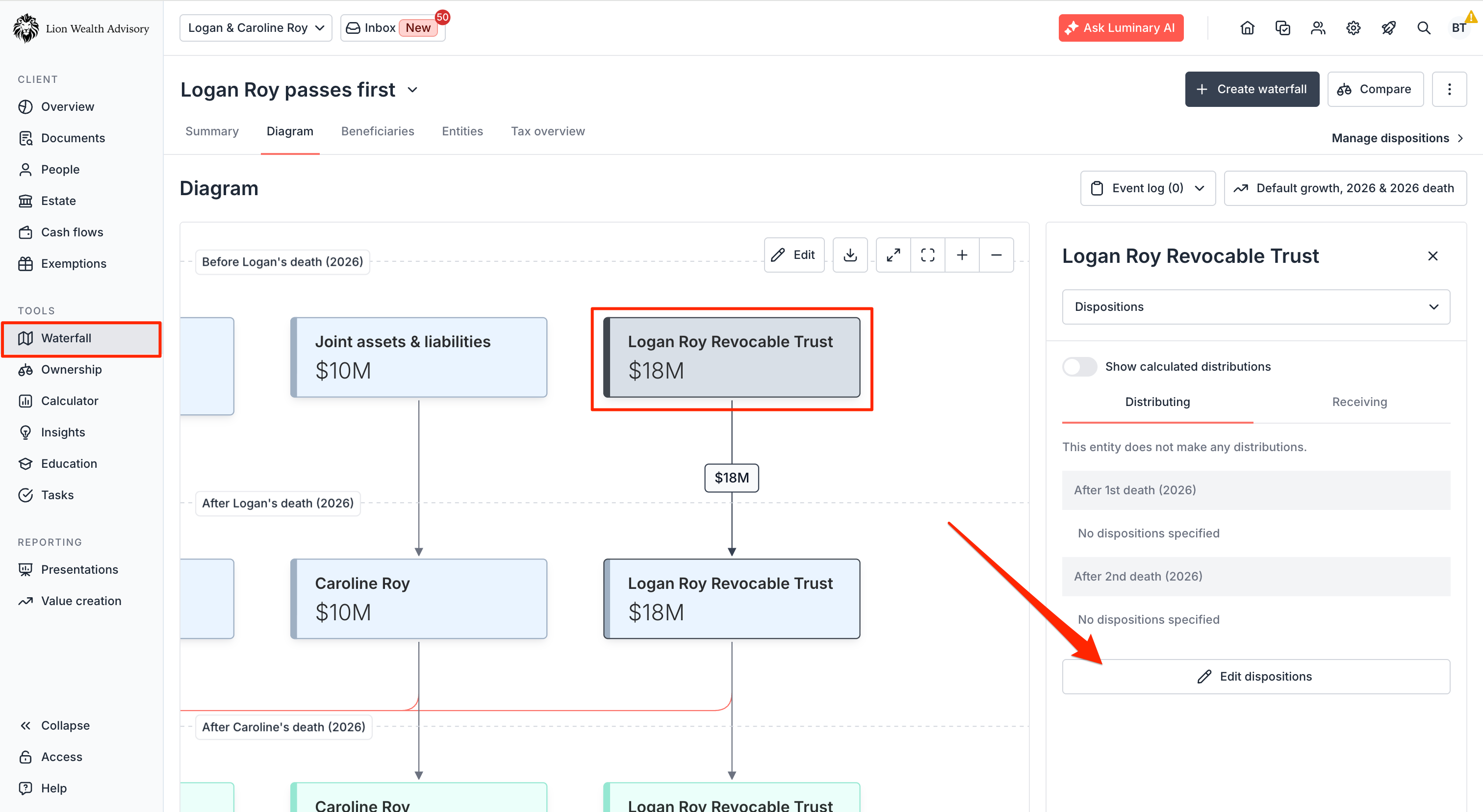
Navigate to Waterfall > Diagram
Click on the tile you want to enter dispositions for and click Edit dispositions.
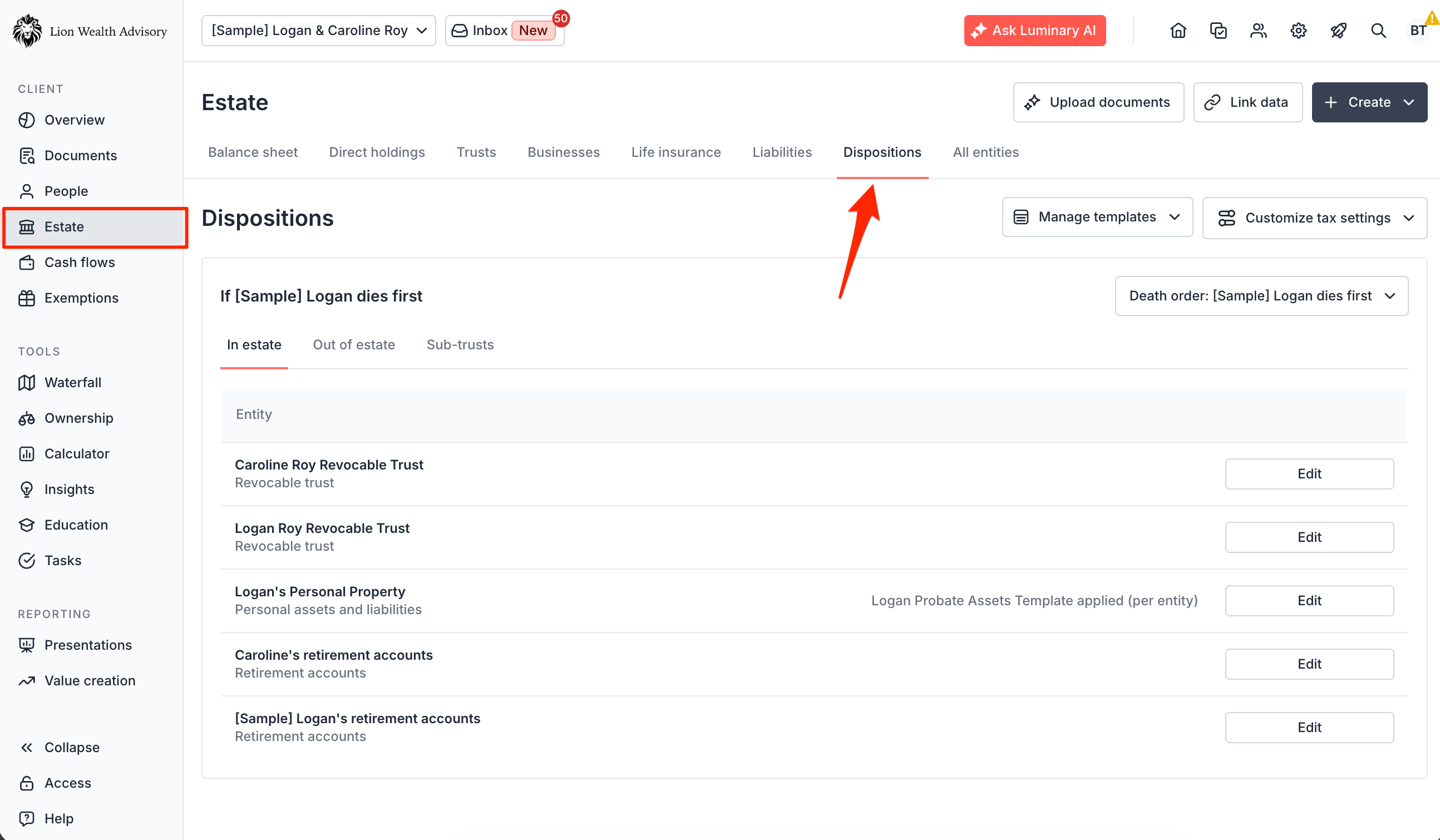
Navigate to Estate > Dispositions to edit dispositions for entities in bulk
Adding dispositive provisions manually
Enter Dispositions for the death order specified
In the diagram on the left side of the screen, click the entity icon that you would like to add dispositions for and then click "Add recipient" to add a disposition.
Choose from a dropdown list of existing Recipient options across the Surviving Spouse, an existing Individual, an existing Organization, or an existing Entity.
To add a new recipient to the client profile, click “Add New” and provide the required details.
Select Recipient type from the dropdown menu. This selection determines the estate tax treatment used in calculations.
If you're unsure which option to select, click “Which type should I pick?” under the input box for guidance. Learn more:
Specify Distribution type and associated distribution value
Choose the type of distribution: Percentage of the entity’s assets, Specific Dollar Amount, or Formula (e.g., remaining federal/state exemption, anything left over, etc.).
To add more recipients, click “Add Recipient”
If you are using a common distribution pattern, click the "Use template" button to use an out-of-the-box template or to create a new template.
Choose the appropriate template or choose "No Preset" for custom template creation.
Learn more about creating templates by clicking the link below:
📄 Create a disposition Template
Validate distribution totals
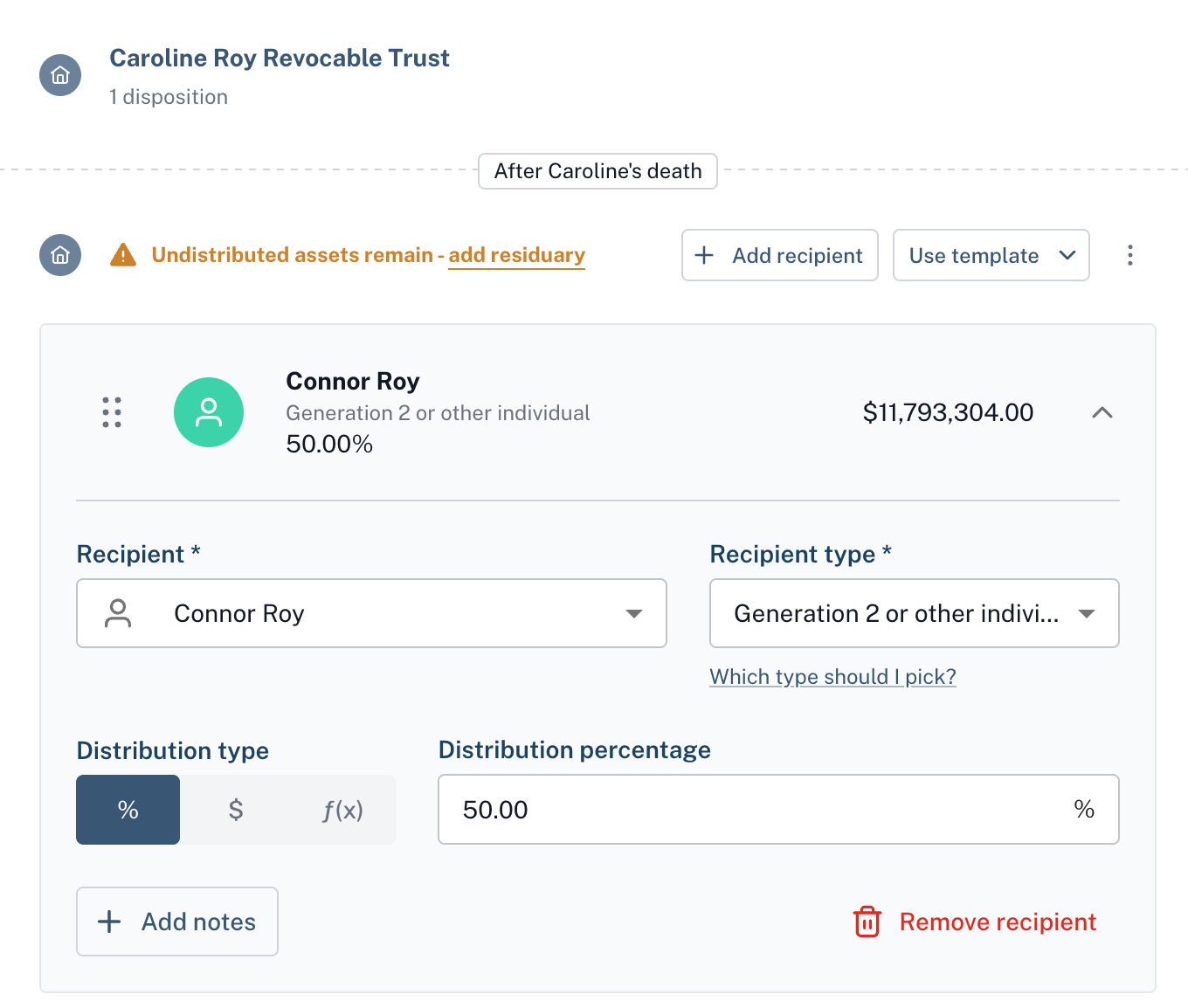
If the entity is not fully distributed, you will see an "undistributed assets remain" warning. To resolve this, click "add residuary" to whom the rest of the assets will be distributed.
If distribution totals do not contain "anything left over" or totals equaling 100%, Luminary does not consider dispositions fully distributed. If your dispositions do not follow these patterns, you do not need to fully distribute entities.
Adding a residuary will create a new recipient with the formula "anything left over" to ensure that all assets in the trust will be distributed.
Note: you can still save dispositions even if the entity has the "Undistributed assets" warning.
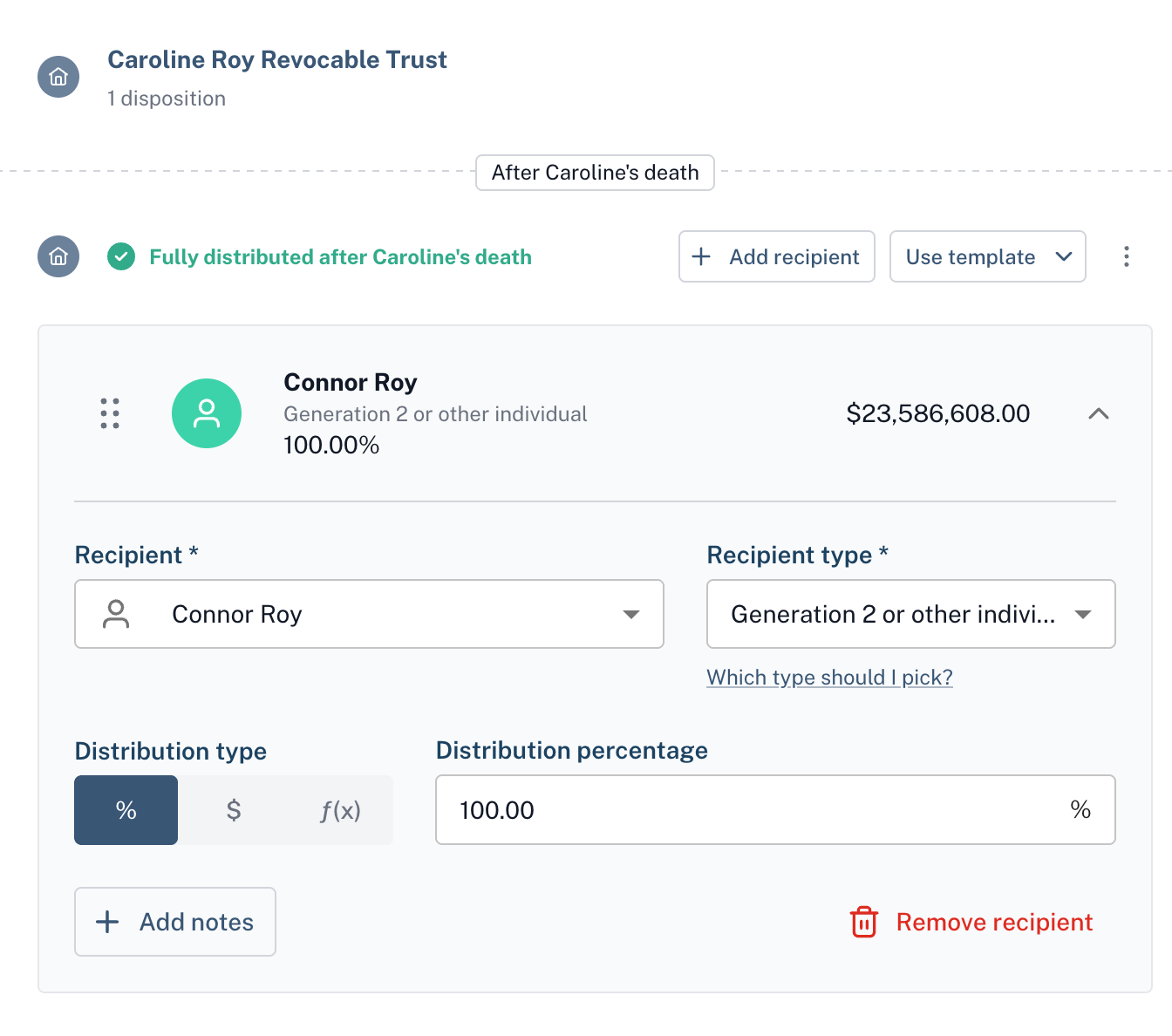
Once all assets are distributed, a green check mark and the message “Fully distributed after death” will appear.
Reorder the recipients as needed by using the drag and drop handles on the left of each recipient box. Luminary will automatically recalculate any formulaic options and illustrate the new totals.
Before saving and closing, double check at the top of the screen that you are in the correct death order.
You can add dispositions one or both death orders in Luminary. We recommend most customers focus on one death order for their dispositions first (for example, the husband passes first). Many customers only enter in Dispositions for the second pattern if the beneficiary outcomes will differ materially.
Adding Dispositions for multiple entities and sub-trusts
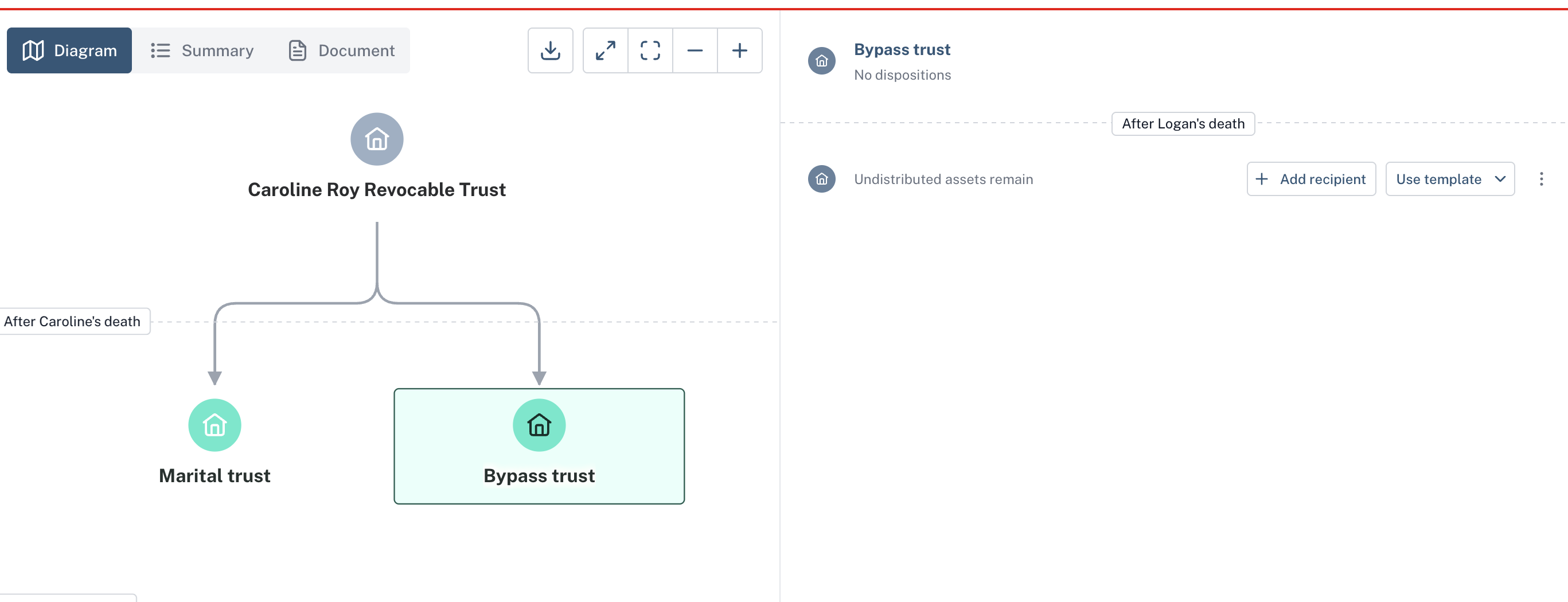
If an entity distributes into another existing entity or a sub-trust or testamentary entity, you can specify dispositions for those entities within the same screen.
Click on the sub-trust tile on the diagram on the left side of the screen.
Enter dispositions for that entity on the right side of the screen.
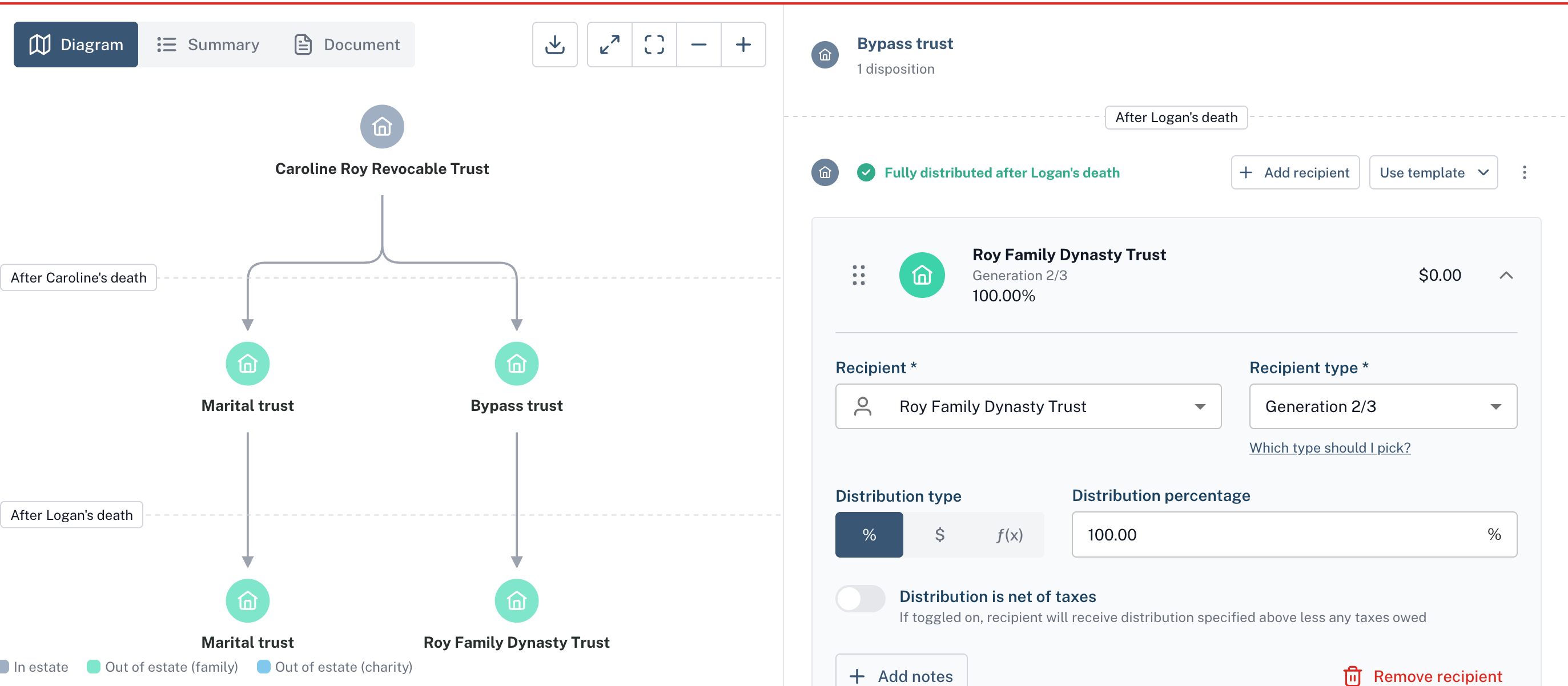
The diagram will automatically update to include the recipient of the trust.
FAQs
Can AI help me complete Dispositions?
Dispositions can also be added via Luminary's AI Assistant. SmartReview will also suggest dispositions based on the documents uploaded. See guide on using AI to add or edit dispositions.
I’ve entered new dispositive provisions and my layout is now cluttered. How do I fix this?
You can quickly reorganize cluttered tiles by using our auto-position function from within the waterfall editing view. See guide on configuring the Estate Waterfall. See guide on configuring the Estate Waterfall.
When can dispositive provisions be entered?
Dispositive provisions can be set to take effect upon the death of a grantor, ensuring their wishes are carried out seamlessly. At this time, we do not support other triggering events such as at the specific age of a recipient.
How do I model more complex disposition patterns?
If you want to model more specific dispositions such as a percentage of remaining exemption, percentage with a dollar cap, asset dispositions, or inflation adjustment, see this guide on Modeling complex dispositions.