Presentation templates
Last updated: May 7, 2026
Presentation templates allow you to create a standard presentation deck layout that enables you to quickly create a client-ready deliverable that is both polished and standardized across clients.
Individual users can create their own templates, and users with administrator permissions can also create firm-wide templates to standardize presentation layouts across the company.
Creating a new firm-wide presentation template
Admins can create presentation template by following the below steps:
Navigate to the Settings page then click the Templates tab.
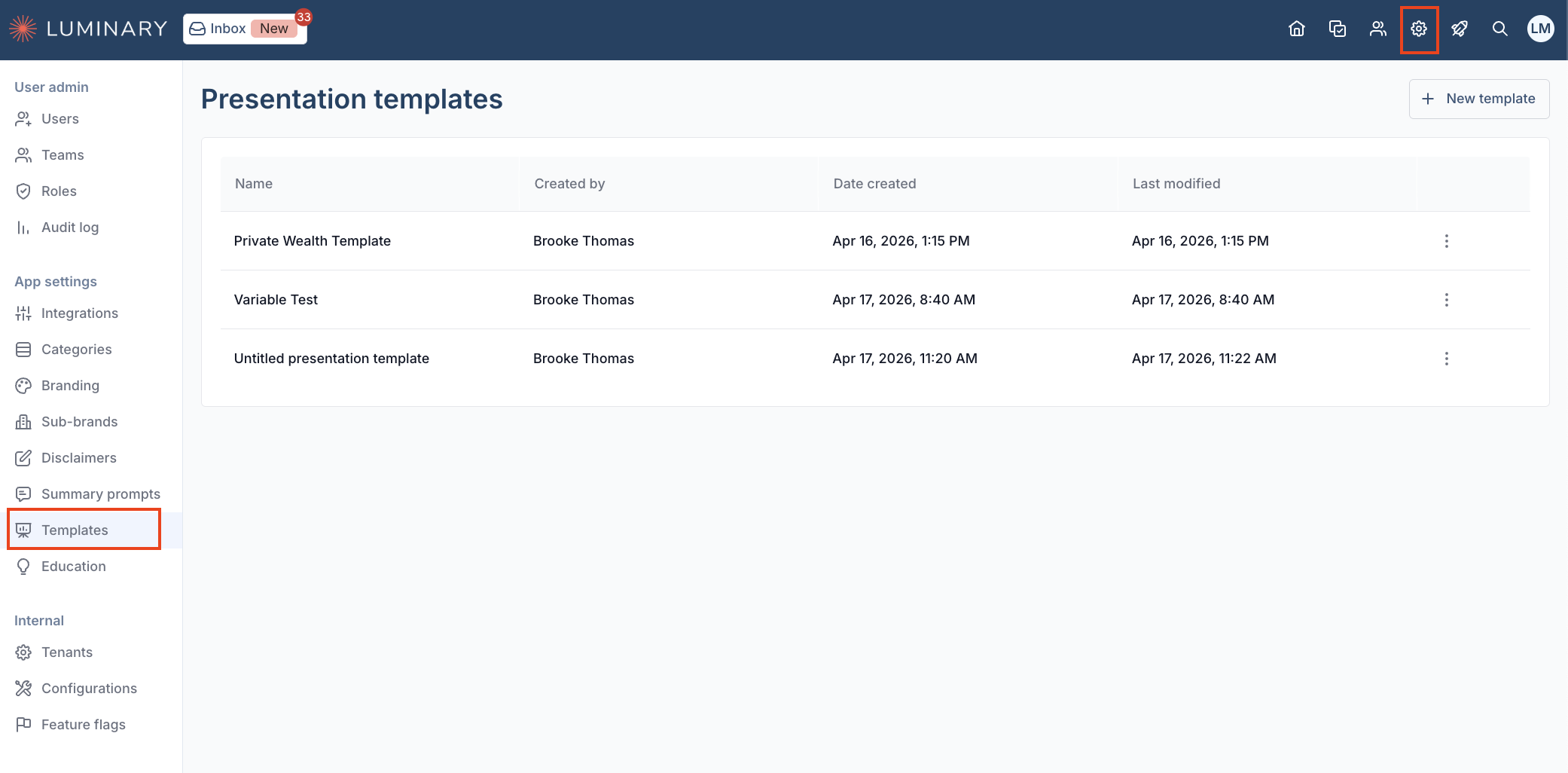
In the upper right corner of the screen, click New template.
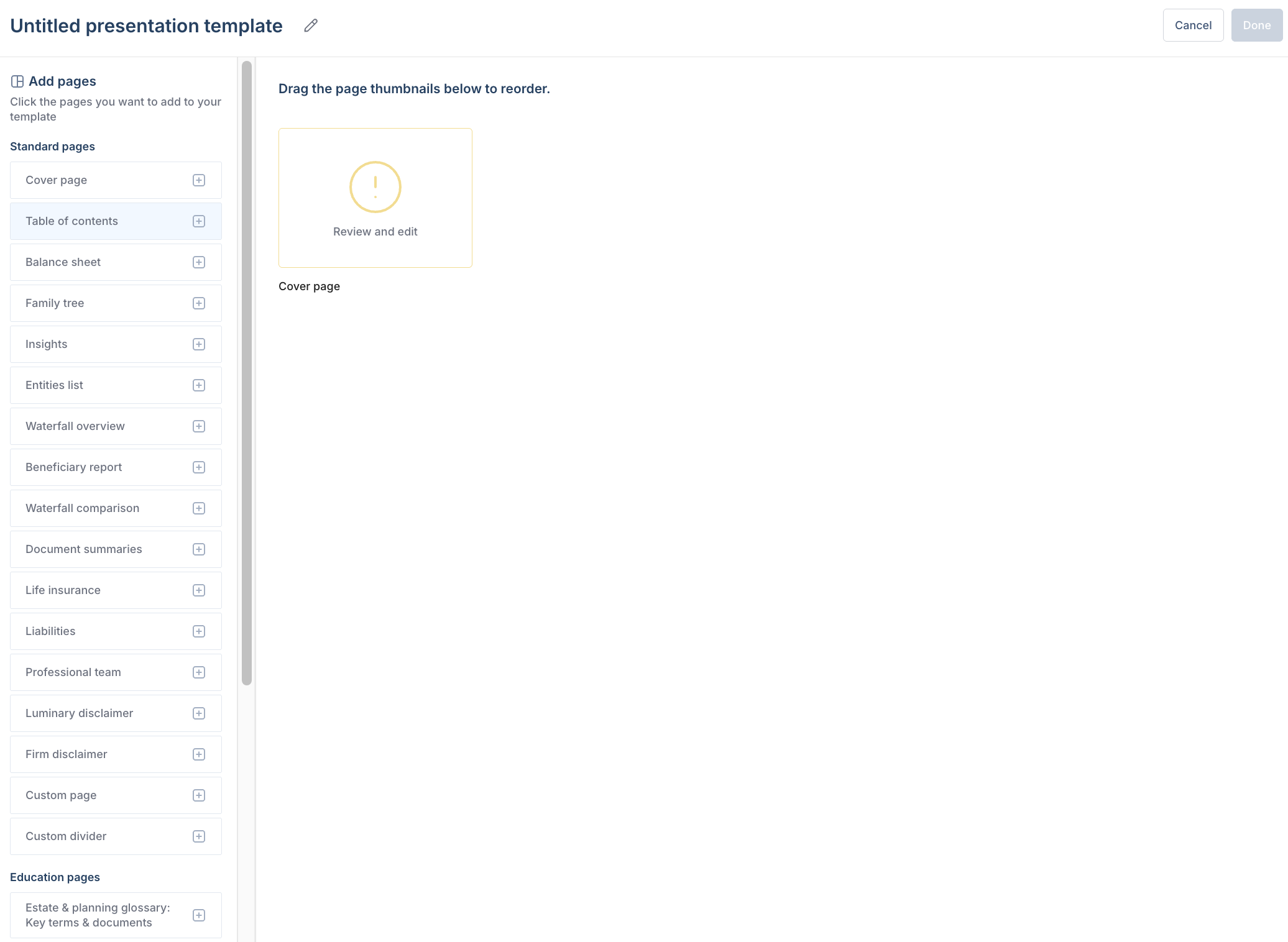
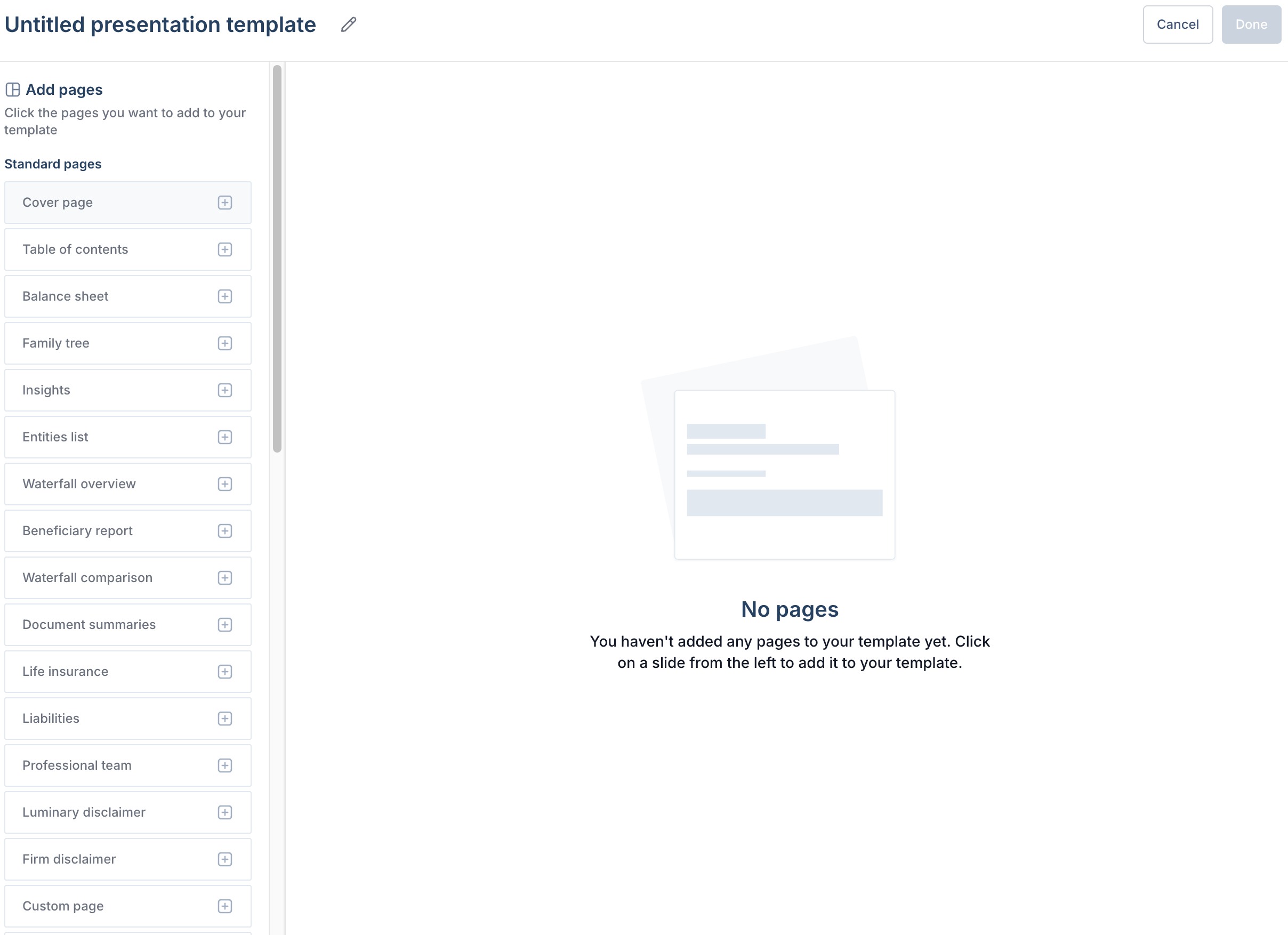
From your blank template, you can edit the title by clicking the pencil icon in the top left corner of the page. Click the plus icon next to any standard or education slide to add it to your presentation tiles.
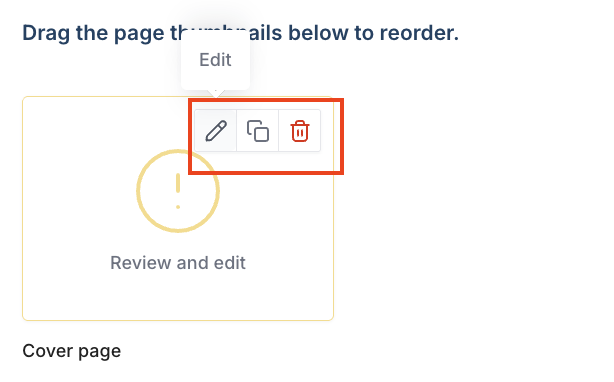
Once added, click the new tile to review, edit, copy, or delete. Edit features are applicable when the page has customizable features, or if a specific document/entity should be selected.
Create a new personal template
You can create a template for your own personal use under Manage templates on the Presentations tab.
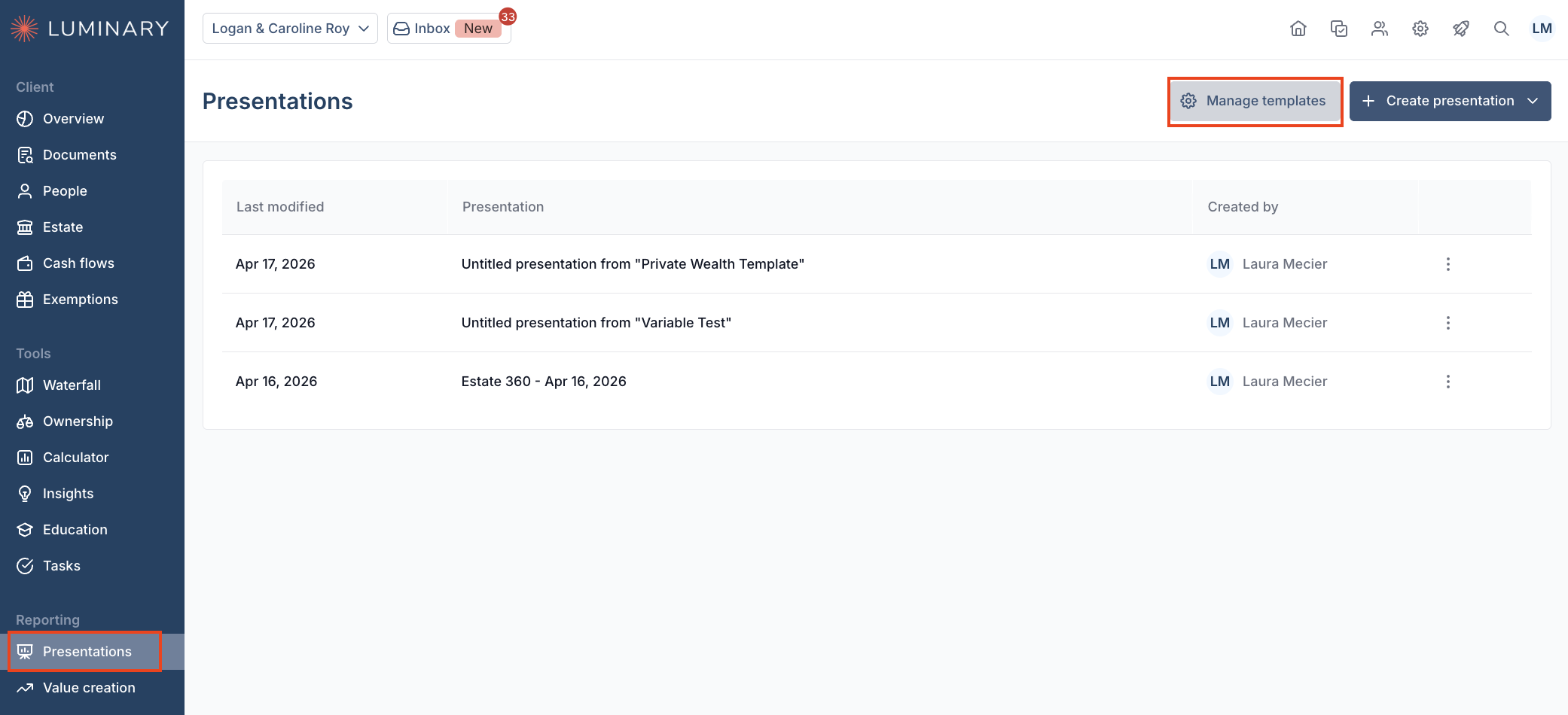
In Manage templates, create a new template
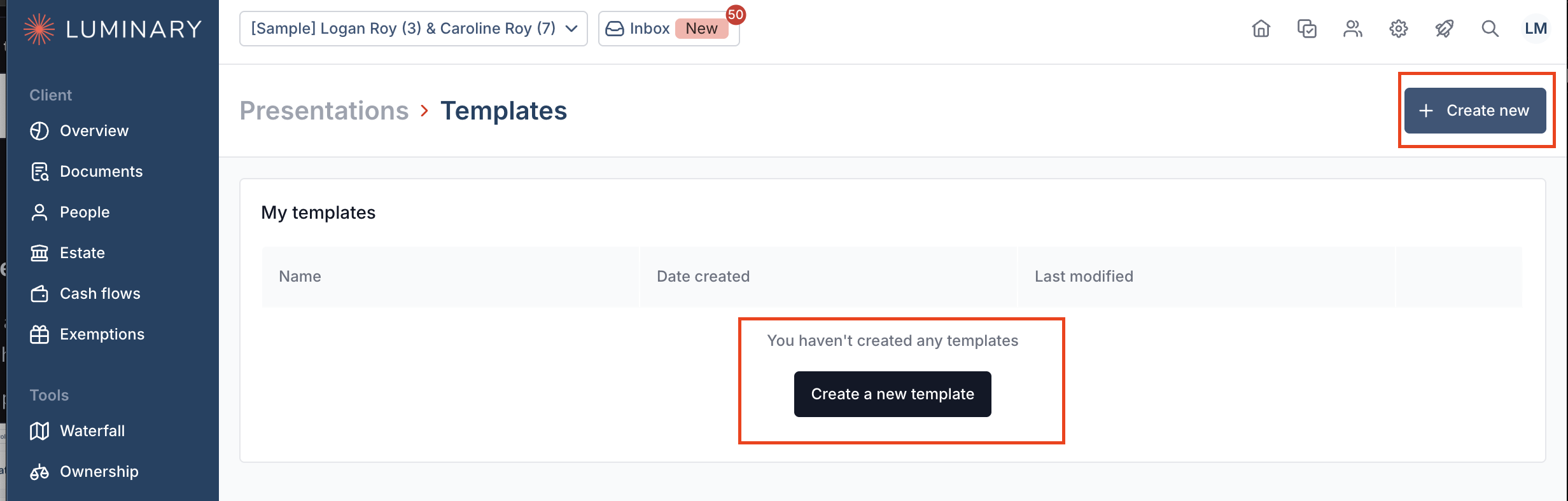
Follow the same steps as above to name your presentation, add pages, then review, edit, or delete as necessary.
Use existing presentation templates
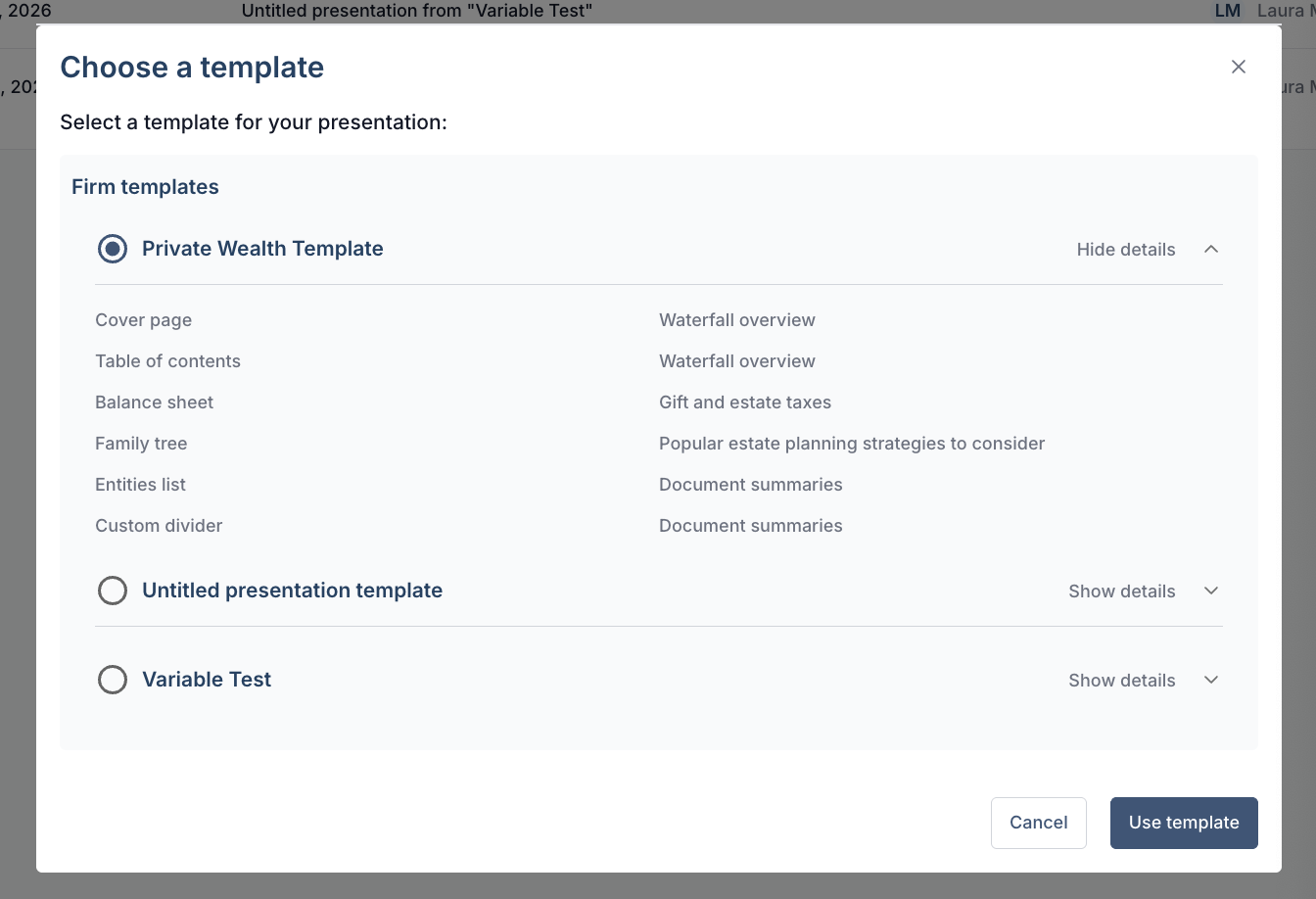
You can use templates created by your firm under the Presentation tab. To create a new presentation:
Click Create presentations then select From template.
Select from the list of personal and firm wide templates. Click the down arrow for slides included in each template.
Custom template features
Create a standardized template without losing customized client features.
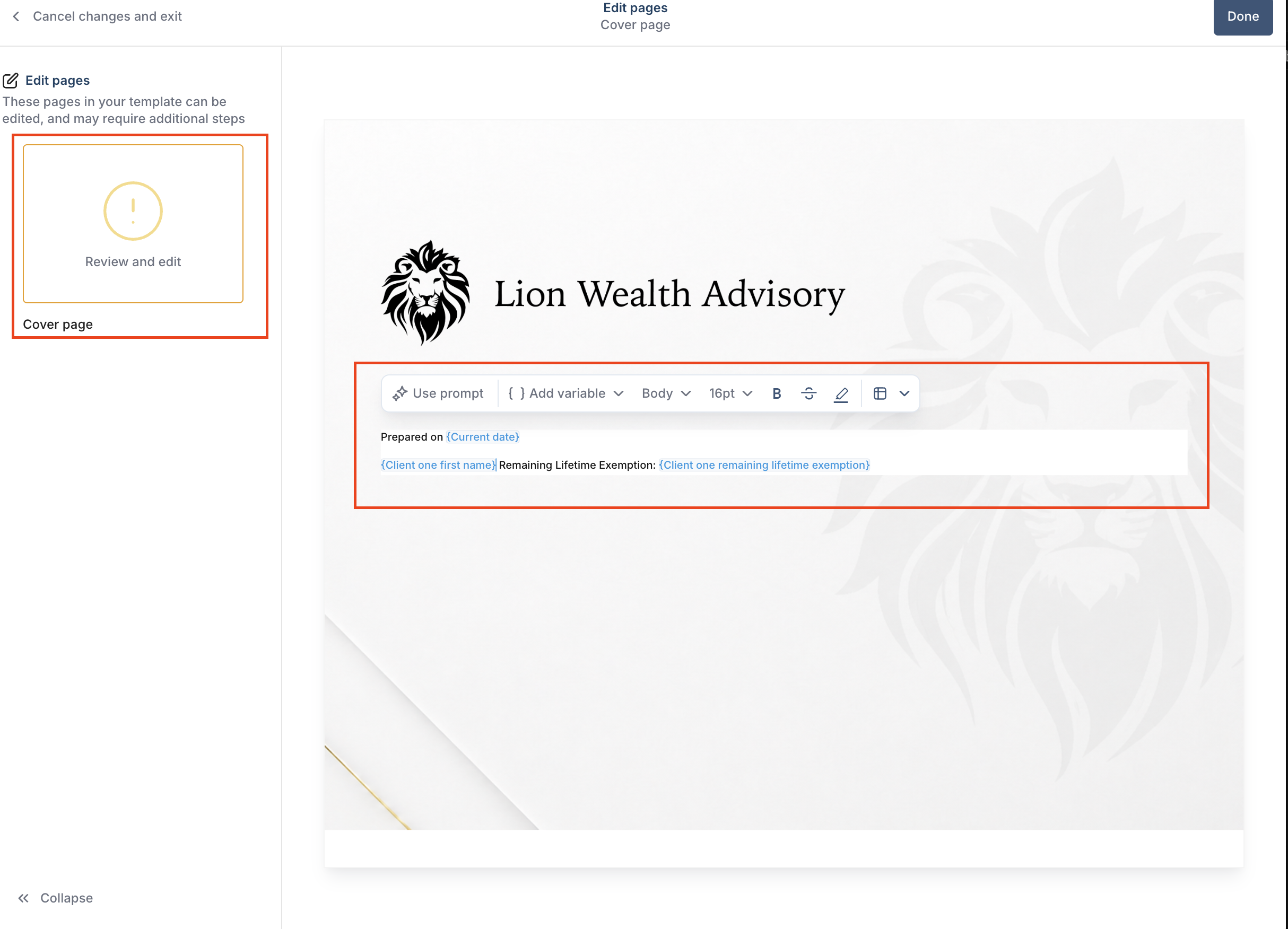
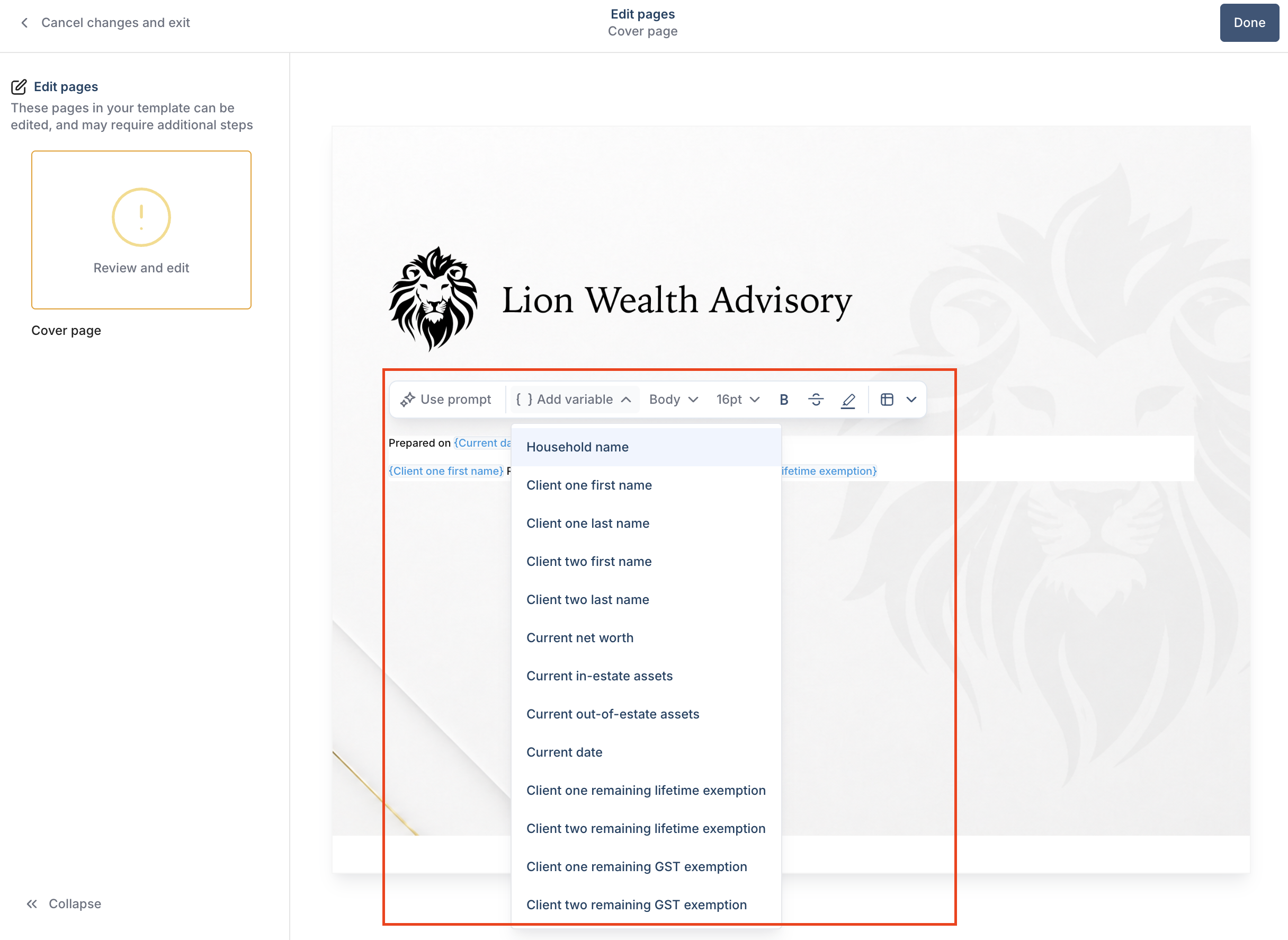
{ } Add Variable allows you to insert dynamic fields—such as household name or current date—that automatically update for each client presentation. This helps maintain a consistent presentation format while reducing manual edits and saving time.
Click any page with a yellow exclamation mark to review necessary information.
Create bulleted lists, numbered lists, headers and sub-headers, or quotes from the text type drop-down menu.
Increase or decrease font size by selecting the font drop-down menu.
Select the highlight feature to highlight or un-highlight any text in orange, yellow, or blue.
Prompt the AI to make changes yourself or use one of our pre-made prompts to generate client specific text from the Use prompt feature.