How to create a presentation
Last updated: October 30, 2026
The client presentation builder helps you quickly turn all your work in Luminary into a clean, professional presentation—fully branded with your firm’s logo and colors. With just a few clicks, you can pull everything together into a polished deliverable that wows your client and brings your planning to life.
Getting started
To build a new client presentation,
Click the Presentations page from your left hand navigation menu.
Click Create presentation.
From the dropdown menu, select From template or From scratch
From here you will be taken directly to the presentation builder. If you have selected a template that includes AI generated pages, you can safely exit this window while the content is generated and return to the presentation builder within a few minutes.
Using the presentation builder
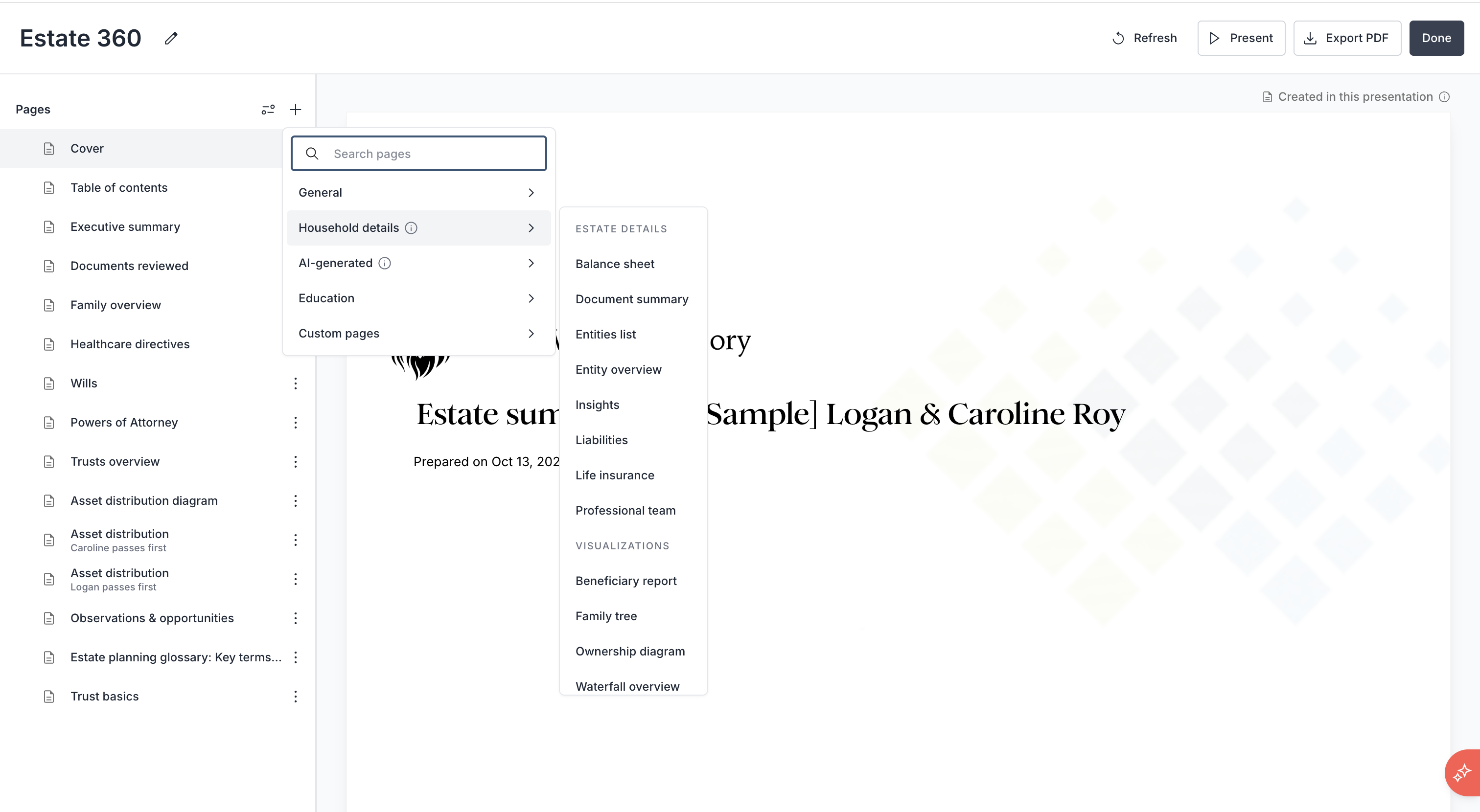
To add a new page to your presentation, click the plus (+) icon at the top of the left-hand navigation menu. You’ll see a dropdown menu with options for the type of page(s) you can add.
The new page will be inserted right below the one you’re currently viewing—look for the grey highlight in the left-hand menu to confirm which page is active.
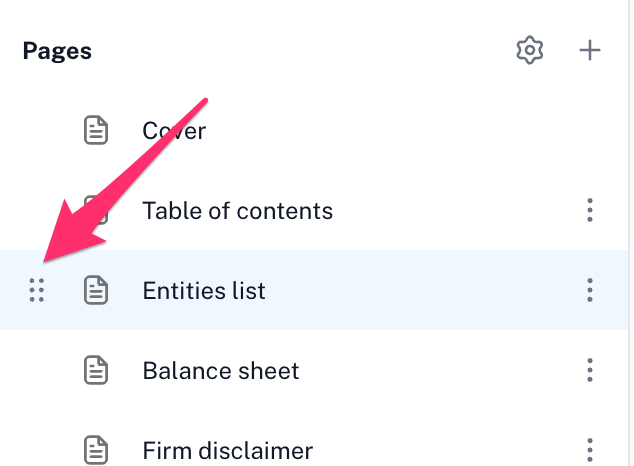
To move a slide, hover over the page you want to reposition in the left-hand navigation menu. You’ll see six dots appear to the left of the page title—this is your drag handle.
Click and drag the page to your desired spot, then drop it into place. Your presentation will update automatically.
To delete a page, click the three dots to the right of the page title you would like to delete and click Delete.
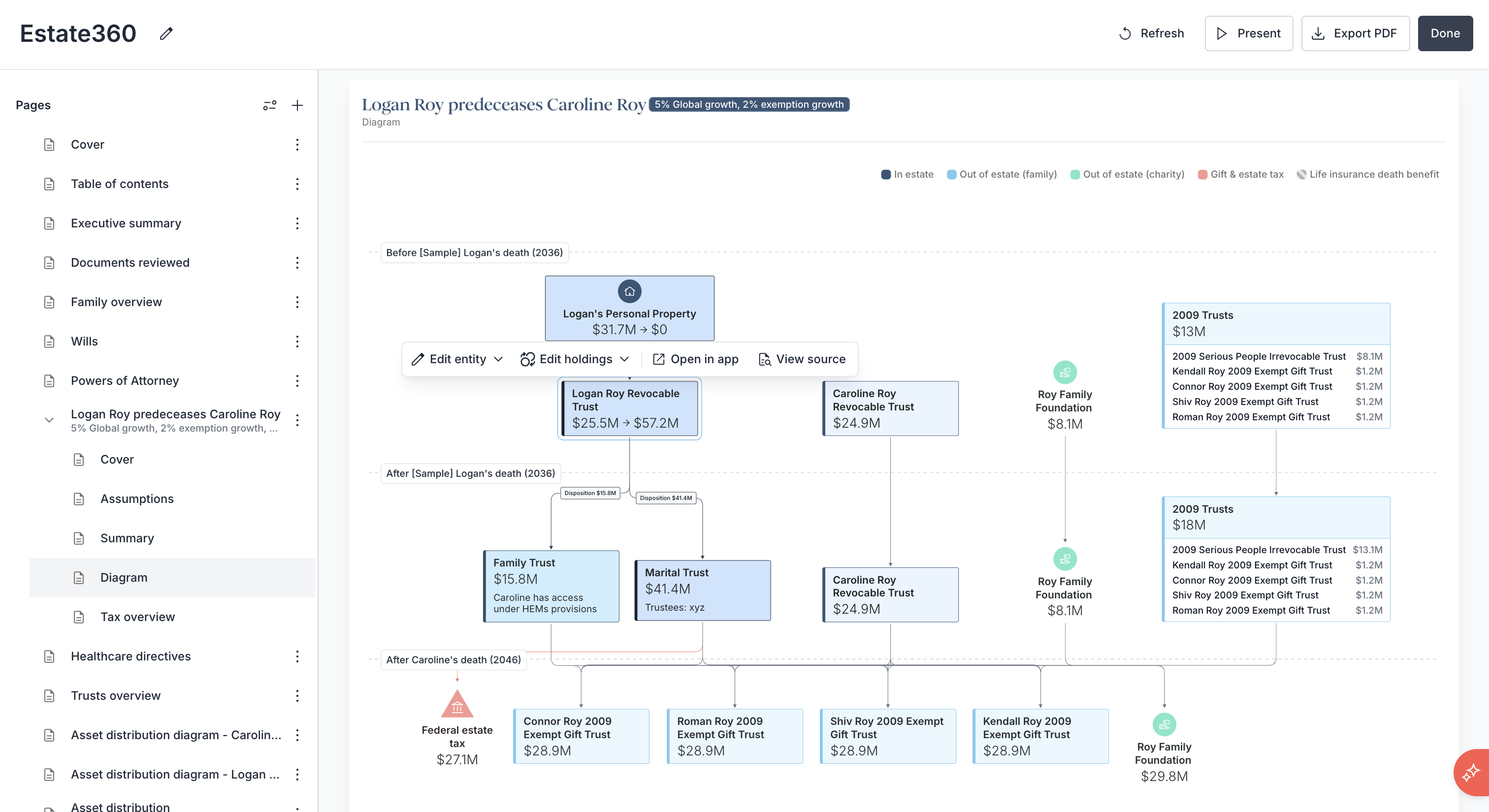
If you need to make edits, such as update names of entities, update asset values or even edit the waterfall diagram, you don't need to leave the presentation builder.
To make edits to data, hover your mouse over the record that you want to update. In the ribbon that appears, you'll have options to begin making edits.
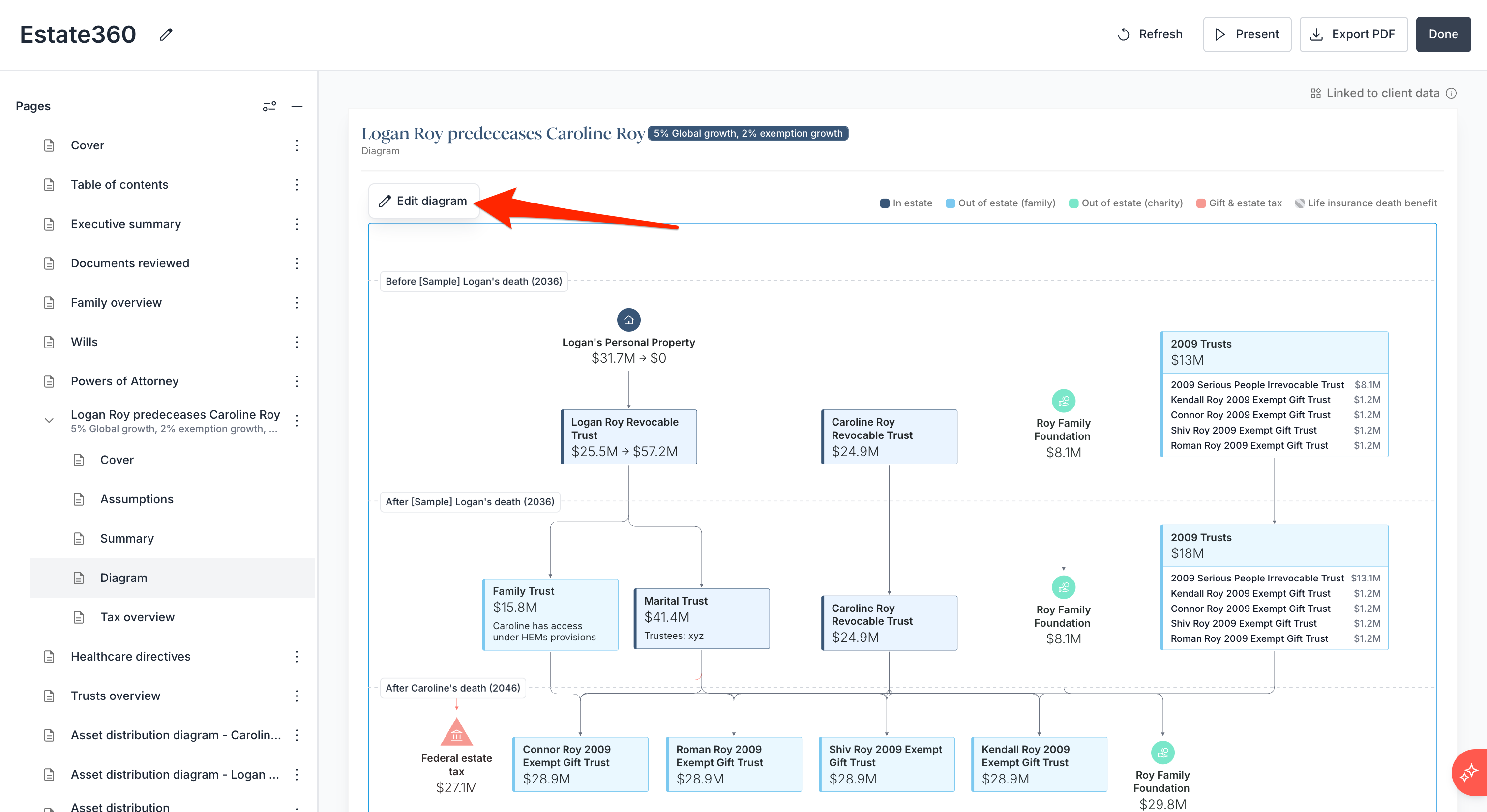
To edit the waterfall diagram from within the presentation builder, hover your mouse in the white space on the page, and click the Edit diagram button that appears in the top left.
The table of contents is dynamic! As you add, rearrange slides, or delete slides, your table of contents will update automatically.
Sharing your presentation
There are two ways to share a presentation, either by downloading the report as a PDF file or presenting it from within the Luminary app.
Downloading the presentation as a PDF
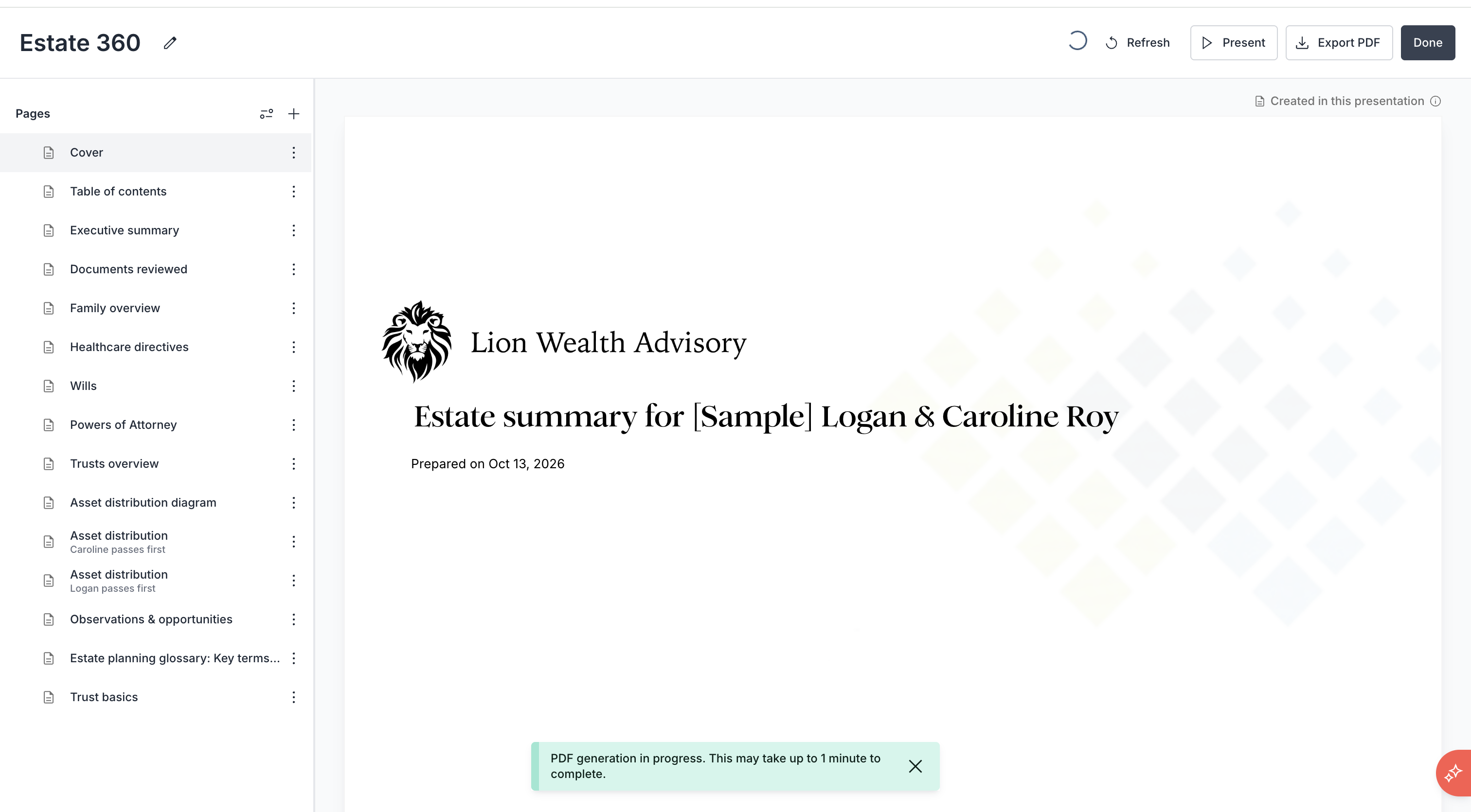
When you're ready to download your presentation, click “Export PDF” in the upper right corner of the presentation builder. A notification will appear at the bottom of your screen to let you know the PDF is being generated.
Once it's ready, it will download automatically to your desktop.
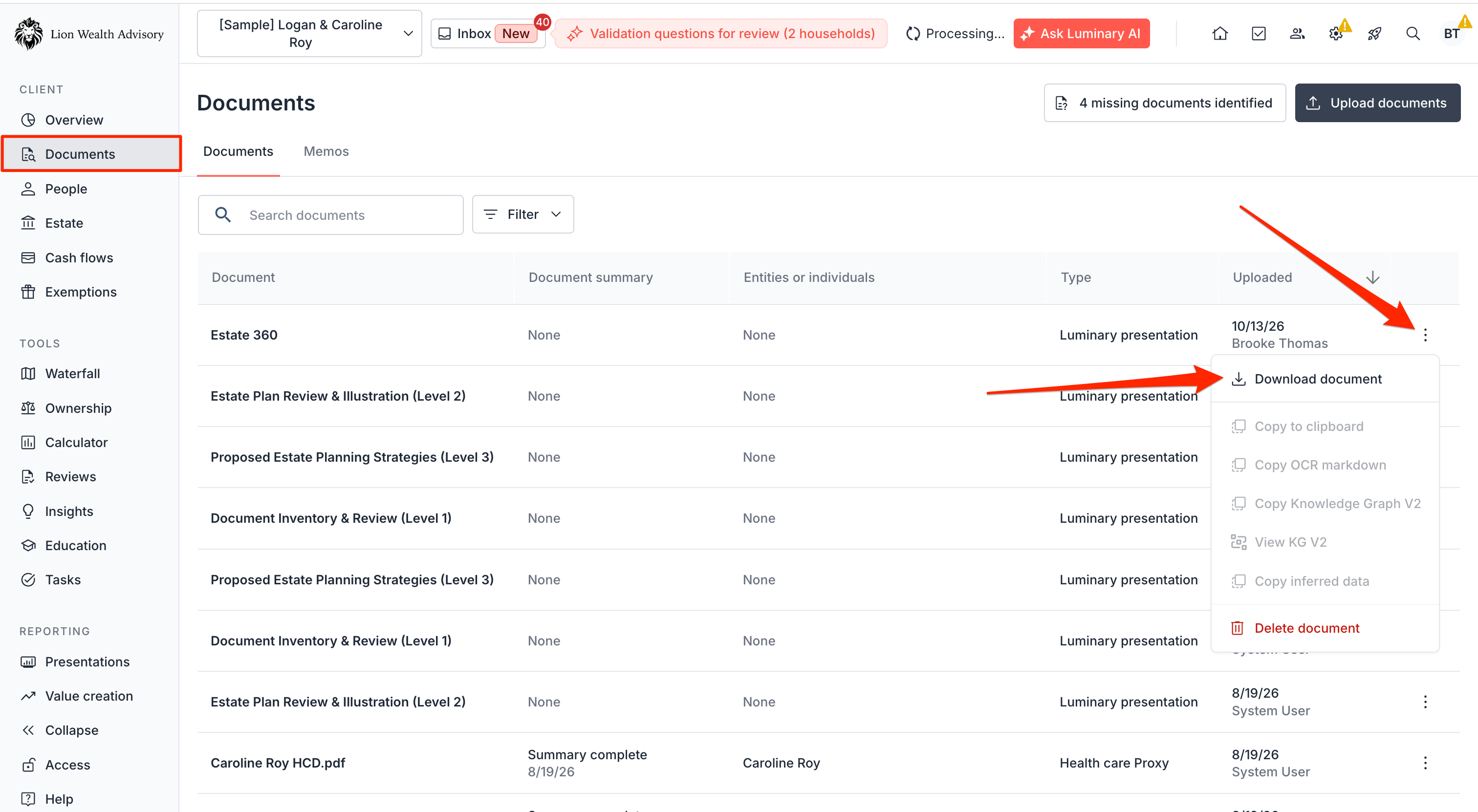
A static version of the presentation will also be available on the Documents page. To download your report from here, click the three dots next to the presentation, and select Download document.
Presenting the presentation from within the Luminary App
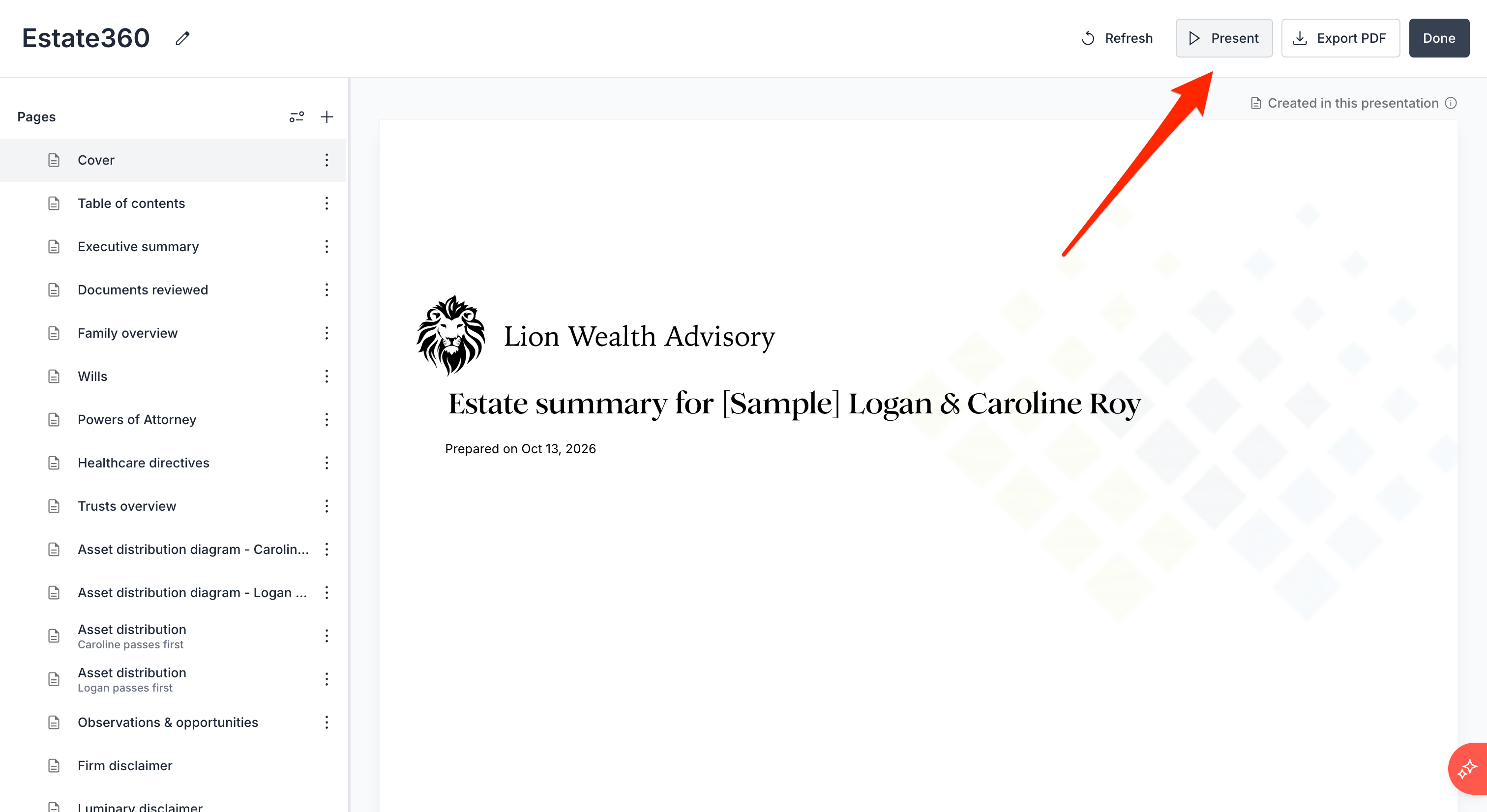
When you're ready to present your presentation, click Present in the upper right corner of the presentation builder.
From here, you will be entered into a full screen mode, which will begin presenting from whichever page you were viewing when you entered presentation mode.

Use the navigation buttons to the left and right of the slide to move forward and backwards through the deck. When you're ready to exit, click the X in the upper right or click the ESC key on your keyboard.