Pages available in the client presentation builder
Last updated: May 6, 2026
The presentation builder offers variety of pages There are a variety of pages available in your presentation builder that allow you to tell a compelling story to your client—whether you're illustrating the basics or walking through more advanced strategies.
Included automatically:
Cover page - The cover page will feature your firm’s logo by default. You can click directly into the page to update the title and add any body text you'd like.
When you click into the body text area, a text editor will appear with formatting options like bold, italics, and bullet points—so you can style it to fit your message.
Table of contents - The table of contents is dynamic and will update automatically as you add, delete, and rearrange pages in your presentation.
Entities list - The entities list shows all active entities in the household, their asset location, and current net value. A visual at the top breaks down total net worth into in estate vs. out of estate assets, including family and charitable giving when relevant.
Balance sheet - The balance sheet displays what your client owns and how they own it with ownership structure defined across the top row and assets and asset classes on the left column.
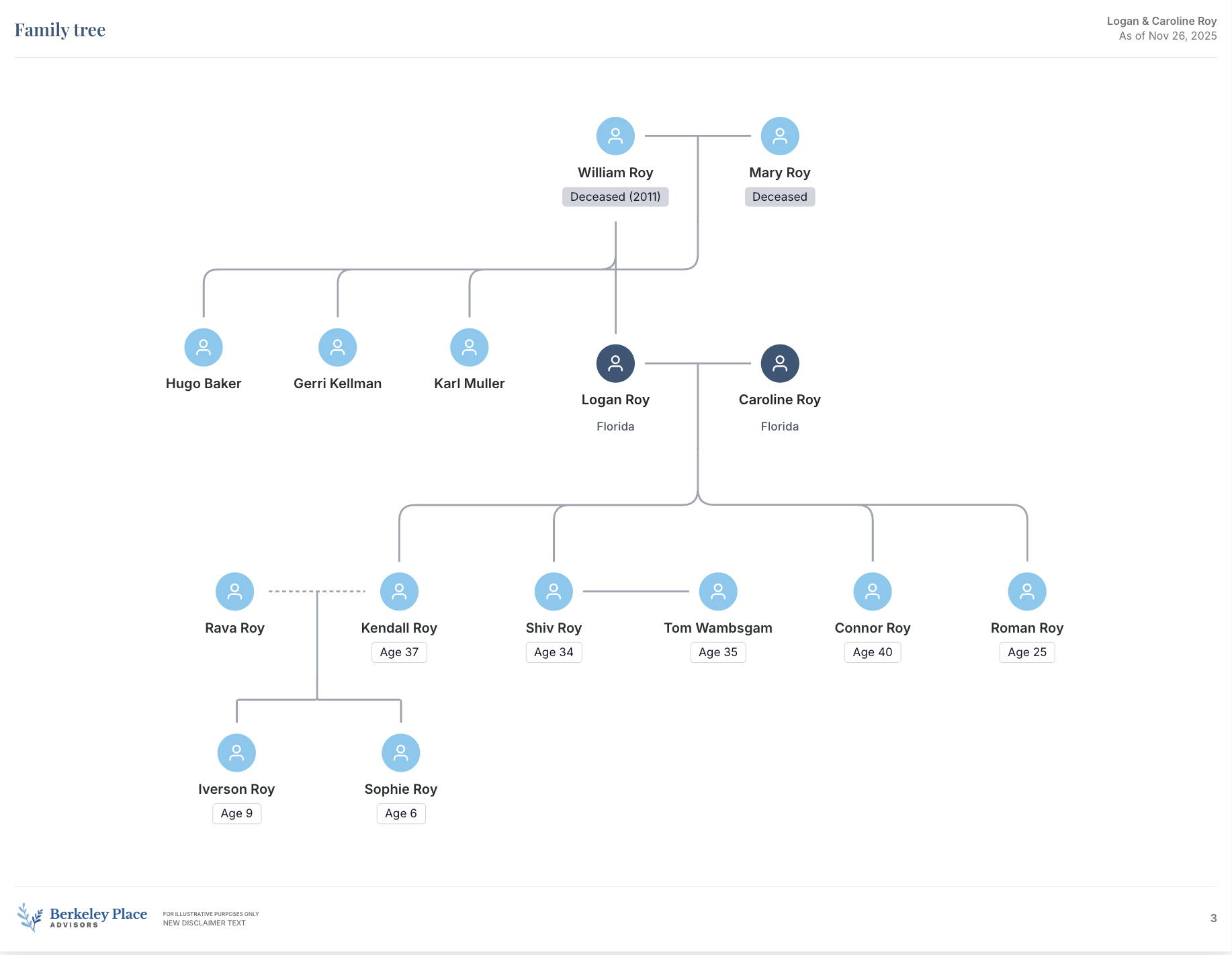
Family tree - The family tree page displays family architecture based on the relationships defined when creating the individuals in the household. This diagram is customizable and allows you to add notes and personal details to help better contextualize your client's family dynamics in the context of their estate plan.
Firm disclaimer and Luminary disclaimer - Disclaimer pages let you include your own custom disclosures, as well as Luminary’s standard disclaimer outlining key assumptions. This feature must be enabled by a firm administrator—see below for details.
Available to add:
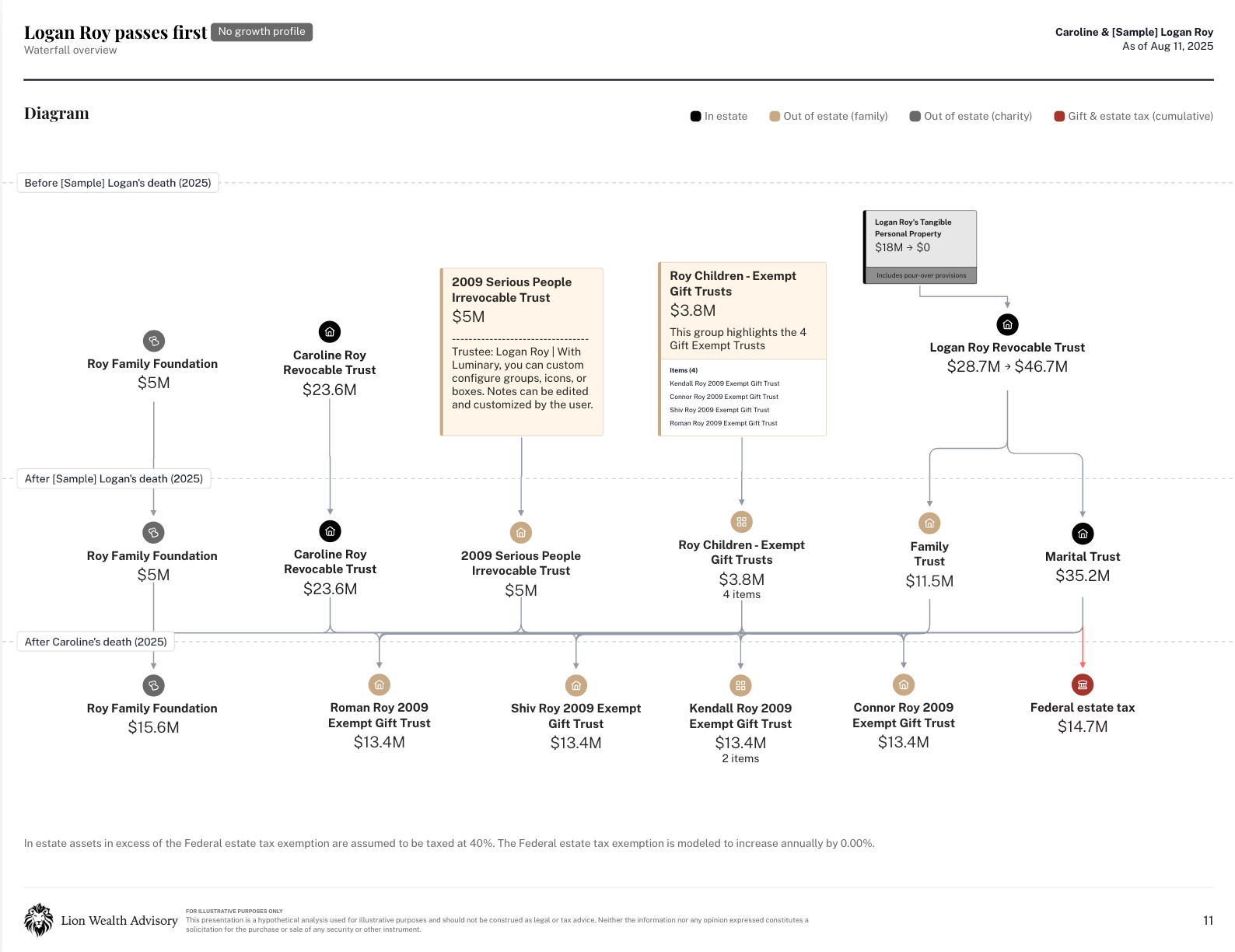
Waterfall overview - The waterfall overview page displays your estate waterfall diagram along with the summary, assumptions, and tax overview for a selected scenario. This page is available to Luminary Pro customers only. See below for more information on how to use this page.
Educational material - Our educational material includes a growing library of pages you can add to your presentation to help frame client conversations and explain complex strategies. Topics range from why estate planning matters and an overview of estate taxes to strategies like SLATs, CRTs, and GRATs.
Insights - The Luminary Insights pages allow you to pull in the identified insights for a given household to speak to either completed and/or active insights identified for your client. See below for more information on how to use this page.
📄 Insights page in the presentation builder
Document summaries - Document summary pages let you include any summarized document you've uploaded for your client. Edits or customizations you made to the summary will carry over into the presentation.
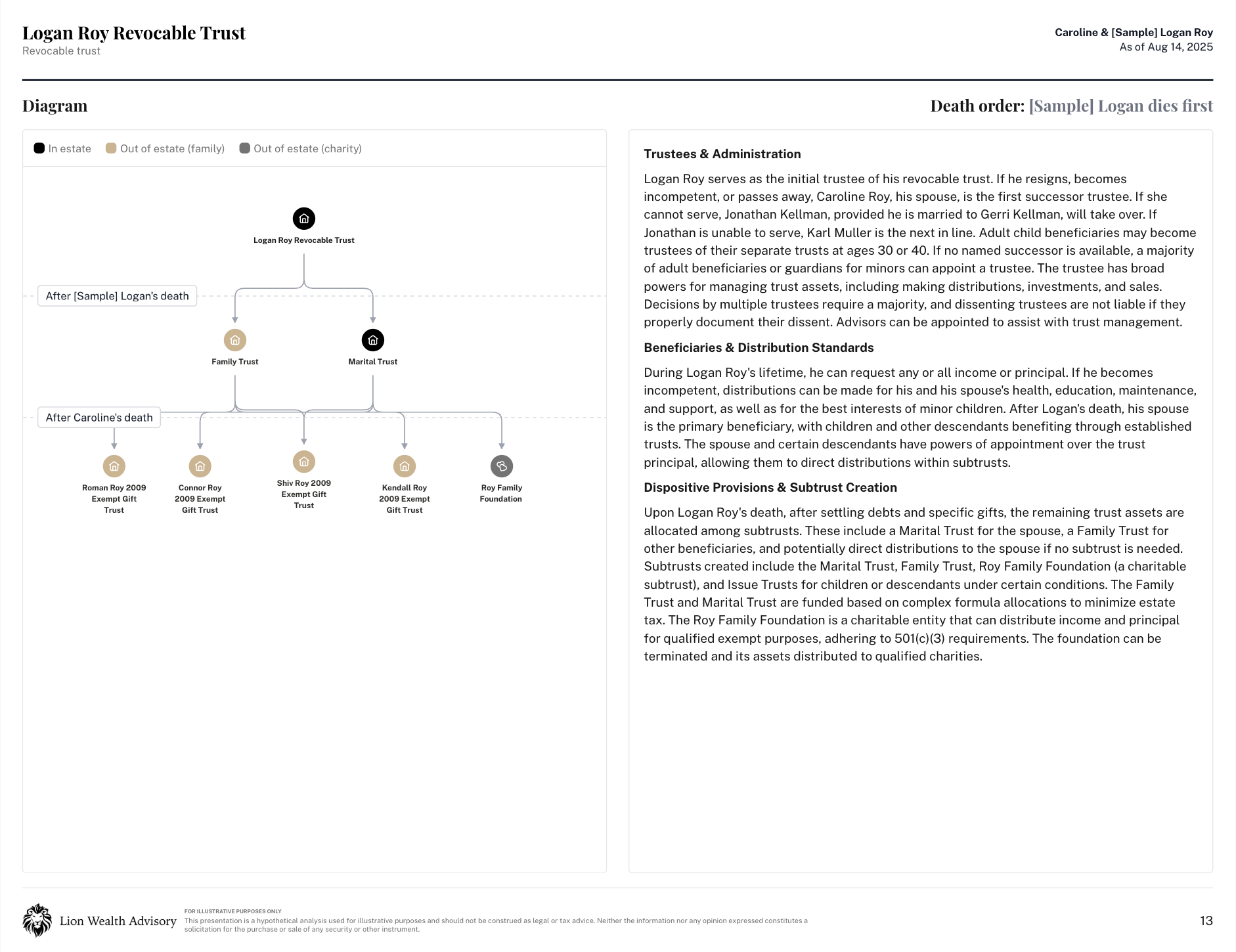
Entity overview - Entity overview pages let you highlight key details about a specific entity, along with a visual diagram showing how it distributes assets or for business entities, how it’s owned. See below for more on how to use this page.
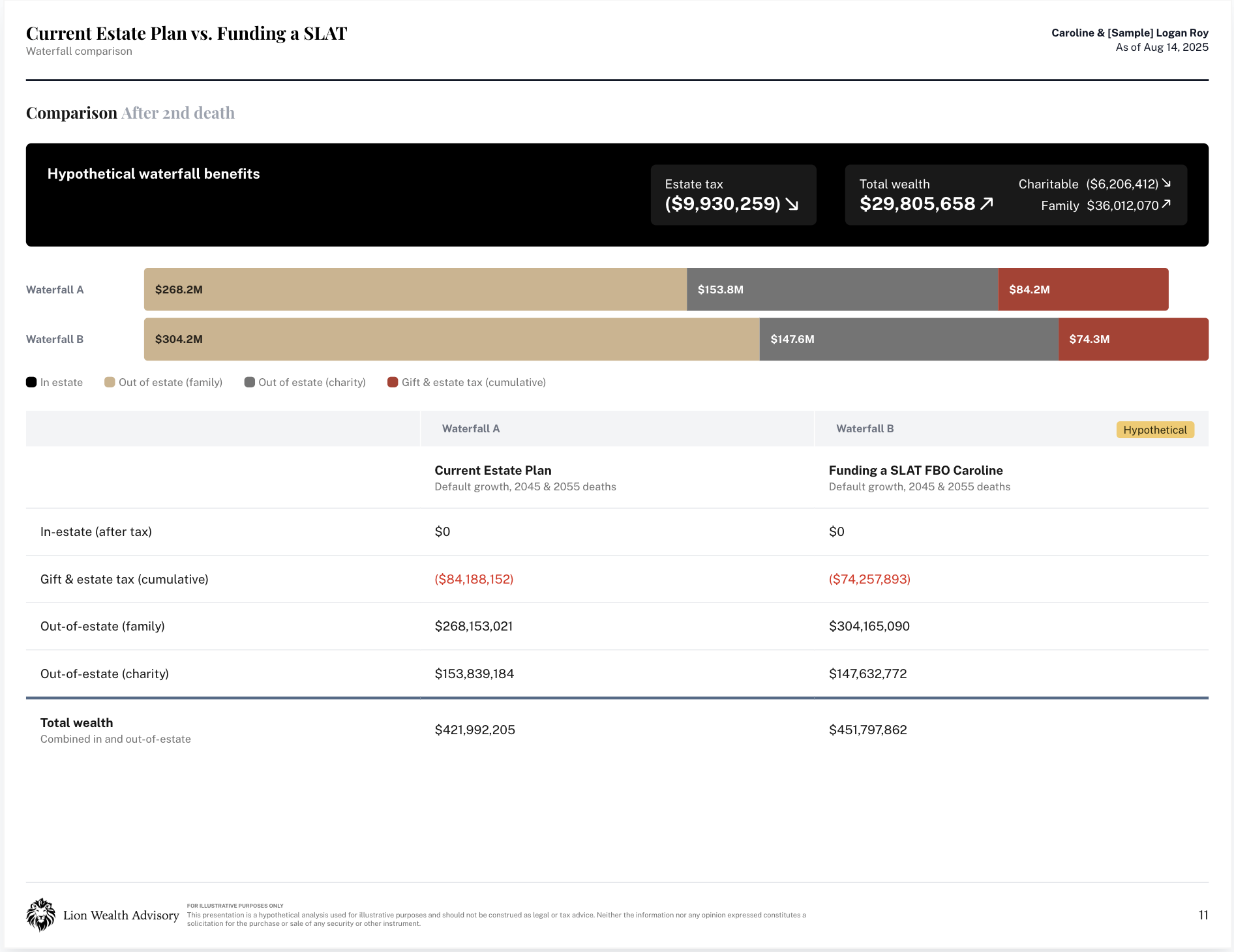
Waterfall comparison - The waterfall comparison page lets you show side-by-side outcomes for multiple scenarios you've modeled in Luminary. It's a great way to highlight differences in tax impact, family and charitable giving, or how assumptions like growth rates and death years affect the plan. See below for more on how to use this page.
Ownership diagram - The ownership diagram displays how various entities are owned across your client’s household. It’s especially helpful for clients with multiple businesses or nested ownership structures, and can also illustrate beneficial relationships to entities—like someone who currently has access to a trust. Any customizations made in-app will carry over to the presentation.
Custom page - The custom page lets you add any additional content that supports your client conversation—like next steps, recommendations, or personalized notes. It includes a header and a free-text body, with formatting options (bold, italics, bullet points) to help you style the content to match your message.
Professional team - The professional team page pulls in the names of individuals listed under the Client Team tab on the People page of your client’s profile. It’s a great way to highlight key members of your client’s advisory team.
Note: This page only includes individuals from the Client Team tab—it does not include fiduciaries listed within individual trusts.